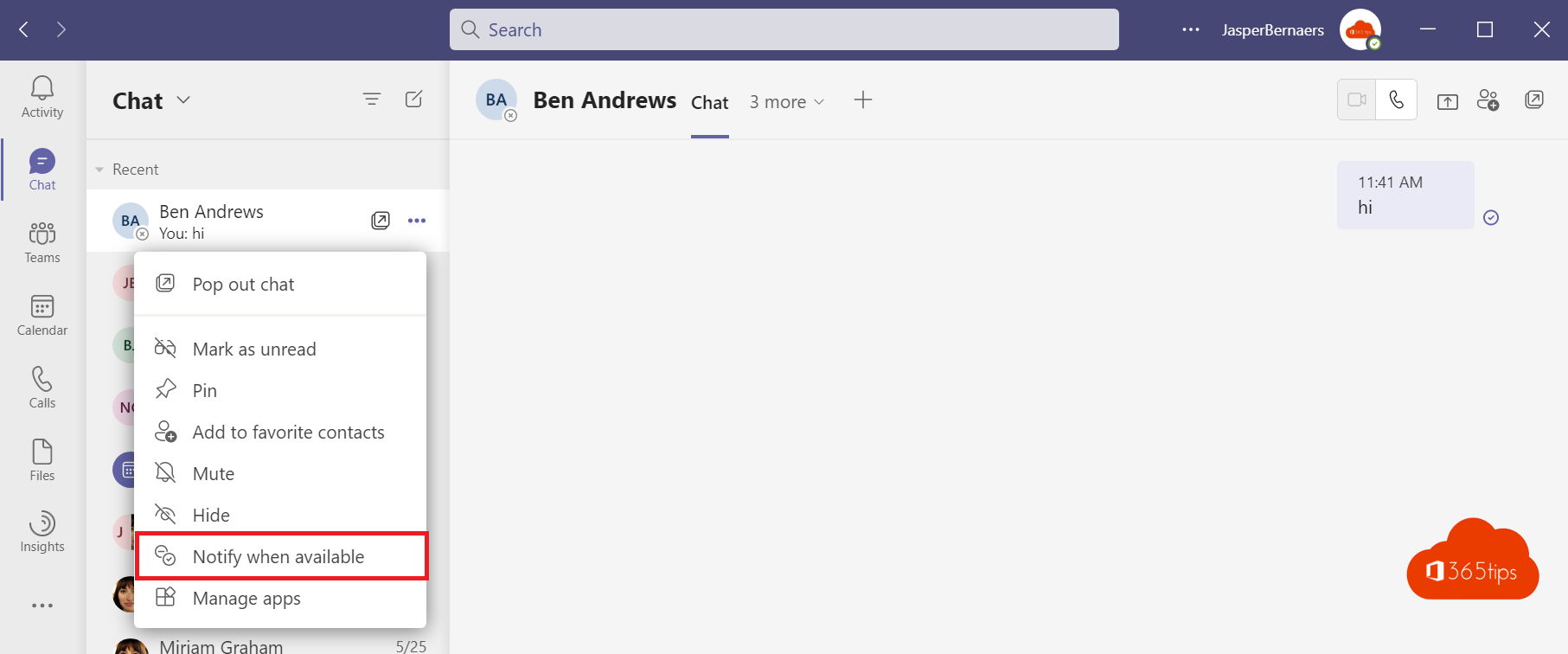
You're waiting for a colleague who's in a meeting, and you want to talk as soon as they're free. Instead of checking their status again and again, let Teams notify you as soon as they're available.
Turn on a notification
- Select your colleague's profile picture or name, for example in a chat, to open their profile card.
- Select More options (...) > Notify when available.
You get a notification as soon as their status changes to Available or Offline.
Manage notifications
- Go to Settings > Notifications and activity.
- Find People or Manage status notifications.
- Add or remove people here.
Tips
- Just send a chat message if it isn't urgent. Your colleague sees it as soon as they're free.
- Want to let people know when you're back yourself? Set a status message or out-of-office.
- This only works for colleagues in your own organization.
Also see set your status in Teams.
Read also
Set your status in Microsoft Teams: available, busy or do not disturb
How to set out of office and a status message in Microsoft Teams
Turn read receipts on or off in Microsoft Teams
Nederlandstalige versie: Een melding krijgen zodra een collega beschikbaar is in Teams
More in English
▸Set quiet hours in Microsoft Teams so you're not disturbed in the eveningSet quiet hours and quiet days in the Teams mobile app so you get no notifications outside working hours.…
▸Mute Microsoft Teams notifications during meetings and set them up smartlyMute Teams notifications during meetings and presentations, set notifications per channel and chat, and use…
▸Mention everyone in a group chat with @everyoneType @everyone in a Teams group chat to notify all participants, and see how mentions work in channels and…
▸How to schedule a chat message in Microsoft TeamsSchedule a chat message in Microsoft Teams on desktop and phone, change or cancel it, and schedule posts in…