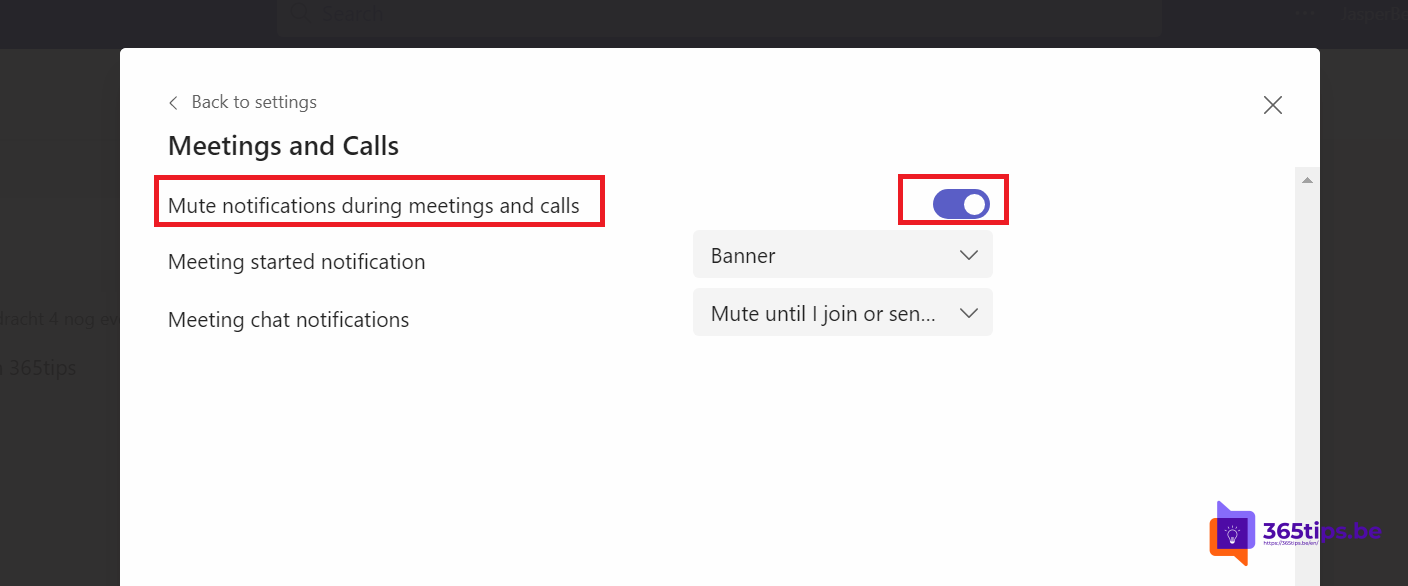
Ping, ping: during a presentation chat notifications keep popping up, and everyone reads along when you share your screen. Microsoft Teams has a simple fix: mute notifications during meetings. This article shows how to turn that on, how to fine-tune the rest of your Teams notifications, and how Do not disturb and Focus in Windows help.
Mute notifications during meetings
- In Teams, select ... next to your profile picture > Settings.
- Choose Notifications and activity.
- Under Meetings, turn on Mute notifications during meetings and calls.
You don't miss anything: notifications still go to your activity feed and chats stay marked as unread. You just don't get pop-ups while you're in a meeting.

Fine-tune your notifications
| Item | Options | Advice |
|---|---|---|
| Chat | Banner and feed, feed only, off | Banner for @mentions and messages to you |
| Teams and channels | All activity, mentions and replies, custom | Mentions and replies, except for your key channels |
| Meetings | Notify when meetings start, on chat messages | Start notifications on, chat of large meetings off |
| Per channel | ... next to the channel > Channel notifications | All activity for the 2 or 3 channels you must follow |
You can also mute a busy chat: ... next to the chat > Mute. You stay a member but get no more notifications.

Do not disturb and priority access
Set your status to Do not disturb (select your profile picture and choose the status) and you get no pop-ups at all, outside meetings too. Teams automatically sets your status to Presenting when you share your screen, with the same effect. If your manager or a colleague should still be able to reach you, add them under Settings > Privacy > Manage priority access.
Focus in Windows 11
Teams also follows Windows notification settings. With Focus (via the clock on the taskbar) you turn off all notifications for a while, for example 30 minutes. Under Settings > System > Notifications, check whether Teams may show notifications; if that's off, you won't see Teams pop-ups either.
Notifications on your phone
- In the Teams app under Notifications, set quiet hours, for example evenings and weekends.
- Choose Only when I'm not active on desktop so your phone doesn't buzz at the same time as your PC.
Tips
- When presenting, share a single window instead of your whole screen. Nobody sees your pop-ups, even if they appear.
- Use the Unread or Mentions filter in your activity feed to catch up quickly after a meeting. See also set your status and out-of-office message in Teams.
Read also
How to set out of office and a status message in Microsoft Teams
Track your personal productivity with Viva Insights (formerly MyAnalytics)
Work in multiple windows with Microsoft Teams
Nederlandstalige versie: Meldingen in Microsoft Teams dempen tijdens vergaderingen en slim instellen