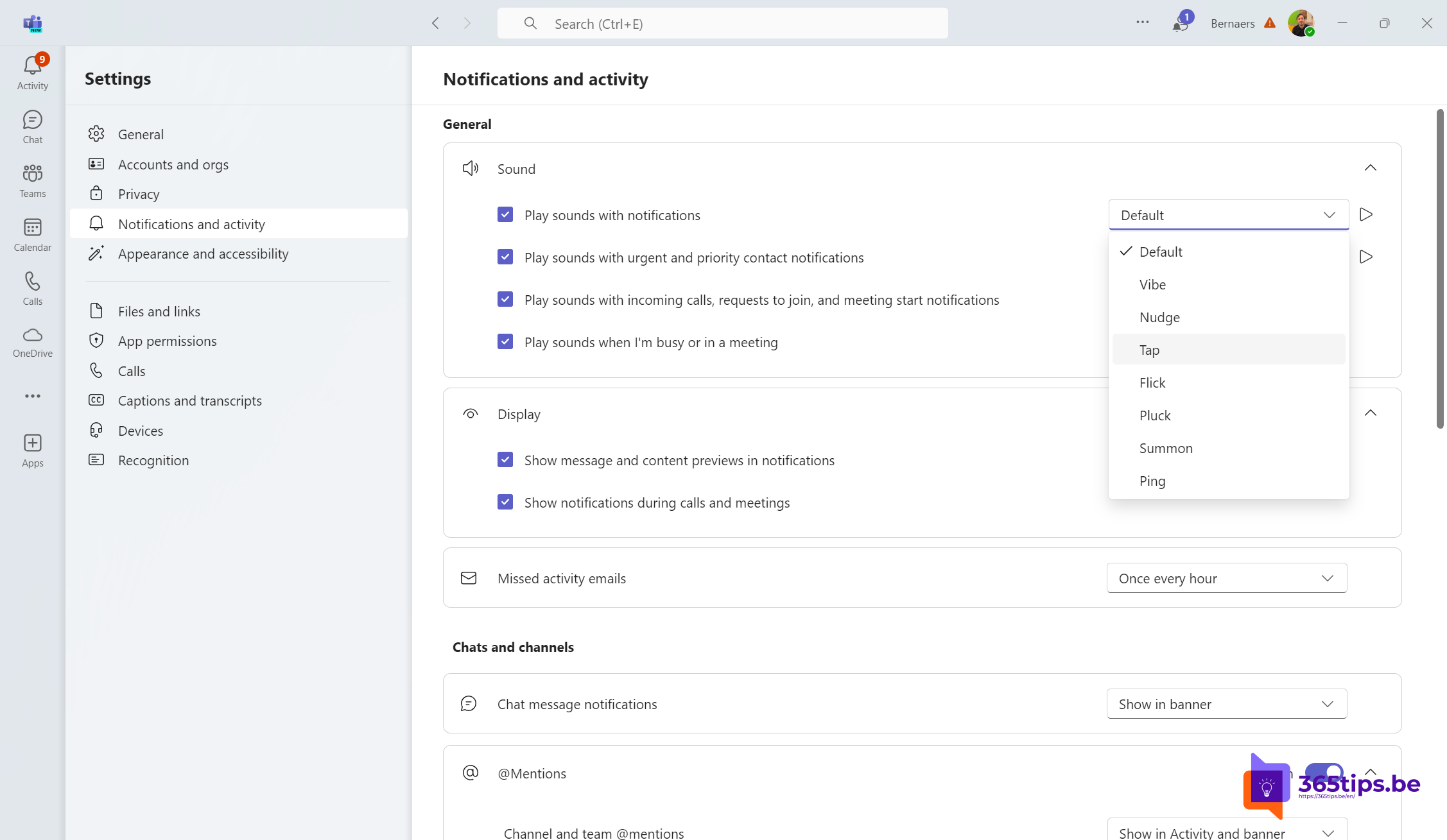
Getting so many Teams notifications that you no longer hear the important ones? With custom notification sounds you give certain notifications their own sound. That way you recognize an urgent message or a call without looking at your screen.
In the new Teams the sound settings are under Settings > Notifications and activity. The exact labels and the number of available sounds can differ per version and platform.
Why use custom sounds?
- Know right away what's coming in: an urgent message sounds different from a regular chat.
- Less distracting: pick a sound you like, or turn sounds off when you need to focus.
- React faster to what really matters.
How to set notification sounds
- In Teams, click the three dots (...) next to your profile picture and choose Settings.
- Go to Notifications and activity.
- Find the section about sounds, for example Notification sounds or Play sound (the exact label can differ).
- Pick a sound per notification type, for example for urgent or important messages. Click the play icon to preview it.
- Changes are saved right away. Ask a colleague to send you a message to test it.
Handy tips
- Need some quiet? Set your status to Do not disturb. You then only get notifications from priority contacts.
- Under Notifications and activity you also choose which notifications you get for chats, channels and meetings.
- Hearing nothing at all? Also check the Windows or macOS notification settings for Teams.
- The ringtone for incoming calls is set under Settings > Calls.
Also see manage Microsoft Teams notifications and get notified when someone is available.
Nederlandstalige versie: Eigen meldingsgeluiden instellen in Microsoft Teams
Related articles
▸Change your ringtone in Microsoft TeamsChoose a different ringtone for calls in the new Teams, separately for forwarded and delegated calls, and…
▸Get a notification as soon as a colleague is available in TeamsTurn on Notify when available on a colleague's profile card and manage your status notifications in the Teams…
▸Mute Microsoft Teams notifications during meetings and set them up smartlyMute Teams notifications during meetings and presentations, set notifications per channel and chat, and use…
▸Set your status in Microsoft Teams: available, busy or do not disturbSet your Teams status to Available, Busy, Do not disturb or Appear away, with a duration, a status message…
▸Get started with Microsoft Teams on iPhone and iPadInstall Teams on your iPhone or iPad, sign in and learn the navigation, meetings and notification settings.