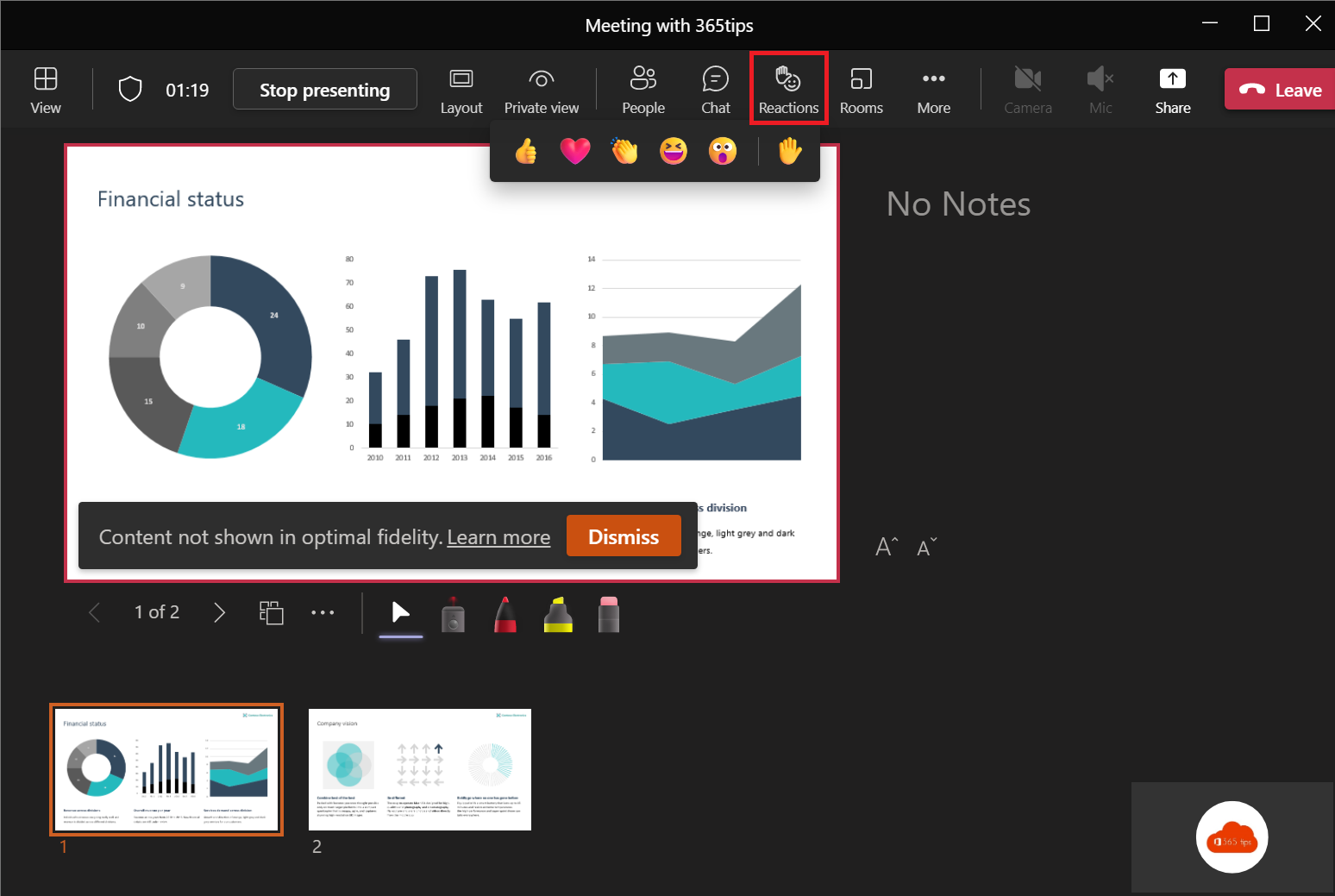
Want to show agreement during a Teams meeting, or cheer on the speaker without interrupting? Use a live reaction. The emoji floats across the screen for a moment, visible to everyone. In the new Teams, reactions sit under the React button at the top of the meeting, together with Raise hand. Recent versions also let you choose more emoji than the standard set.
Which reactions are there?
| Reaction | Meaning |
|---|---|
| 👍 Like | Well done, agreed. |
| ❤️ Heart | Great idea, or just a warm gesture. |
| 👏 Applause | Congratulations, nice work. |
| 😆 Laugh | Funny. |
| 😮 Surprised | Impressive. |
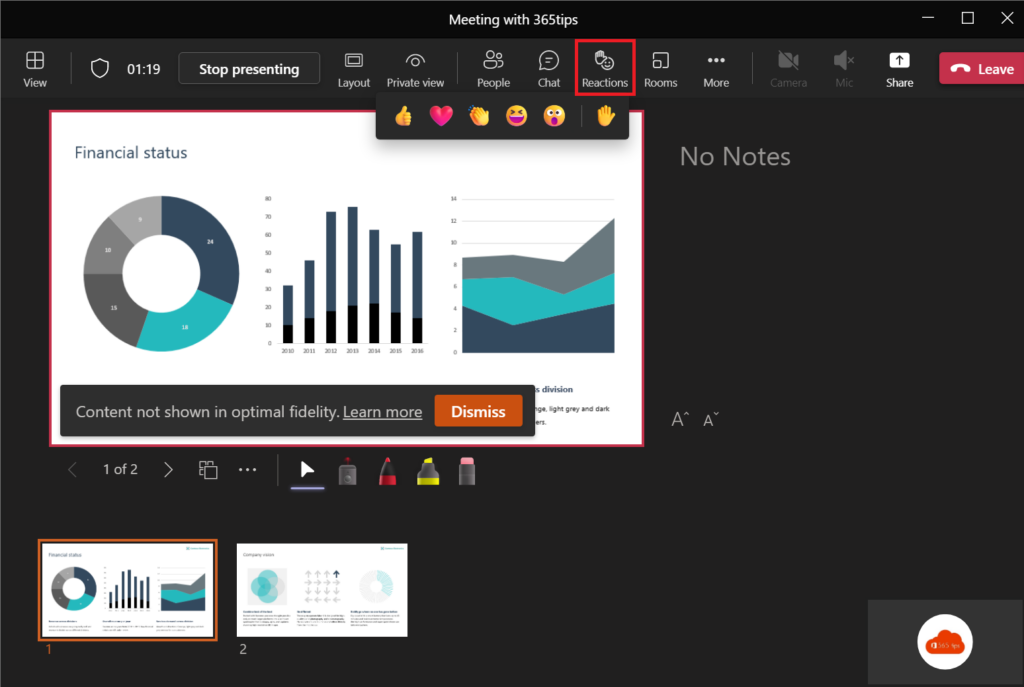
Send a reaction
- Click React at the top of the meeting.
- Choose the emoji you want to send.
Tip: click several times for extra encouragement.
Raise your hand
Want to say something? Choose Raise hand. Your hand stays up until you lower it or the organizer does. Read raise your hand in Teams and lower your hand automatically.
Turn off reactions
In a formal meeting or webinar you may not want emoji. The organizer turns them off under Meeting options > Allow reactions. If you don't want to see other people's reactions yourself, turn that off in your own settings during the meeting. Read turn reactions on or off.
Also see emoji, GIFs and stickers in Teams.
Read also
Turn live reactions on or off in Microsoft Teams meetings
Raise your hand in a Microsoft Teams meeting
Use emoji, GIFs and stickers in Teams and Outlook
Nederlandstalige versie: Live-reacties gebruiken in een Microsoft Teams-vergadering