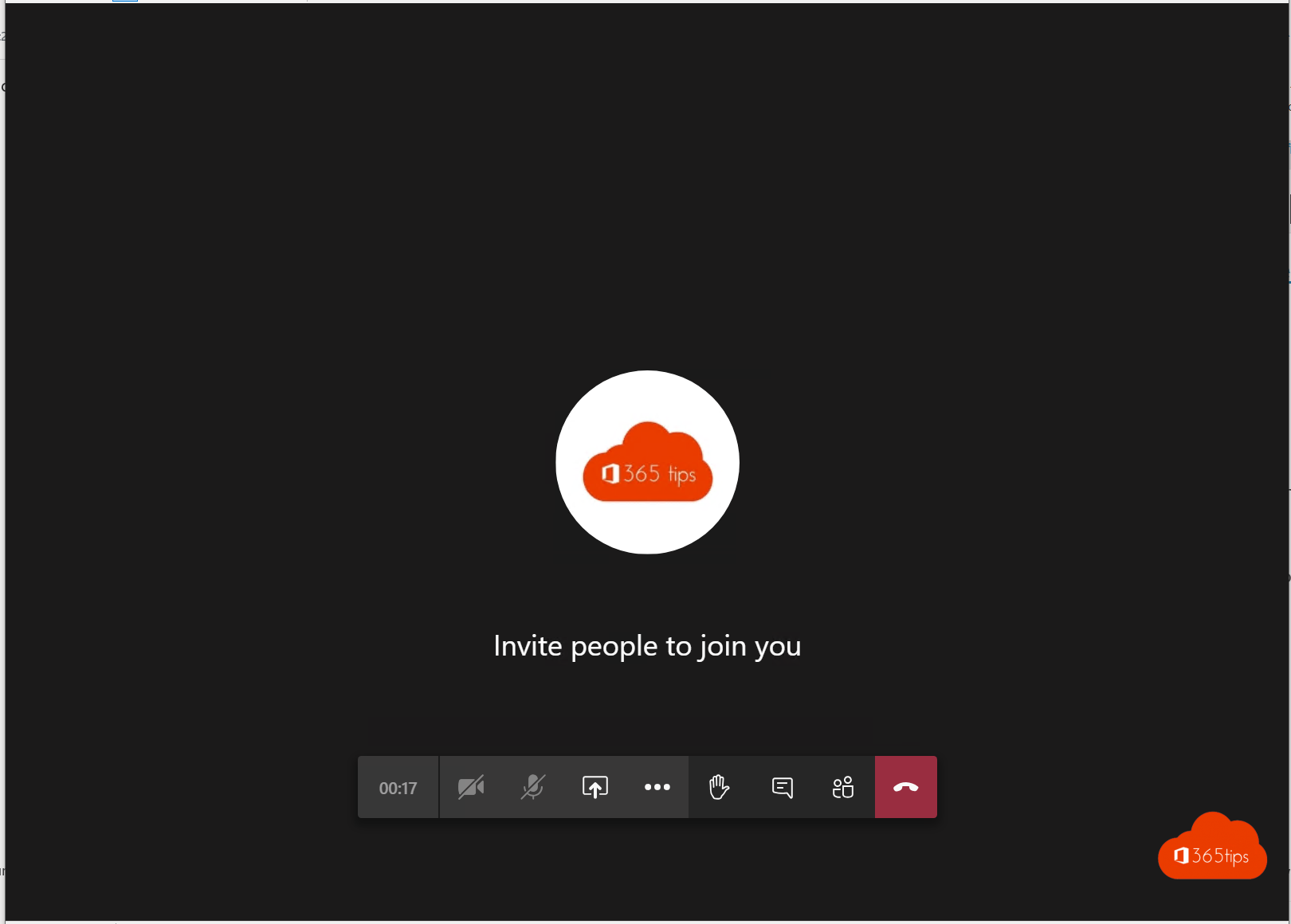
Following a presentation or a large meeting where you don't have to do much yourself? Put the meeting in full screen. The taskbar and other windows disappear, so you focus better and see everything larger. In the new Teams app, full screen is in the meeting's View menu.
Turn on full screen
- Join the Teams meeting.
- Click View at the top.
- Choose Full screen.
In some versions you'll also find the option under More (...). The exact location can vary.
Exit full screen
- Press Esc.
- Or choose View > Exit full screen again.
In the browser
Using Teams in Edge or Chrome? Put the whole browser window in full screen with F11. Press F11 again to go back.
Even more focus
- Focus on content under View shows only the presentation, without videos.
- Meeting in a separate window: in the new Teams every meeting opens in its own window. Move it to your second screen and keep your chat beside it. Read work with multiple windows.
- Mute notifications during meetings: see adjust Teams notifications.
Also see dynamic view in Teams and Teams keyboard shortcuts.
Read also
Work in multiple windows with Microsoft Teams
Mute Microsoft Teams notifications during meetings and set them up smartly
The most useful Microsoft Teams keyboard shortcuts for Windows and Mac
Nederlandstalige versie: Een Microsoft Teams-vergadering op volledig scherm bekijken