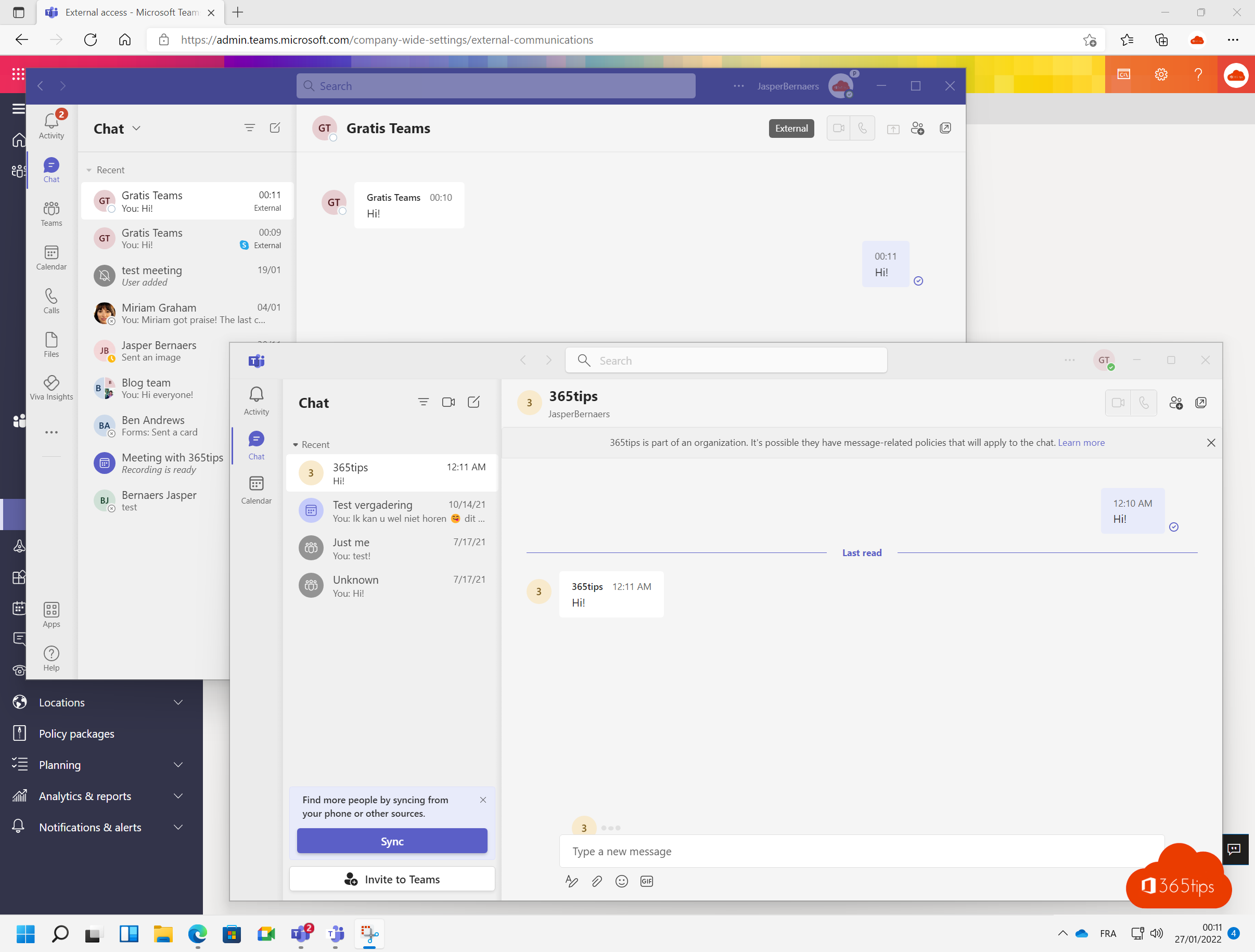
Microsoft Teams isn't just for chatting with colleagues. You can also reach people who use Teams with a personal Microsoft account, such as customers, suppliers or volunteers. That way you don't have to fall back on WhatsApp or text messages to reach someone outside your organization. This article explains how it works and what the admin needs to turn on. Skype has been retired in the meantime: most former Skype users are now on the free version of Teams, and you can reach them the same way.
What is chatting with unmanaged Teams accounts?
Microsoft distinguishes between two kinds of external contacts:
- Other organizations: people with a work or school account in another Microsoft 365 tenant. You control that through external access (federation).
- Teams accounts not managed by an organization: people who use Teams with a personal Microsoft account, for example an Outlook.com or Hotmail address.
This article is about that second group. You can chat and call with them one-on-one, without making them a guest in a team.

Turn on the setting as an admin
- Go to the Teams admin center at admin.teams.microsoft.com.
- Choose Users > External access on the left.
- Find the settings for Teams accounts not managed by an organization and turn them on.
- Decide whether external people may start a conversation with your users themselves. If you turn that option off, only your users can send the first message.
- Click Save. It can take a while before the change is active everywhere.
The exact names of the toggles sometimes shift between versions of the admin center. You can also control the same settings per user with external access policies.

Start a chat with a personal account
- In Teams, click Chat and choose New message.
- Type the person's full email address and choose the option to search externally.
- Send your message. The recipient has to accept the invitation before you can continue chatting.
The conversation clearly shows that the other person is external, so everyone knows they're communicating outside the organization.


What to keep in mind
- Not every feature of an internal chat is available. Sharing files or certain apps sometimes work differently, or not at all, in external chats.
- Your data protection policies (such as DLP and retention) apply to your side of the conversation. Agree on what information you do and don't share through chat.
- If someone needs to work with you long term in channels and files, guest access is often the better choice.
Advice
Allow external chat in a controlled way rather than blocking it. If you block everything, people move to private channels like WhatsApp, and then the organization has no visibility at all.
Also see working with external users in Teams and group chats with external and internal contacts.
Read also
Set up external access in Microsoft Teams
How to add external guests in Microsoft Teams
Five ways to work with external users in Teams
Nederlandstalige versie: Chatten met Teams-gebruikers buiten je organisatie, ook met een persoonlijk account