Want to chat, call and meet in Teams with people from another organization, without making them guests in your team? Then you need external access (also called federation). This article explains the difference with guest access and how to set up external access.
External access or guest access?
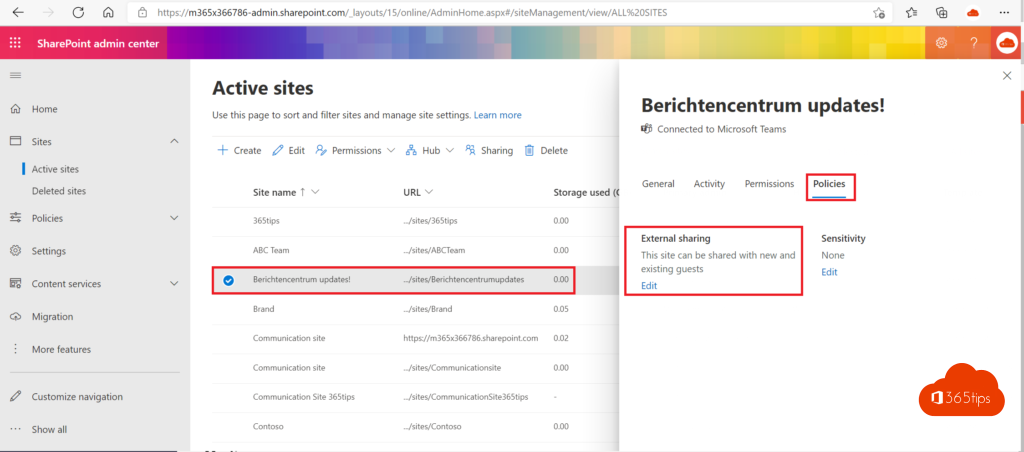
- External access: you chat and meet with someone who stays in their own organization. They don't see your teams or files.
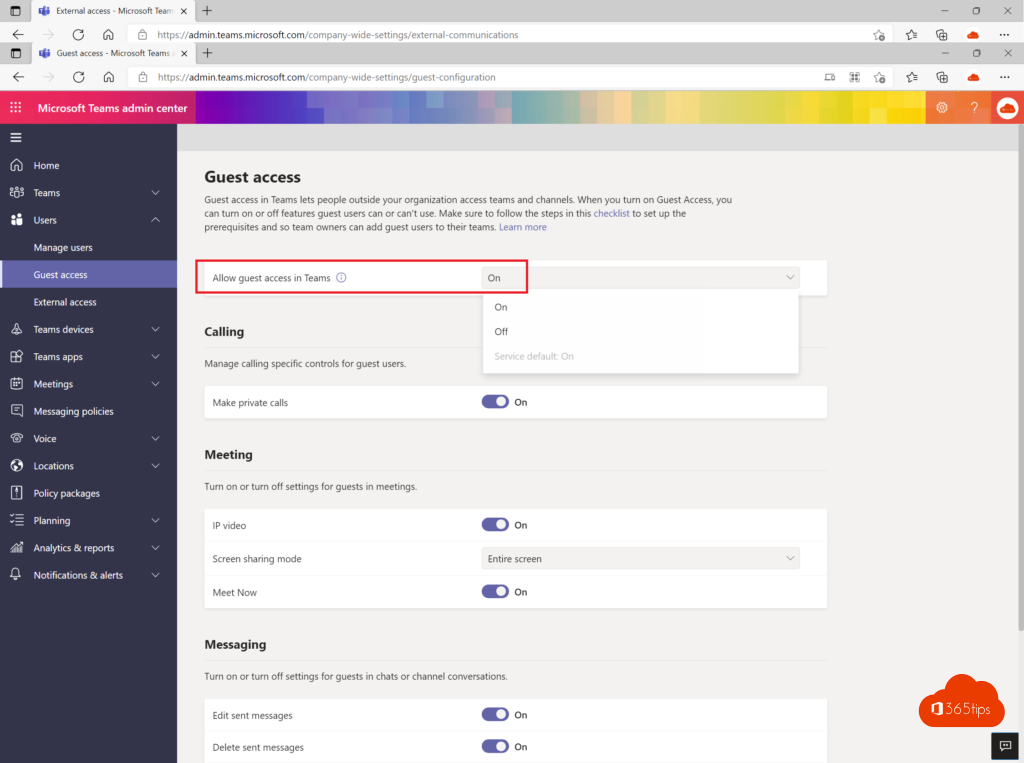
- Guest access: you add someone as a guest to a team. They see that team's channels, files and apps. Read add guests to Teams.
Set up external access
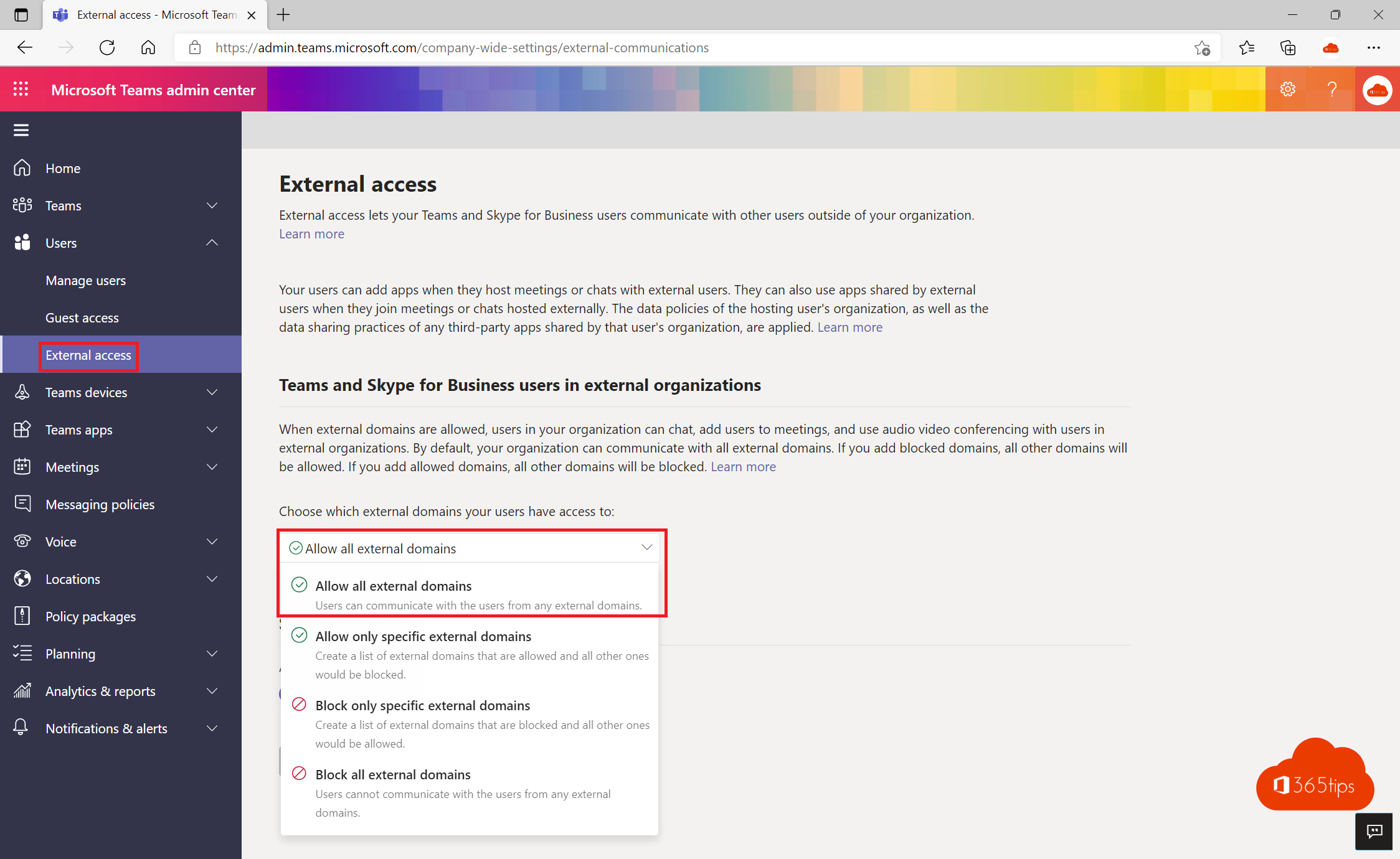
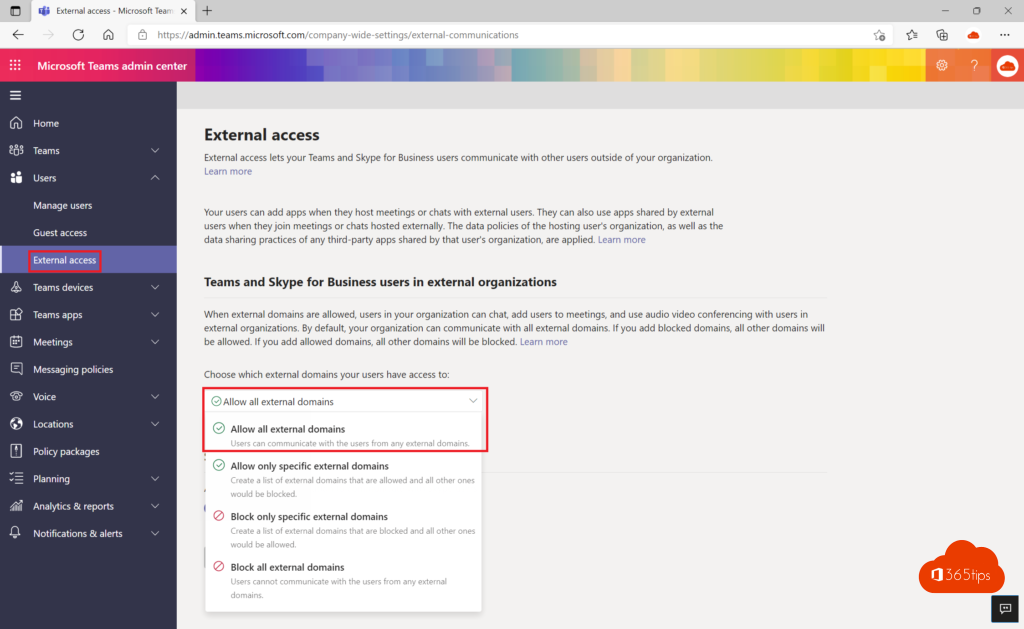
- Open the Teams admin center > Users > External access.
- Under Teams and Skype for Business users in external organizations, choose one of the options:
- Allow all external domains (default),
- Allow only specific external domains, or
- Block only specific external domains.
- Add domains if needed, such as partner.com, and select Save.

Teams users with a personal account
On the same page you decide whether your users can chat with people who use Teams with a personal Microsoft account, and whether those people can start a conversation themselves. Turn this off if you don't want contact with personal accounts.
Start an external chat
In Teams, select New chat and type the full email address of the external person. Choose Search externally. The chat gets an External label. Not working? The other organization must also allow external access for your domain. Changes can take a few hours. Also see join a Teams meeting as an external guest.
Read also
How to add external guests in Microsoft Teams
Join a Microsoft Teams meeting as an external participant
Share a Teams message with people who don't use Teams
Nederlandstalige versie: Externe toegang instellen in Microsoft Teams