Want to work with a customer, supplier or freelancer in Microsoft Teams? Add that person as a guest to your team. A guest can take part in channels, open and edit files and join meetings, just like a colleague, but with limited rights. This article shows how to add a guest, what the guest sees, what an administrator has to allow, and how it differs from external access and shared channels.
Guest, external or shared channel?
| Method | What can the external person do? | Best for |
|---|---|---|
| Guest access | Member of your team: channels, files, meetings | Longer collaboration in one team |
| External access (federation) | Chat and call with you from their own Teams; no access to your teams or files | Quick contact with another organization |
| Shared channel | Access to one channel, without switching accounts | Projects with another organization that also uses Microsoft 365 |
| Meeting invitation | Join only that meeting | One-off meetings |
Add a guest to a team
You need to be an owner of the team.
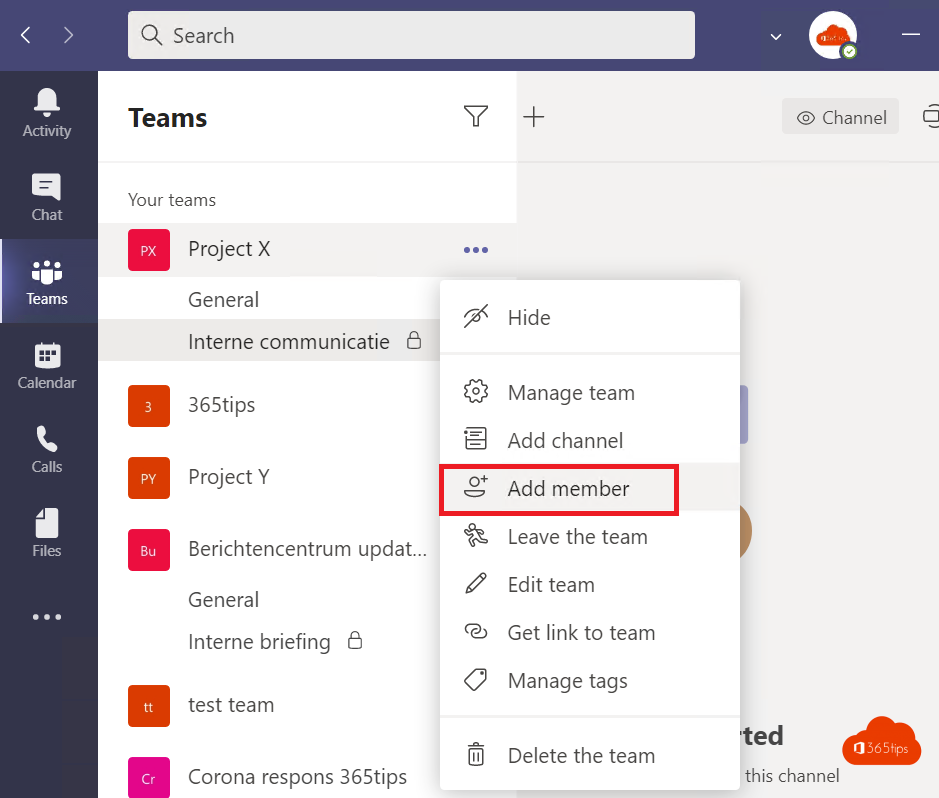
- In Teams, go to the team, click ... next to its name and choose Add member.
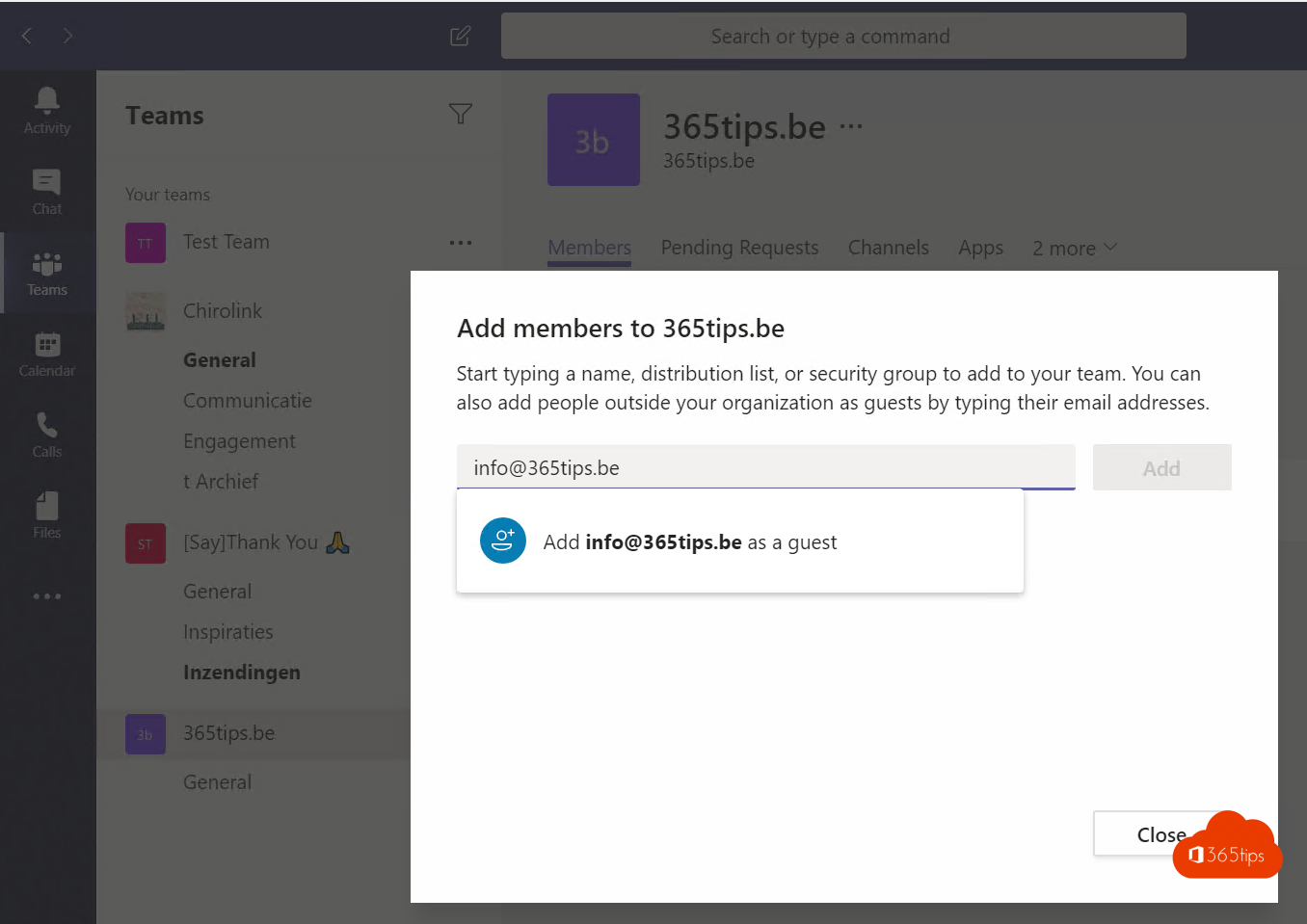
- Type the guest's full e-mail address, for example an@customer.com, and choose to add them as a guest.
- Optionally click the pencil to enter a clear name, such as An Peeters (Customer).
- Click Add.
Don't see the option, or get an error? Then guest access is turned off in your organization (see below).
What does the guest see?
- The guest gets an e-mail with the invitation and a button to open the team.
- They sign in with their own work account or Microsoft account. If they have neither, they get a one-time code by e-mail.
- The first time, they have to accept the permissions.
- In Teams the guest switches to your organization through their profile picture (top right). In the new Teams app your organization also appears as a separate account with its own notifications.
In the team, the label (Guest) appears next to the guest's name so everyone knows they are external.
What can't a guest do?
- Create teams or channels (unless the owner allows it), delete the team or become an owner.
- Search your organization's directory or use OneDrive in your tenant.
- Open files outside the team they belong to.
For administrators: turn on guest access
Guest access depends on three places:
- Teams admin center > Users > Guest access: turn on Guest access and choose what guests may do (calls, meetings, editing messages).
- Microsoft Entra admin center > External Identities > External collaboration settings: decide who may invite guests and whether you only allow certain domains.
- SharePoint admin center > Policies > Sharing: external sharing must be at least New and existing guests, otherwise guests can't open the team's files.
An administrator can also turn off guest sharing per team with a sensitivity label, for example for an HR team.
Clean up guests
Guests keep access until you remove them. Remove a guest from the team when the project is done: ... next to the team > Manage team > Members > the cross next to the guest. Organizations with Entra ID P2 can set up access reviews, so owners regularly confirm which guests are still needed.
Read also
How to create a free Microsoft Teams account
How to create a distribution list in Microsoft 365 and use it in Teams
How to schedule a chat message in Microsoft Teams
Nederlandstalige versie: Externe gasten toevoegen in Microsoft Teams