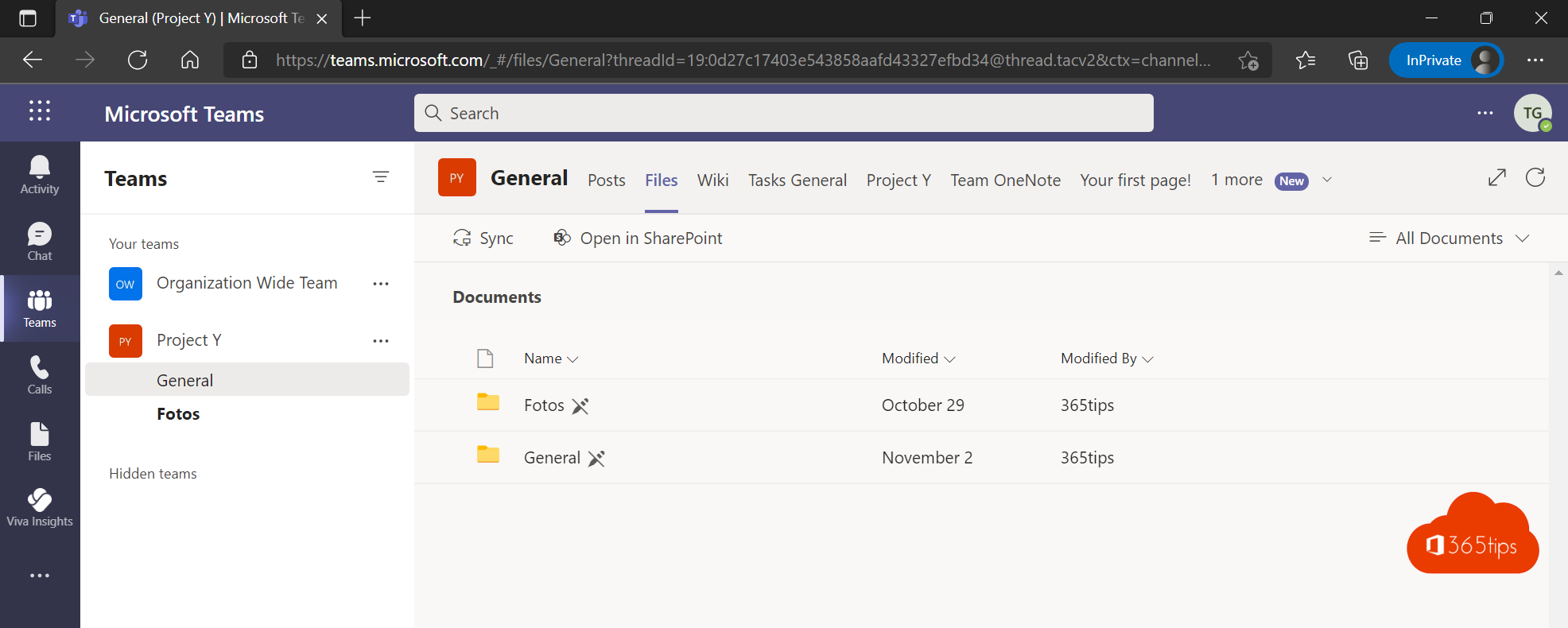
By default, every team member can edit and delete every file. For templates, procedures or course material you'd rather avoid that. With a read-only folder, members can open and download files but not change them. This article shows how to change a folder's permissions.
How does it work?
A team's files live in SharePoint, where each group has a role: owners (full control), members (edit) and visitors (read). For one folder you break the inheritance of those rights and give members read access only.
Make a folder read-only
- In Teams, open the channel > Files tab > Open in SharePoint.
- Right-click the folder > Manage access.
- At the bottom, select Advanced settings (or the three dots > Advanced).
- Select Stop Inheriting Permissions and confirm.
- Tick the Members group > Edit User Permissions > choose Read and select OK.

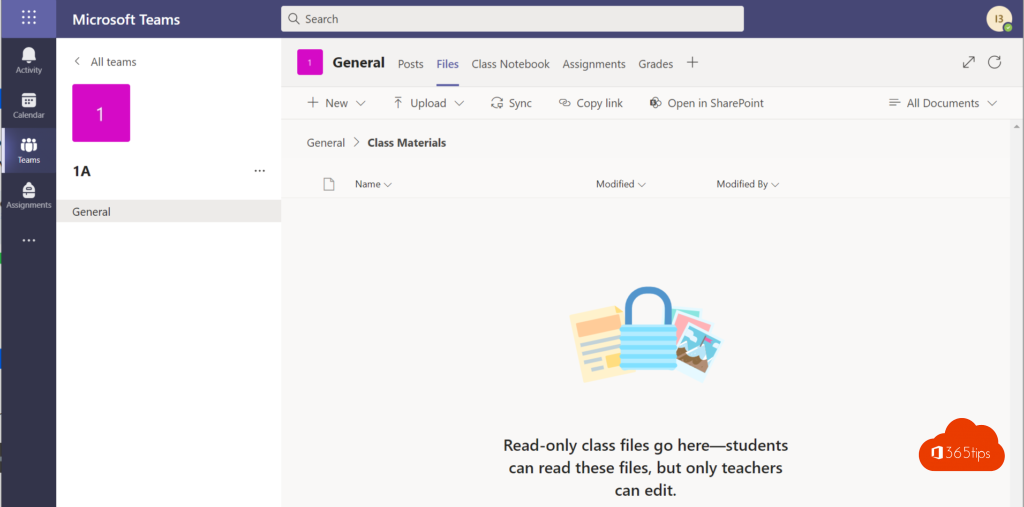
Check it
Ask a colleague who's a member to open a file in the folder. They see a Read-only notice and can't save or delete anything. Owners can still do everything.
Tips
- Want a few colleagues to be able to edit? Add them separately with Edit on the same permissions page.
- Use this sparingly. Lots of folders with unique permissions make a team hard to manage.
- Should only part of the team see the folder? Use a private channel instead.
- Back to normal: choose Delete unique permissions in the advanced permissions.
- Make folders easier to find with folder colours.
Read also
Create a standard, private or shared channel in Microsoft Teams
Give folders a colour in Microsoft Teams, SharePoint and OneDrive
Sharing options greyed out in Teams, SharePoint or OneDrive: how to fix it
Nederlandstalige versie: Een alleen-lezen map maken in Microsoft Teams