Accidentally deleted a file or folder in Microsoft Teams? Don't panic: files in Teams live in SharePoint, and SharePoint keeps deleted items in the recycle bin for 93 days. This article shows how to restore a deleted file from a Teams channel, from a chat and from SharePoint, what to do when the file is no longer in the recycle bin, and how to restore an entire library to an earlier point in time.
Where are your Teams files stored?
| Shared in | Stored in | Restore from |
|---|---|---|
| A channel (Files tab) | The team's SharePoint site | The SharePoint site recycle bin |
| A chat or meeting chat | The OneDrive of the person who shared it, folder Microsoft Teams Chat Files | That person's OneDrive recycle bin |
| A meeting recording | OneDrive of the person who recorded it, or SharePoint for channel meetings | The recycle bin of that OneDrive or site |
Restore a deleted file from a Teams channel
You cannot restore files directly in Teams; you do it in SharePoint.
- Open the team and channel where the file was, and go to the Files tab.
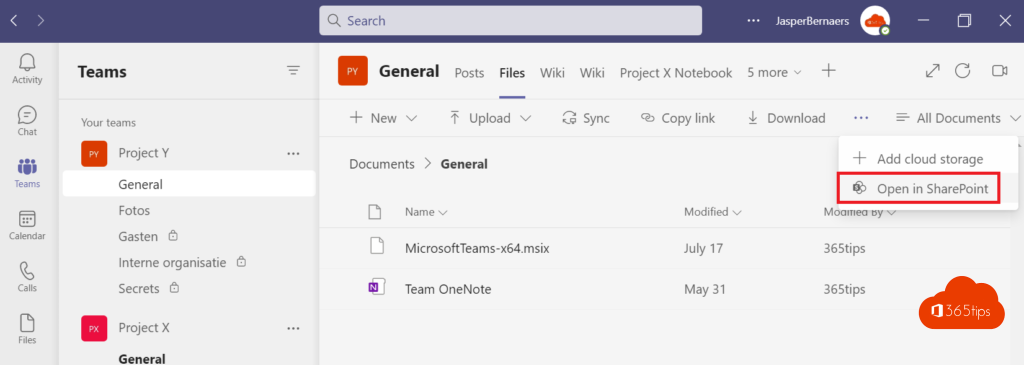
- Click ... (more options) at the top and choose Open in SharePoint.
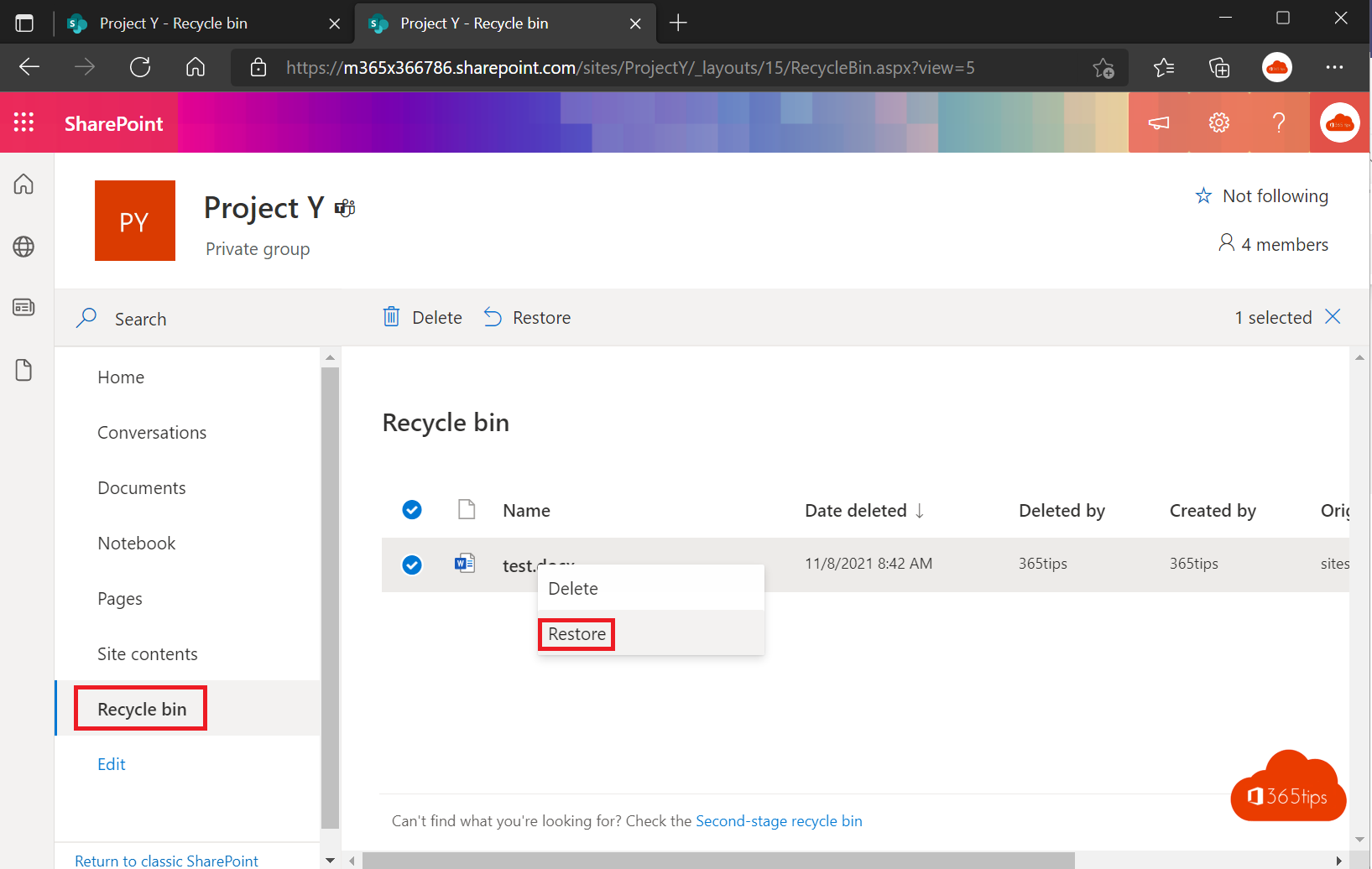
- In SharePoint, click Recycle bin on the left. If you don't see it, click the gear icon at the top right > Site contents > Recycle bin.
- Select the file or folder and click Restore.
The file returns to its original location and is visible in Teams again right away. A deleted folder is restored in one go, with all files inside.
In the recycle bin you see the files you deleted yourself, and also those deleted by others if you have edit permissions on the site.
Not in the recycle bin? Check the second-stage recycle bin
SharePoint has two recycle bins:
- Site recycle bin (first stage): everything you delete goes here.
- Site collection recycle bin (second stage): everything someone deletes from the first recycle bin, or that is removed when it is emptied.
The 93 days count from the moment the file was originally deleted; the clock does not restart in the second-stage bin. To open it, click the link to the Second-stage recycle bin at the bottom of the recycle bin. You need to be an owner of the team or a site administrator. If you are just a member, ask a team owner.
Restore a deleted file from a Teams chat
Files in a 1:1 chat, group chat or meeting chat are stored in the OneDrive of the person who shared them.
- The person who shared the file opens OneDrive in the browser.
- Click Recycle bin on the left.
- Select the file and click Restore.
OneDrive for work or school also keeps deleted items for 93 days by default.
File overwritten rather than deleted?
If someone changed or overwrote a file, you do not need the recycle bin. In SharePoint or OneDrive, right-click the file > Version history and restore an earlier version.
Restore an entire library to an earlier time
Have a lot of files been deleted, encrypted by ransomware or changed by a sync error? Then you can restore the whole document library to a moment in the last 30 days.
- Open the document library in SharePoint.
- Click the gear icon at the top right > Restore this library.
- Pick a time or a custom date and time. The chart and the activity list show when things went wrong.
- Click Restore.
All changes after that moment are undone, including good changes by colleagues. You need owner permissions. In OneDrive it is called Restore your OneDrive.
What can an administrator still do?
- A deleted team (and with it the underlying Microsoft 365 group and SharePoint site) can be restored by an administrator within 30 days in the Microsoft 365 admin center (Teams & groups > Deleted groups).
- A deleted site can be restored by a SharePoint administrator in the SharePoint admin center under Sites > Deleted sites.
- After 93 days: Microsoft keeps backups of SharePoint content for another 14 days. Within that window an administrator can ask Microsoft Support to restore the content.
- Retention policies in Microsoft Purview or a backup solution such as Microsoft 365 Backup keep files longer. Without them, a file is gone for good after these periods.
Tips to avoid losing files
- If you delete a file in a synced folder in File Explorer, it also disappears in Teams. Look in the SharePoint recycle bin then, not the Windows Recycle Bin.
- Do not make everyone an owner: only owners can use the second-stage recycle bin.
- The recycle bin counts towards the site's storage. Large deleted files keep taking up space until they are permanently gone.
Read also
How to set out of office and a status message in Microsoft Teams
How to password protect an Excel file or remove the password
Find and delete large files in Windows 11 and 10: 5 ways
Nederlandstalige versie: Verwijderde bestanden herstellen in Microsoft Teams en SharePoint