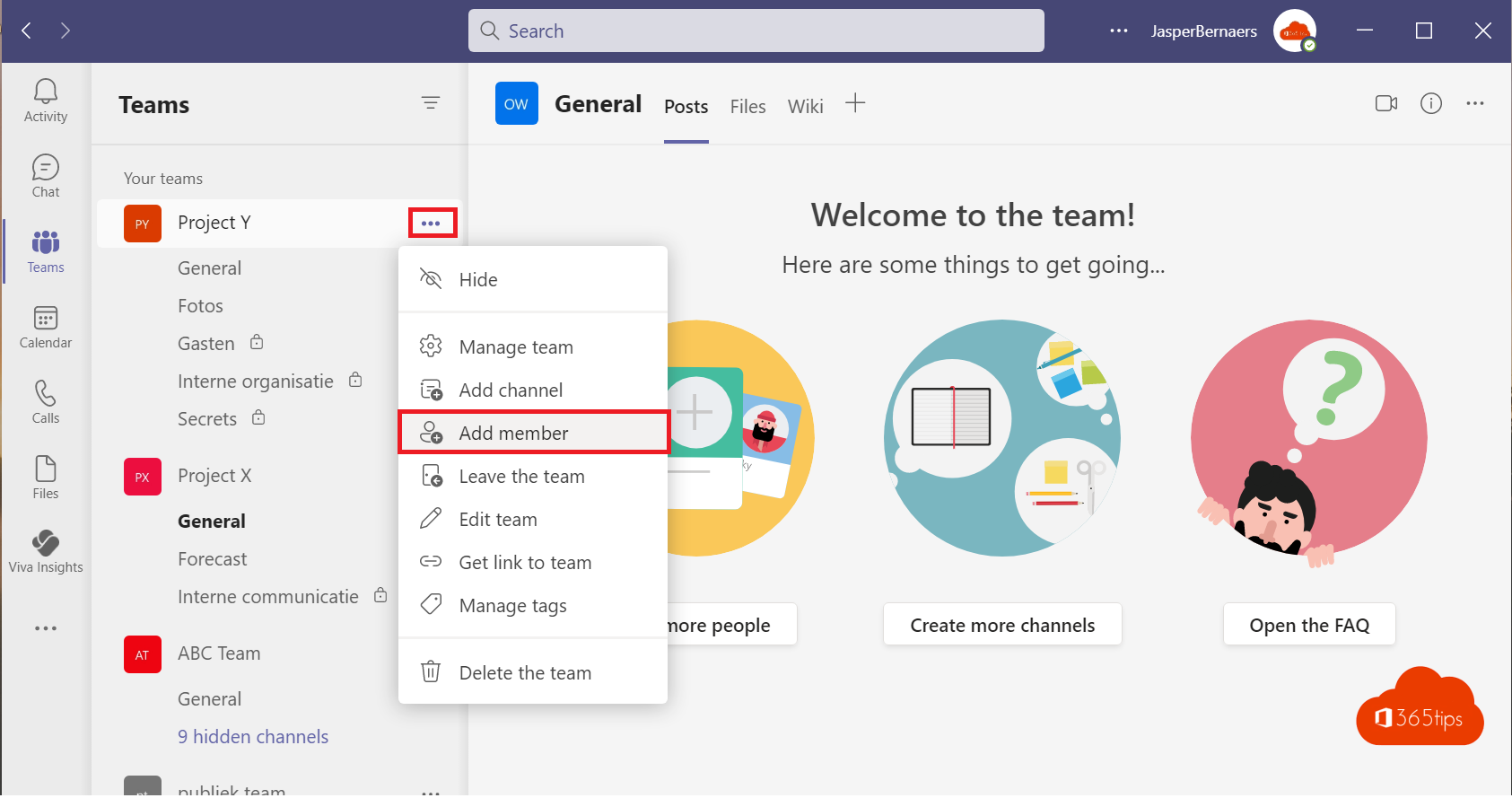
You created a private channel in Teams, but you can't add anyone to it: the person doesn't show up in the search results. The cause is almost always the same. This article explains why and how to fix it.
The cause
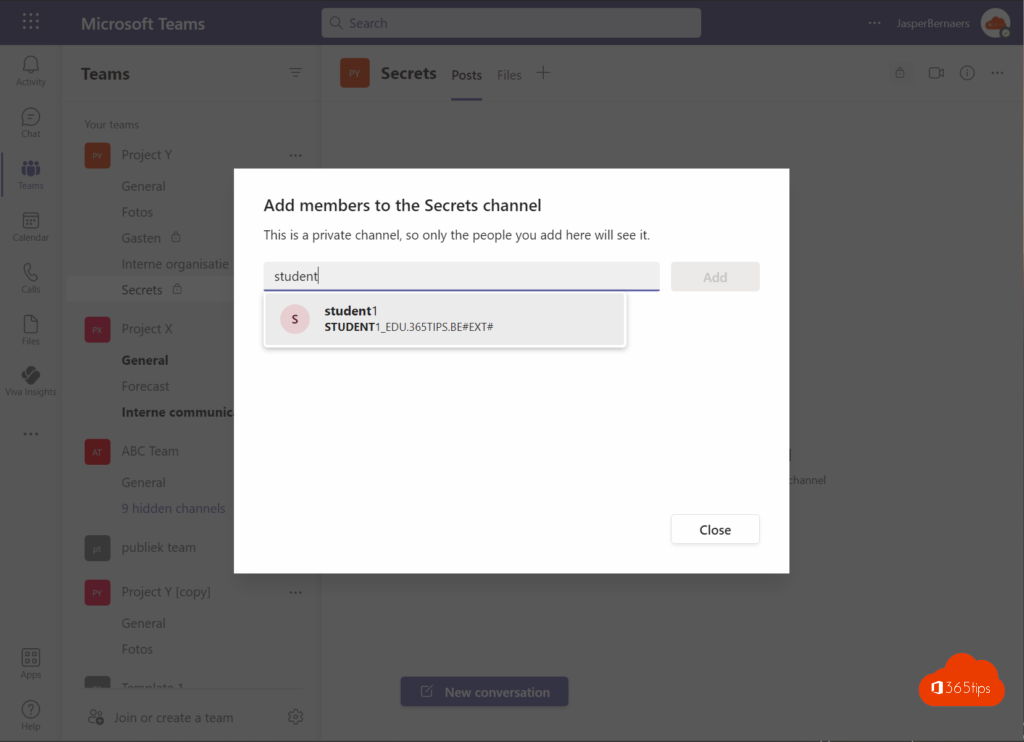
A private channel is a channel inside a team. You can only add people who are already a member or guest of that team. If someone isn't in the team, you won't find them when adding members to the private channel.
The fix
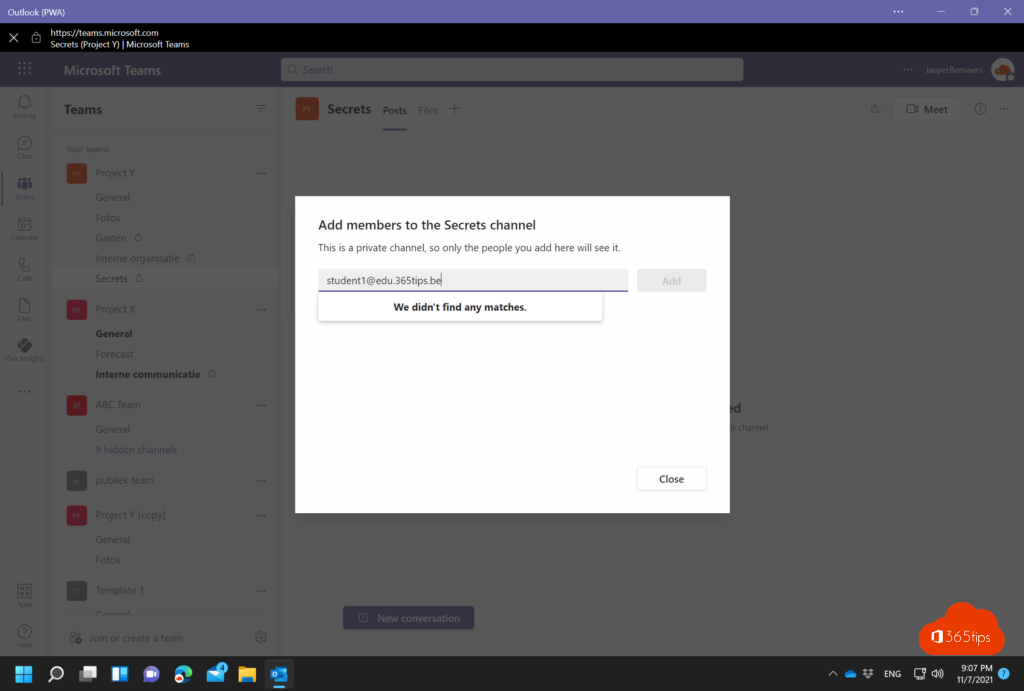
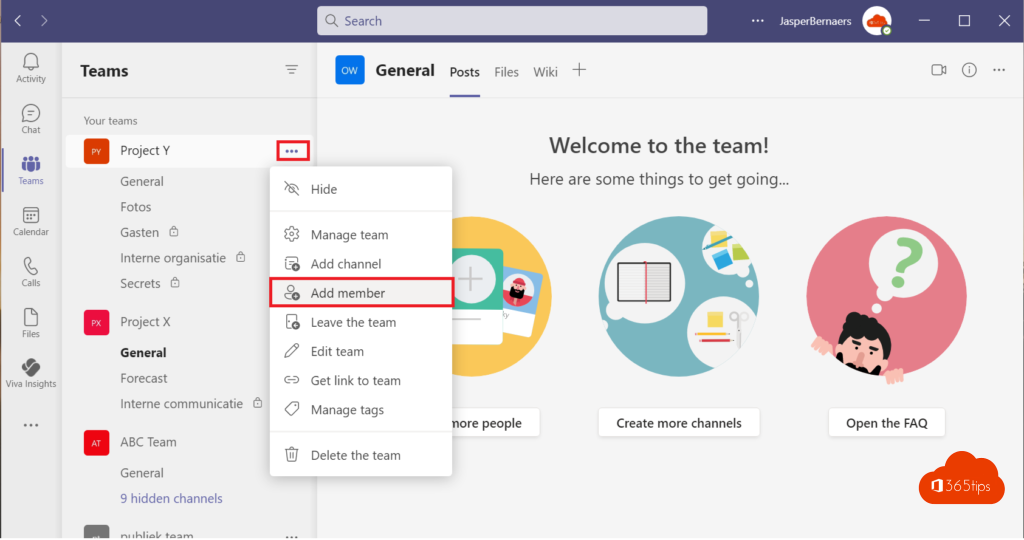
- First add the person to the team: More options (...) next to the team > Add member. See add multiple members to a team.
- Then go to the private channel > More options > Manage channel > Members > Add members.
- Search for the person and select Add.
Don't want that person to see the other channels? Then a private channel isn't the right choice. Use a separate team or a shared channel instead.
Shared channels
In a shared channel you can add people who aren't members of the team, and even people from another organization (if both organizations allow it). They only see that one channel.
Still not working?
- Only owners of the private channel can add members.
- Guests must have accepted their invitation to the team first.
- After adding someone to the team, it can take a few minutes before they can be found.
Read also
Add multiple users to a team at once in Microsoft Teams
Owners, members and guests in Microsoft Teams: who can do what?
Create a standard, private or shared channel in Microsoft Teams
Nederlandstalige versie: Je kunt niemand toevoegen aan een privékanaal in Teams: de oplossing