
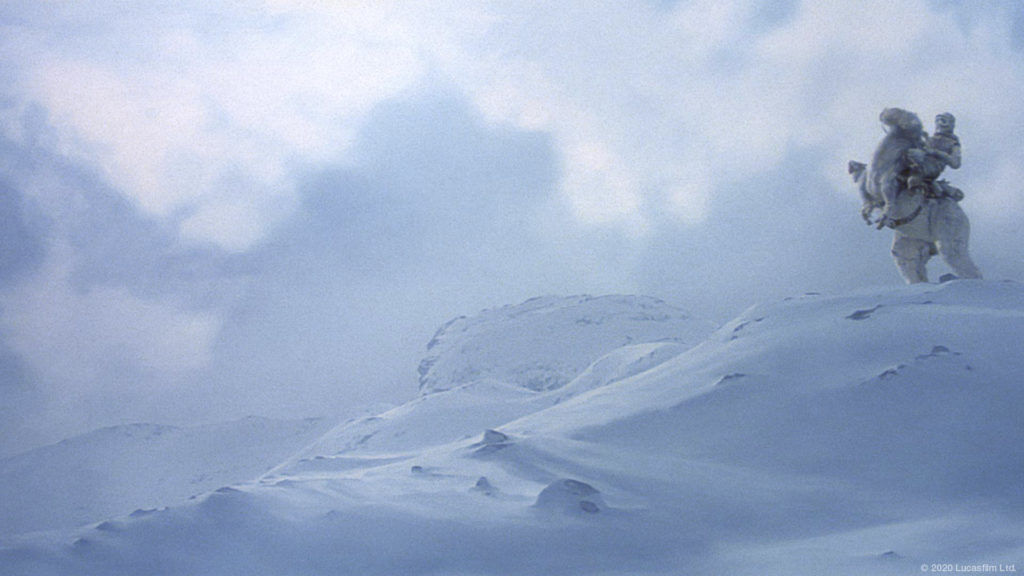
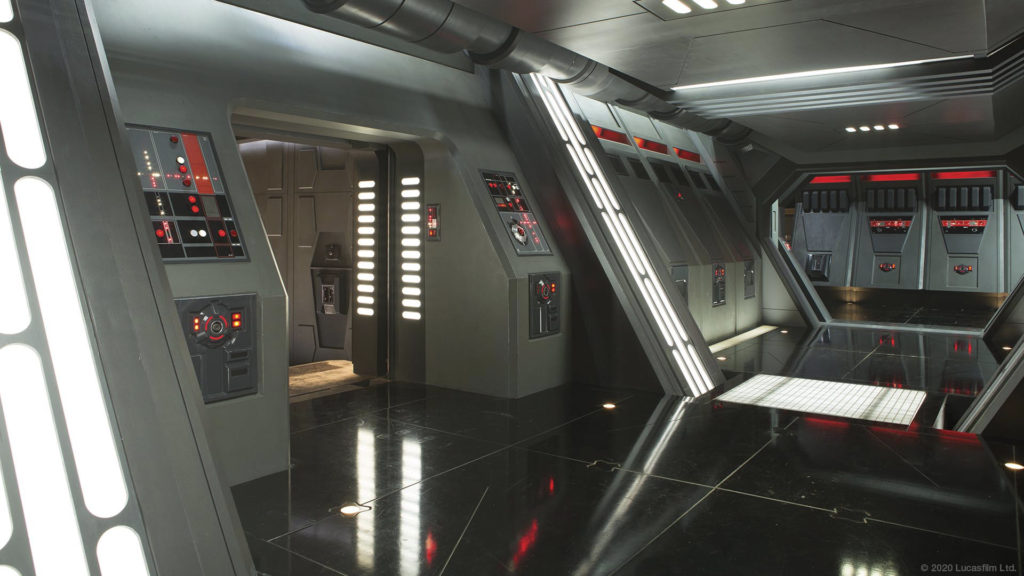
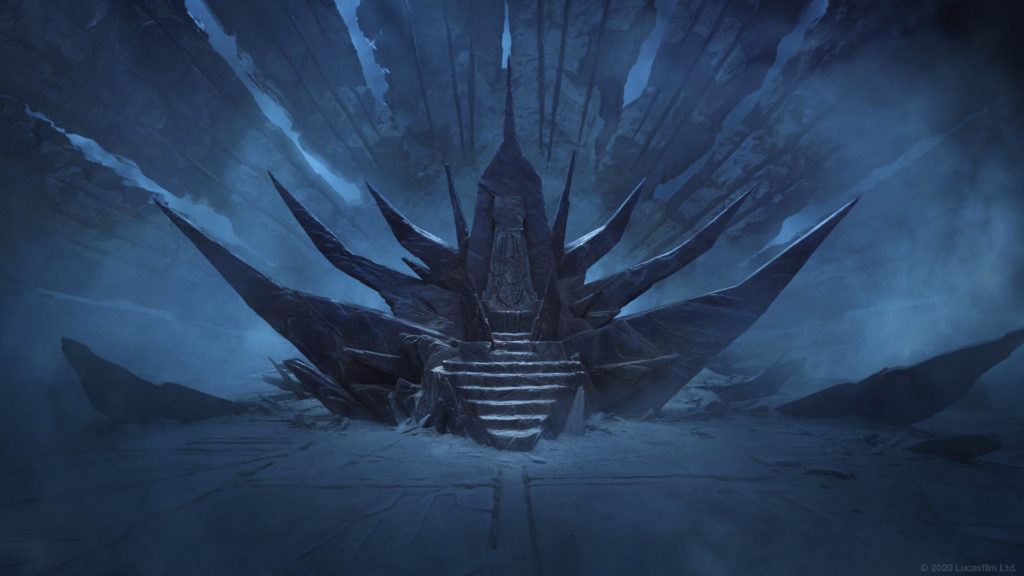
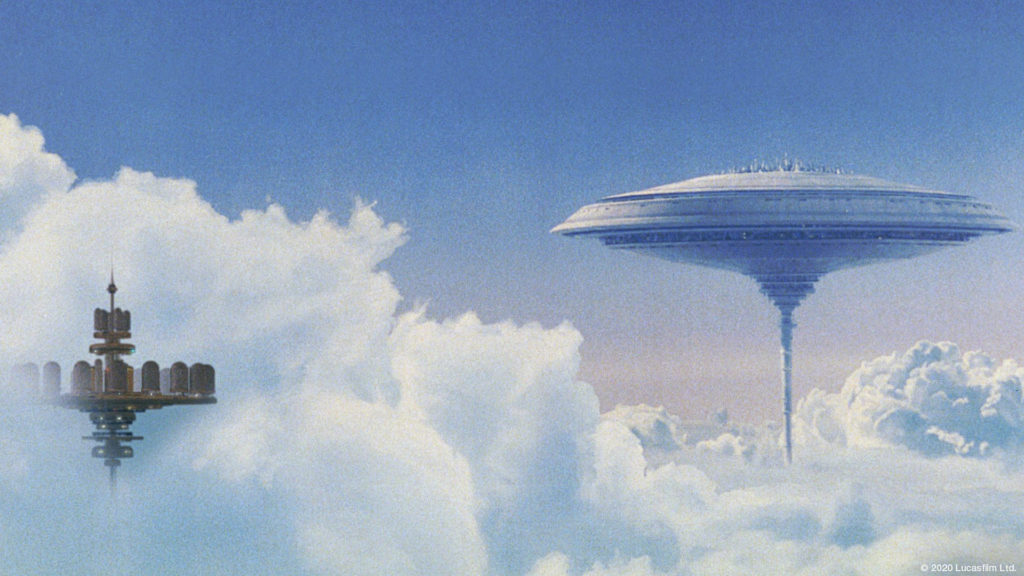
A meeting from the bridge of a Star Destroyer or the desert of Tatooine? These Star Wars backgrounds give your Teams meeting a touch of a galaxy far, far away.
In the new Teams you no longer copy files to a folder in AppData. You simply add a background via Video effects and settings.
Set a background in the new Teams
- Right-click an image below and choose Save image as.
- In the meeting pre-join screen, click Video effects and settings. During a meeting you'll find it via the arrow next to Camera.
- Under Backgrounds, choose Add new and select the image.
Preferably use a landscape image of about 1920 x 1080 pixels. Your admin can restrict custom backgrounds or provide organization backgrounds with Teams Premium. Menu names may differ slightly.
Star Wars backgrounds
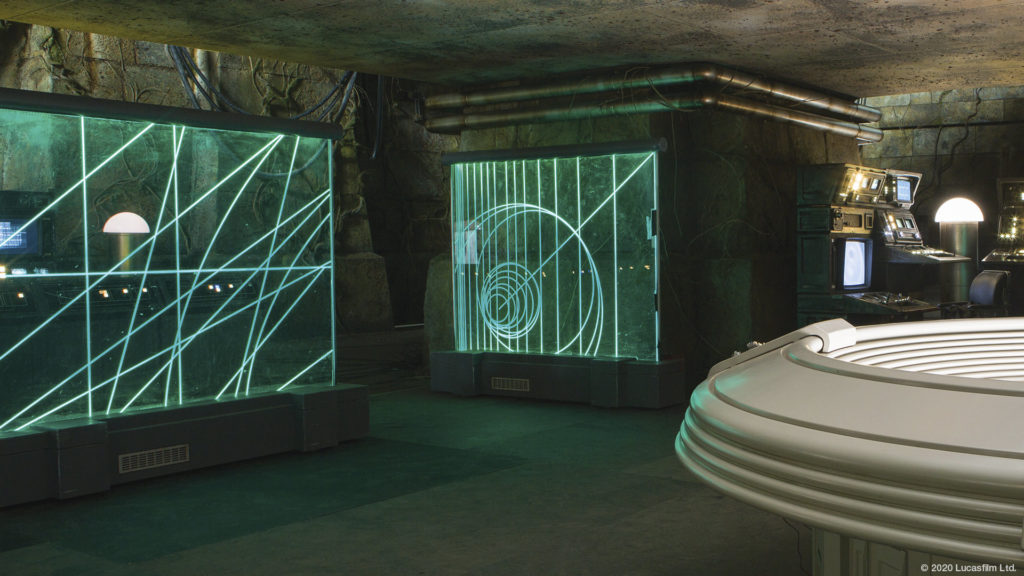

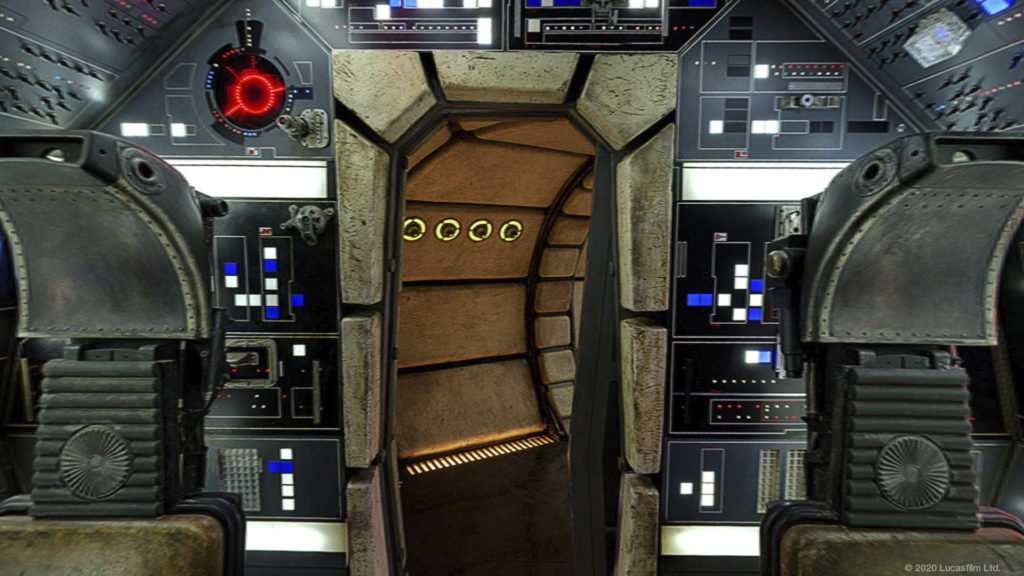
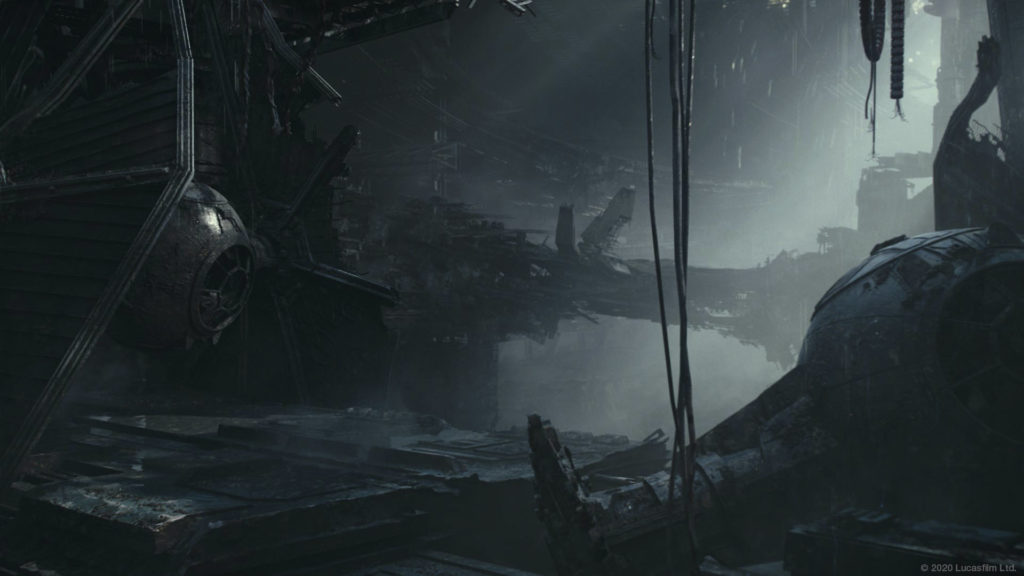
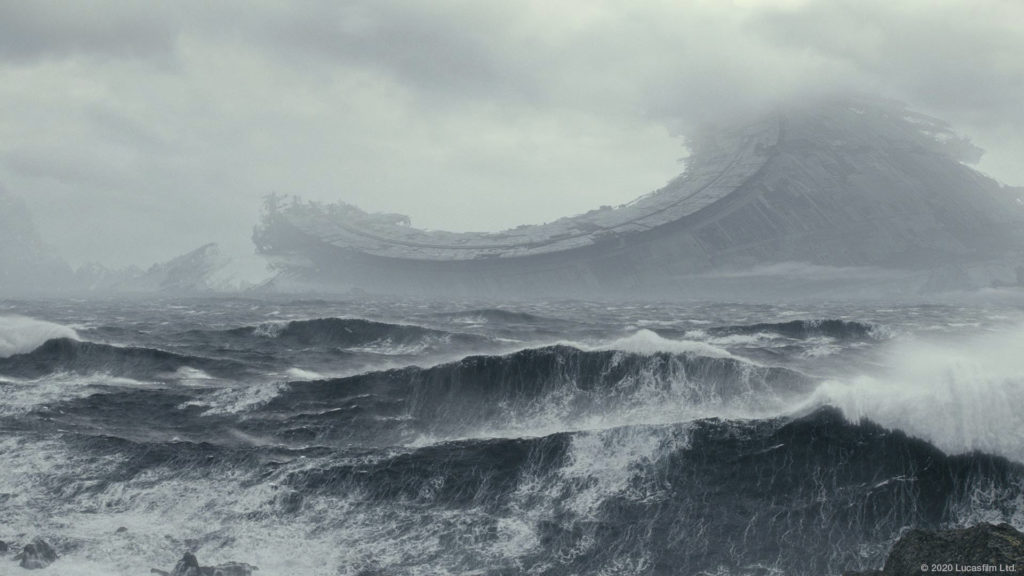



Tip
Teams mirrors your own view, but others see the background as intended. For a formal call, choose a calm background or Blur. Also see set a custom background in Teams and mirror your video in Teams.
Read also
Set a custom background in Microsoft Teams
Warner Bros backgrounds for Teams, Zoom and Google Meet
Mirror or unmirror your video in Microsoft Teams
Nederlandstalige versie: Star Wars-achtergronden voor Microsoft Teams downloaden en instellen