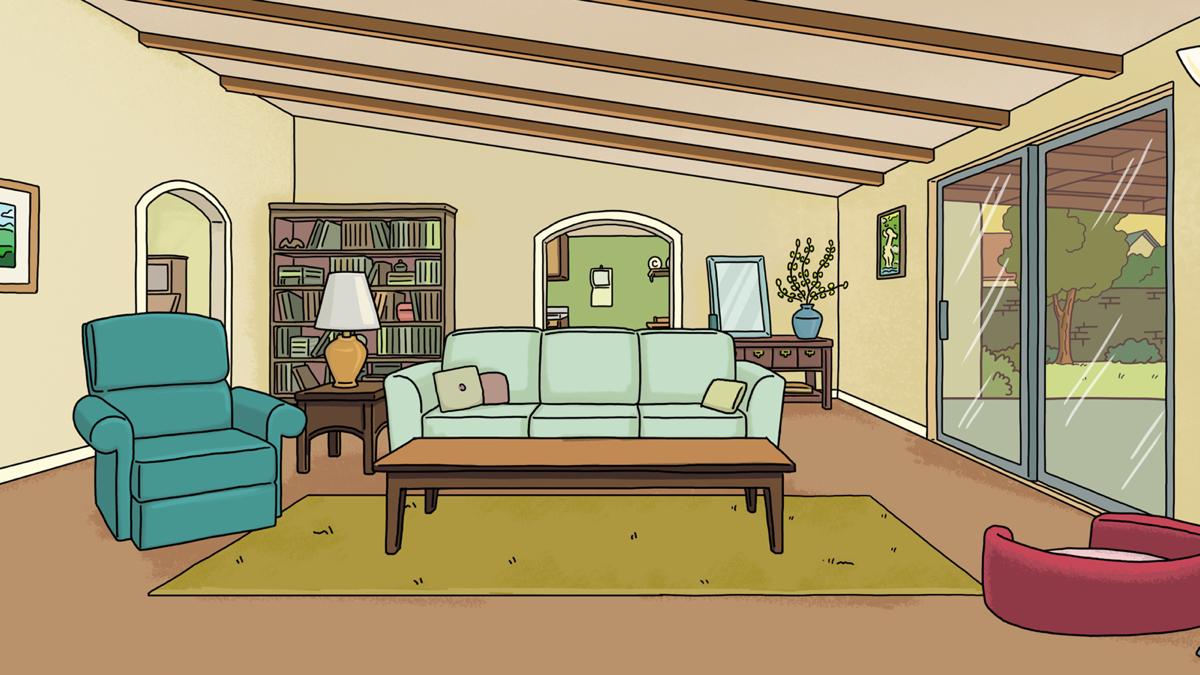
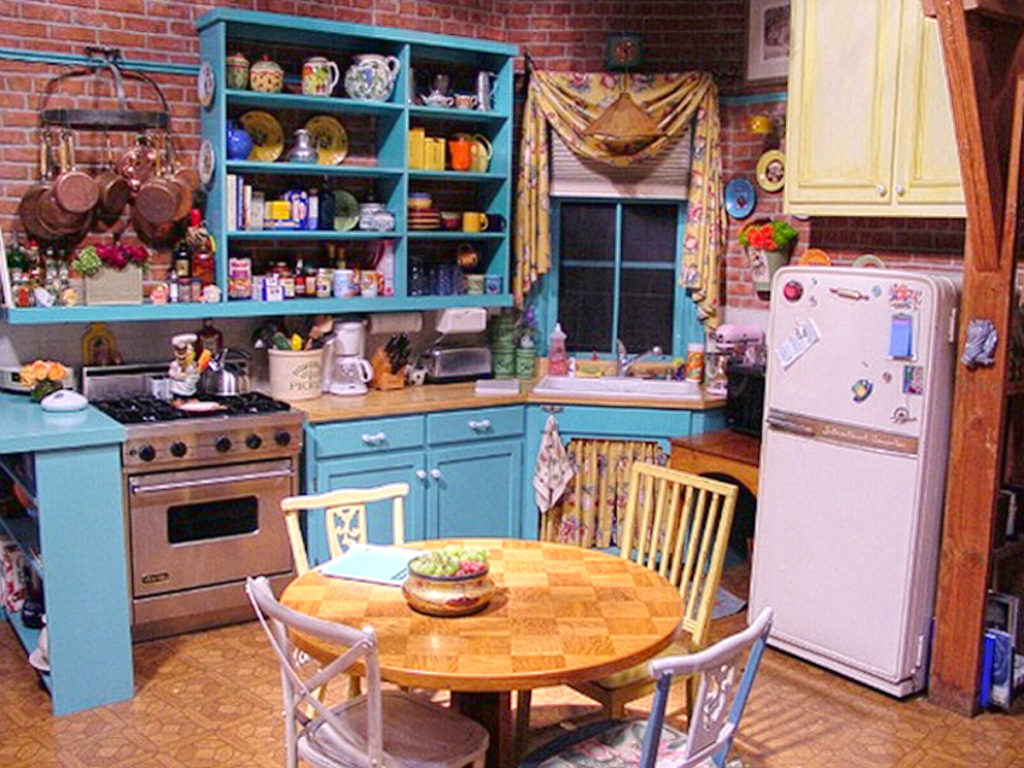
A meeting from the Rick and Morty couch, the Batcave or Monica's kitchen from Friends? Warner Bros offered a set of free virtual backgrounds for Microsoft Teams, Zoom, Google Meet and other video calls. Here's where they came from and how to set them up.
The Warner Bros download page dates from 2020 and may no longer be available; otherwise look on the official sites of the shows or films themselves.
Which backgrounds were there?
- Rick and Morty: the couch, the garage and Morty's bedroom.
- DC: the Batcave and Superman's Fortress of Solitude.
- Friends: Monica's kitchen and Monica and Rachel's apartment.
- Wonder Woman 1984 and Teen Titans GO!
The original collection was on warnerbros.com in the news of July 2020. Use these images for personal use; they remain the property of Warner Bros.
Set a background in the new Teams
- Save the image to your computer.
- In the meeting pre-join screen, click Video effects and settings. During a meeting you'll find it via the arrow next to Camera.
- Under Backgrounds, choose Add new and select the file.
A landscape image of about 1920 x 1080 pixels works best. Your admin can restrict custom backgrounds or provide organization backgrounds with Teams Premium.
In Zoom or Google Meet
- Zoom: Settings > Backgrounds & effects > plus sign.
- Google Meet: during the call via the three dots > Apply visual effects > upload.
The exact names may differ per version. Also see set a custom background in Teams and Star Wars backgrounds for Teams.
Read also
Set a custom background in Microsoft Teams
Download and set Star Wars backgrounds for Microsoft Teams
Microsoft Teams vs Zoom: the differences side by side
Nederlandstalige versie: Warner Bros-achtergronden voor Teams, Zoom en Google Meet