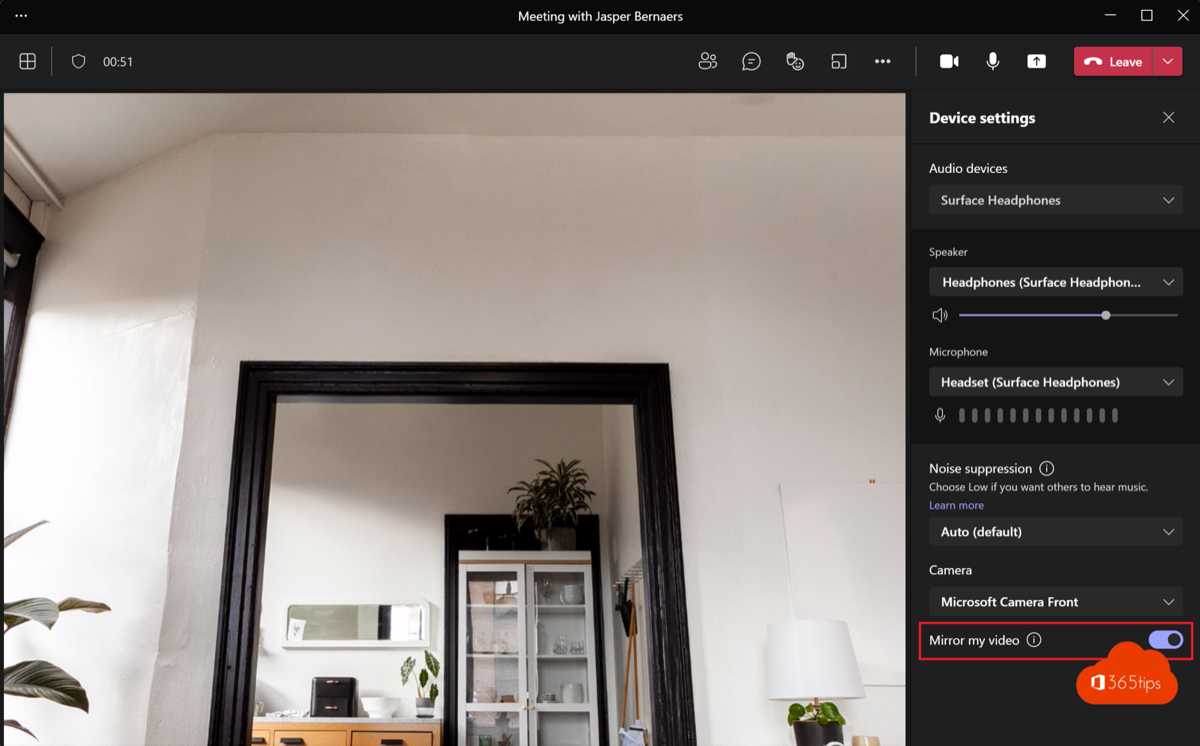
Microsoft Teams shows your own camera image mirrored by default, just like a mirror. That feels natural, but text on a whiteboard, a book or a T-shirt then appears backwards in your own view. With Mirror my video you decide how you see yourself. This article shows where that option is, what other people see and what to do when text is reversed for them as well.
What do other participants see?
Most important first: the mirror setting only changes your own view. Other participants always see you unmirrored, the way the camera sees you. Text you hold up to the camera is readable for them, even when it looks reversed to you.
| Setting | Your own view | What others see |
|---|---|---|
| Mirror my video on (default) | Like a mirror; text is reversed | Normal, text readable |
| Mirror my video off | As the camera sees it; text readable | Normal, text readable |
Set it before a meeting
- In Teams, select ... next to your profile picture at the top right and choose Settings.
- Go to Devices and scroll to Camera.
- Turn Mirror my video on or off. The preview shows the result immediately.
The choice applies to all your future meetings on that device.

Change it during a meeting
- Select the arrow next to Camera at the top, or hover over your own video and select ....
- Choose Mirror my video to flip the setting.
You can also go through More > Settings > Device settings on the right of the window.
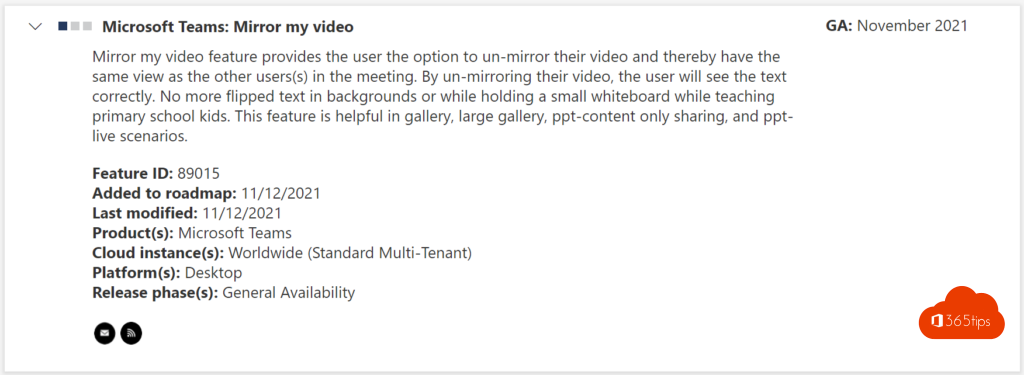
When should you turn mirroring off?
- Teaching or explaining on a whiteboard or flip chart: you see what you write the right way round.
- Showing a document, book or product: it's easier to check that everything is in frame and readable.
- A background with text or a logo: it no longer appears reversed in your own view.
For regular calls most people leave mirroring on: movements feel more natural, like a bathroom mirror.
Text is reversed for others too
- Some camera software (from Logitech, Elgato or the laptop maker) or a virtual camera mirrors the image itself. Turn off mirroring or flip horizontal there.
- A document camera or meeting room camera often has its own mirror button or setting.
- If you use a background effect with text, pick an image without text to avoid confusion.
- To show something on paper, use the content camera or share your screen.
Read also
Black screen when sharing your screen in Microsoft Teams: causes and fixes
Use live translated captions in Microsoft Teams meetings
Turn live reactions on or off in Microsoft Teams meetings
Nederlandstalige versie: Je video spiegelen of niet spiegelen in Microsoft Teams