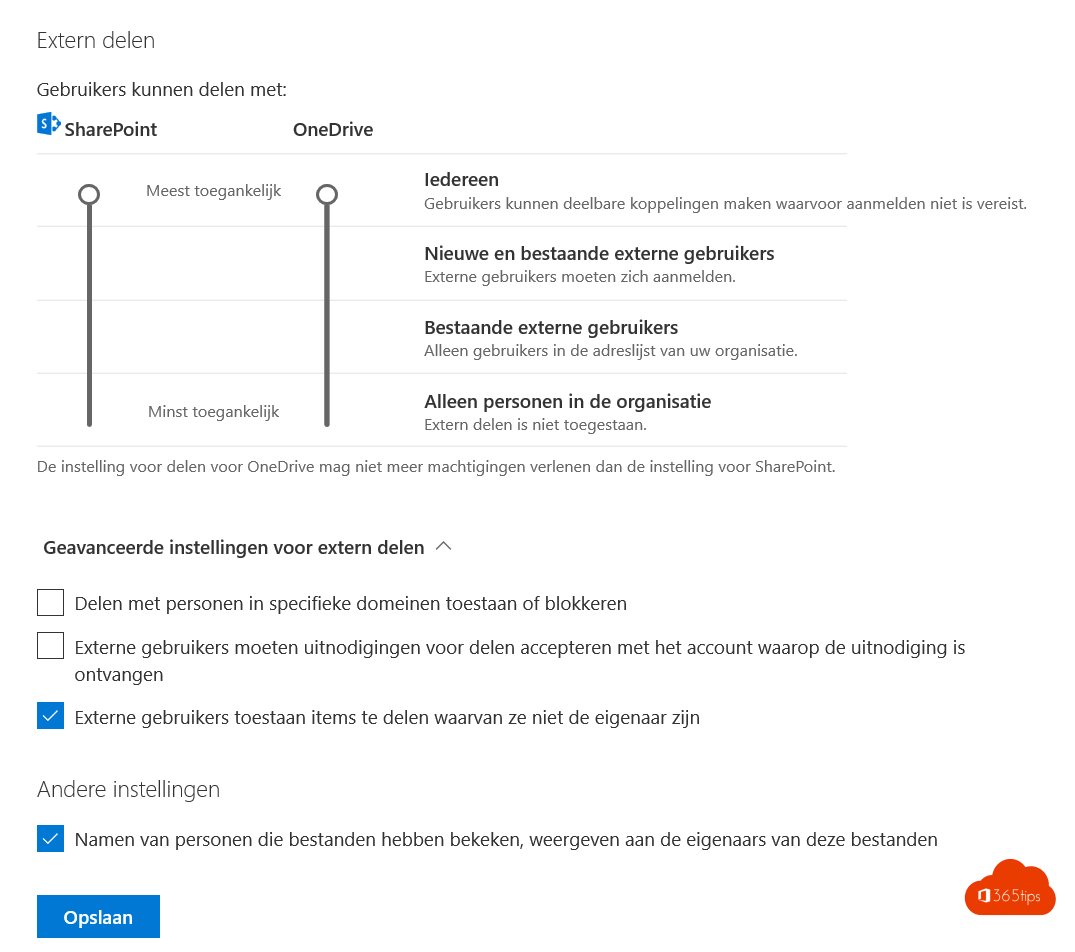
OneDrive is every employee's personal storage, but it's still the organization's data. With good governance you decide how much storage there is, who users can share with, which devices they sync on and what happens when someone leaves.
1. Storage
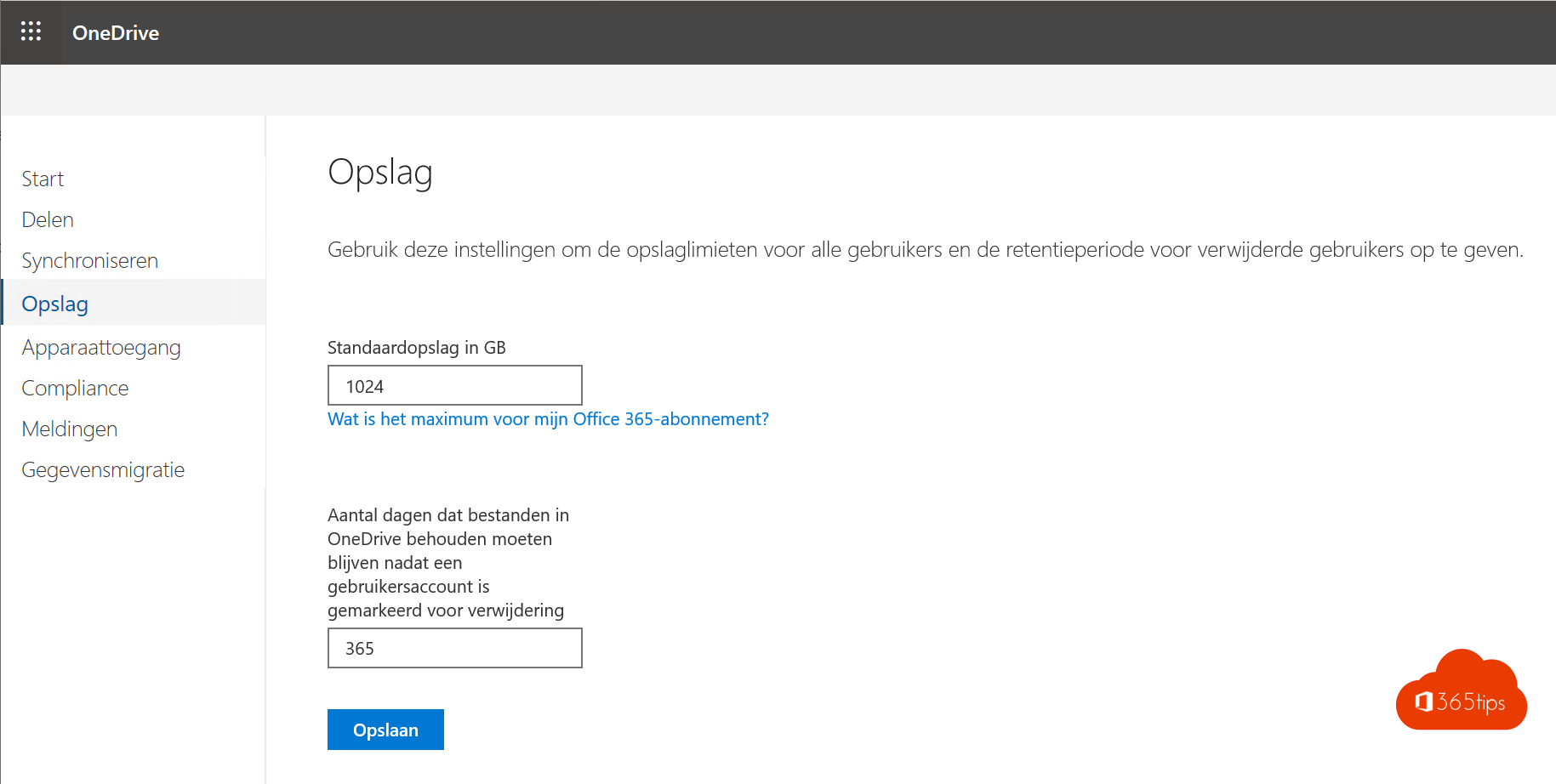
Set the default storage per user via SharePoint admin center > Settings > OneDrive storage limit. For one user you change it separately. Read change one user's storage limit.
2. Sharing
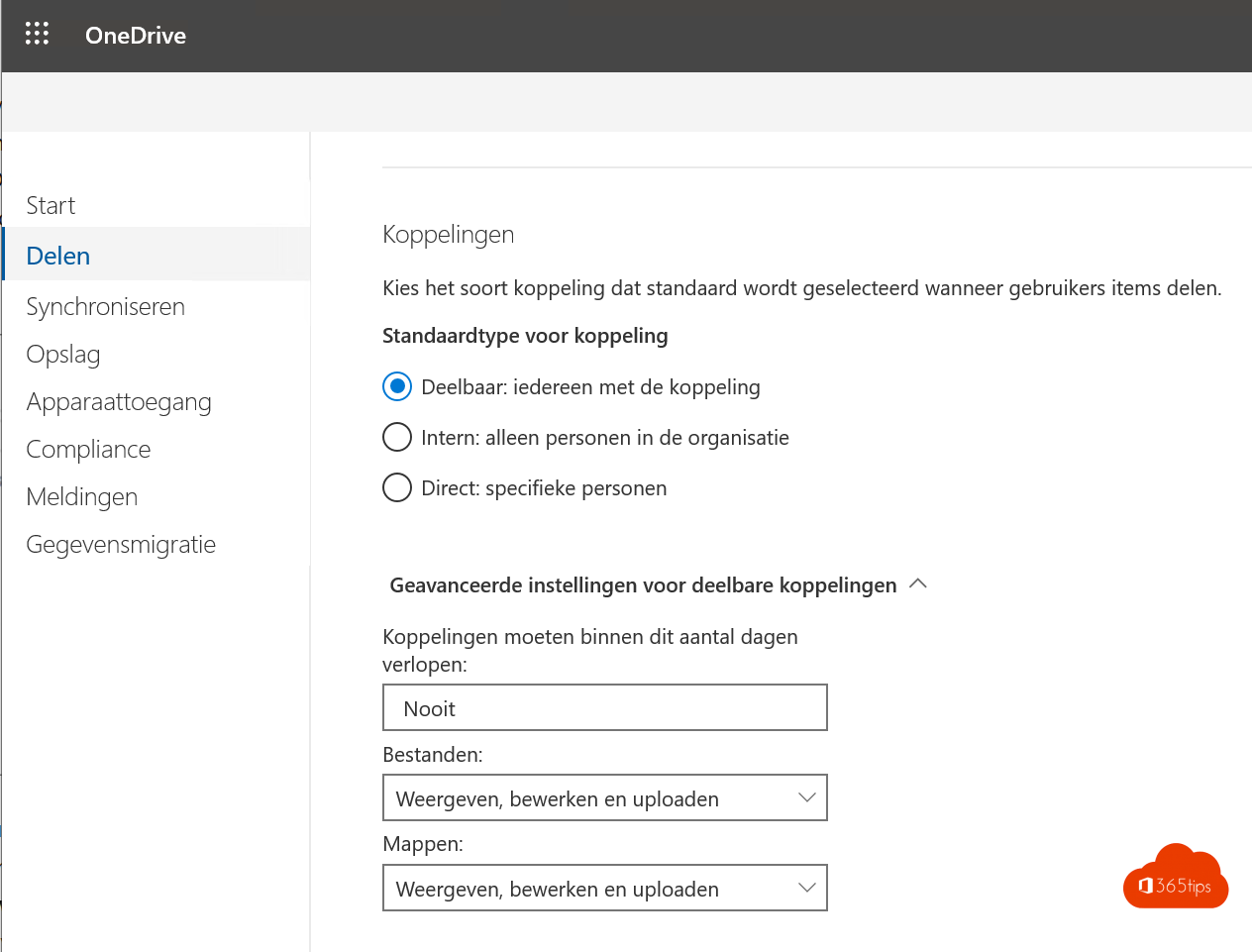
OneDrive's sharing level can be as strict as SharePoint's or stricter, never more open. Choose for example New and existing guests instead of Anyone, and set an expiration date for links.
3. Sync
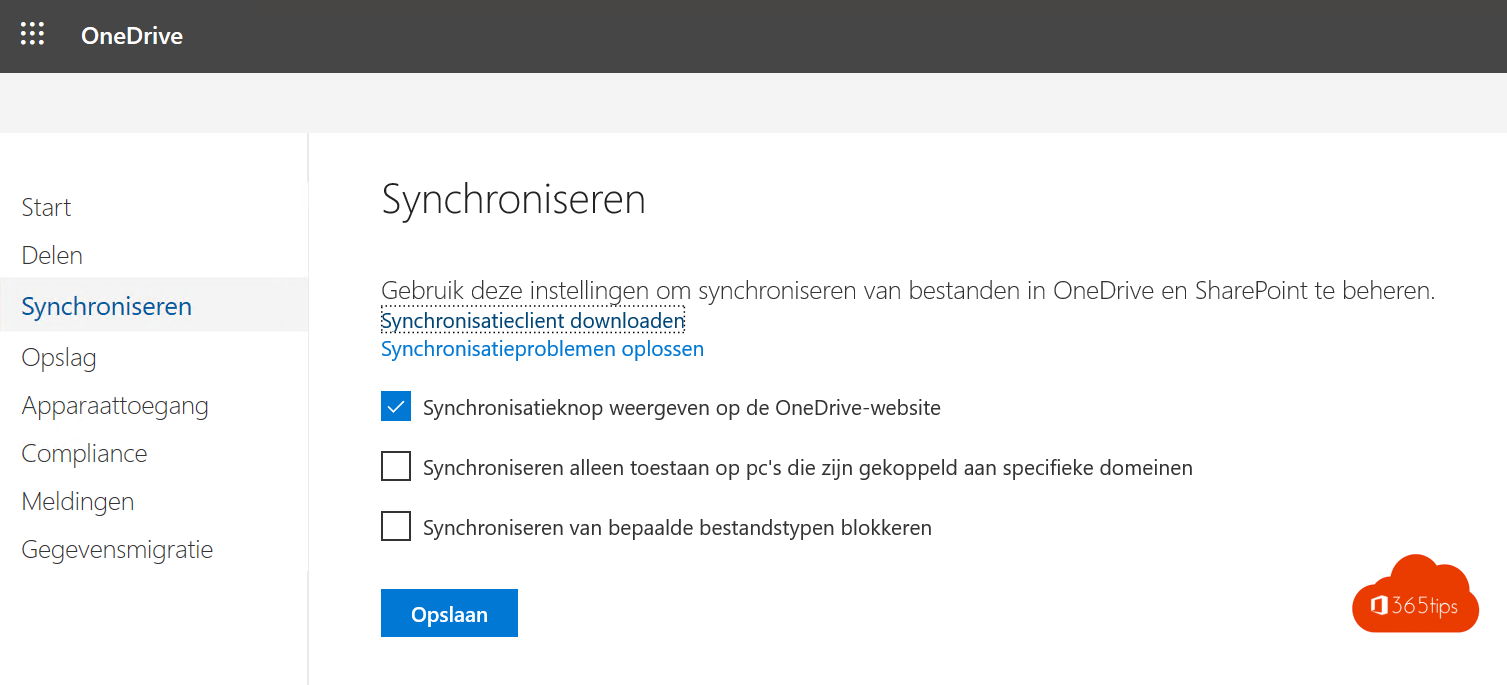
- Only allow sync on devices joined to your domain or Entra ID.
- Block file types that don't belong in OneDrive.
- Use Intune to turn on Files On-Demand and PC folder backup centrally.
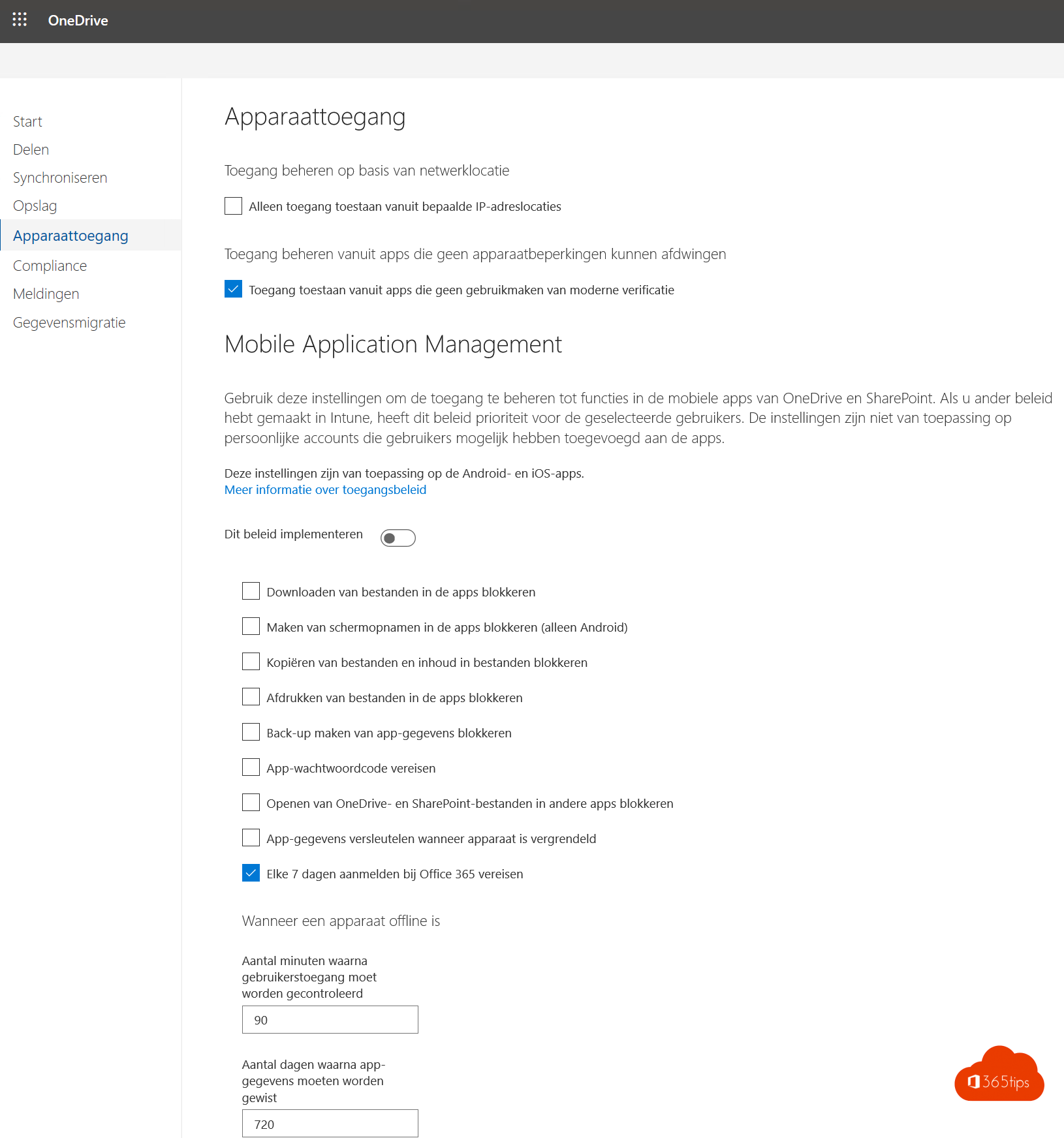
4. When someone leaves
When you delete a user, their OneDrive is kept for 30 days by default (adjustable). Their manager gets access to move files. Move important files to Teams or SharePoint beforehand.
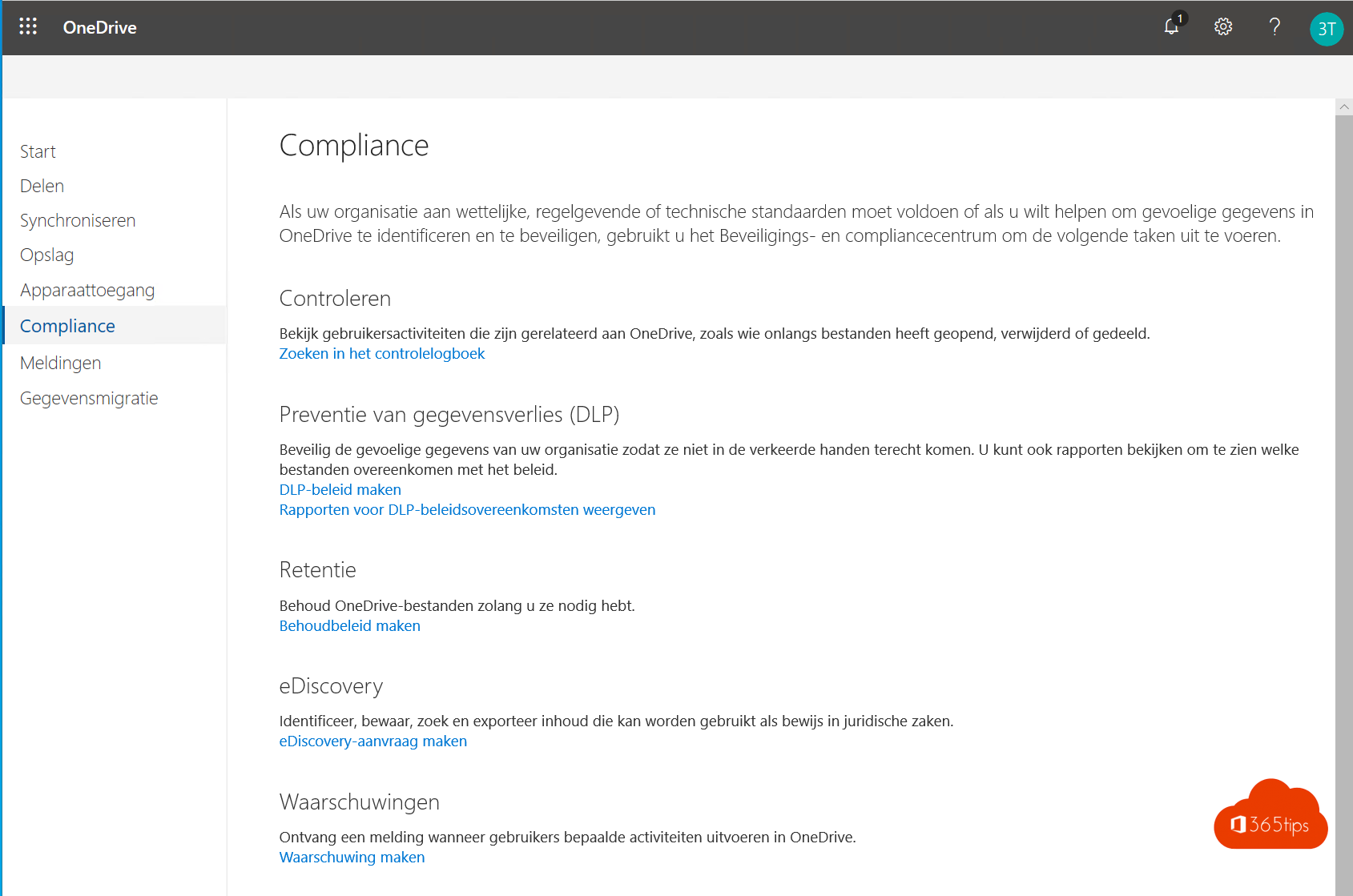
Also see SharePoint Online governance and 10 OneDrive tips.
Read also
Set up good governance for SharePoint Online
How to change the OneDrive storage of a single user
Block specific file types from OneDrive sync
Nederlandstalige versie: Een goede governance voor OneDrive voor werk inrichten