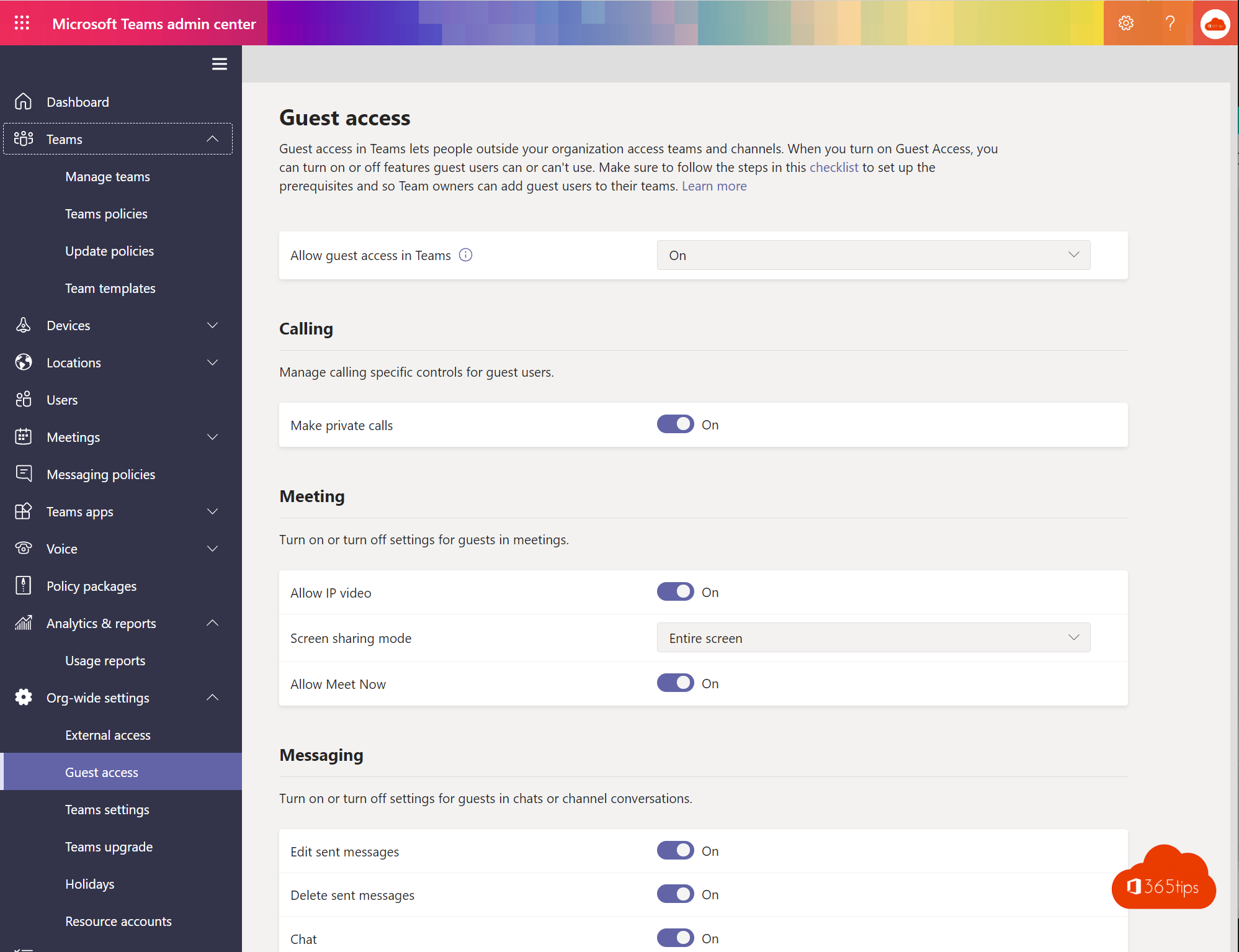
Guest access is on in your organisation, but for one team, such as Board or HR, you don't want external people. You can block guests per team. Without PowerShell you do that with a sensitivity label. This article shows how, and how it works with PowerShell.
With a sensitivity label (no PowerShell)
- Make sure sensitivity labels for groups and sites are enabled in your organisation (a one-time admin task).
- Go to purview.microsoft.com > Information protection > Sensitivity labels > Create a label, for example Internal - no guests.
- Choose Groups & sites as the scope.
- Under Privacy and external user access, untick Let Microsoft 365 group owners add people outside your organization to the group as guests.
- Publish the label with a label policy.
- Pick the label in Teams under Manage team > Settings, or when creating a new team.
Existing guests stay members until you remove them. New guests can no longer be added.

Licence
Sensitivity labels for groups require Entra ID P1 and a licence with Purview information protection, such as Microsoft 365 Business Premium or E3.
With PowerShell
Without labels, set AllowToAddGuests to false for that one group, using Microsoft Graph PowerShell directory settings. It works, but it's harder to manage than a label.
Check it
Try adding an external address as an owner. Teams says guests aren't allowed in this team.
Tips
- Remove guests already in the team via Manage team > Members.
- Guests no longer needed anywhere? Read remove guest users.
- Need external people in a separate space? Use a shared channel. See also add guests to Teams.
Read also
How to add external guests in Microsoft Teams
Completely remove a guest or old account from SharePoint Online
Set up Data Loss Prevention (DLP) in Microsoft Teams with Purview
Nederlandstalige versie: Gasttoegang uitschakelen voor één Microsoft Teams-team