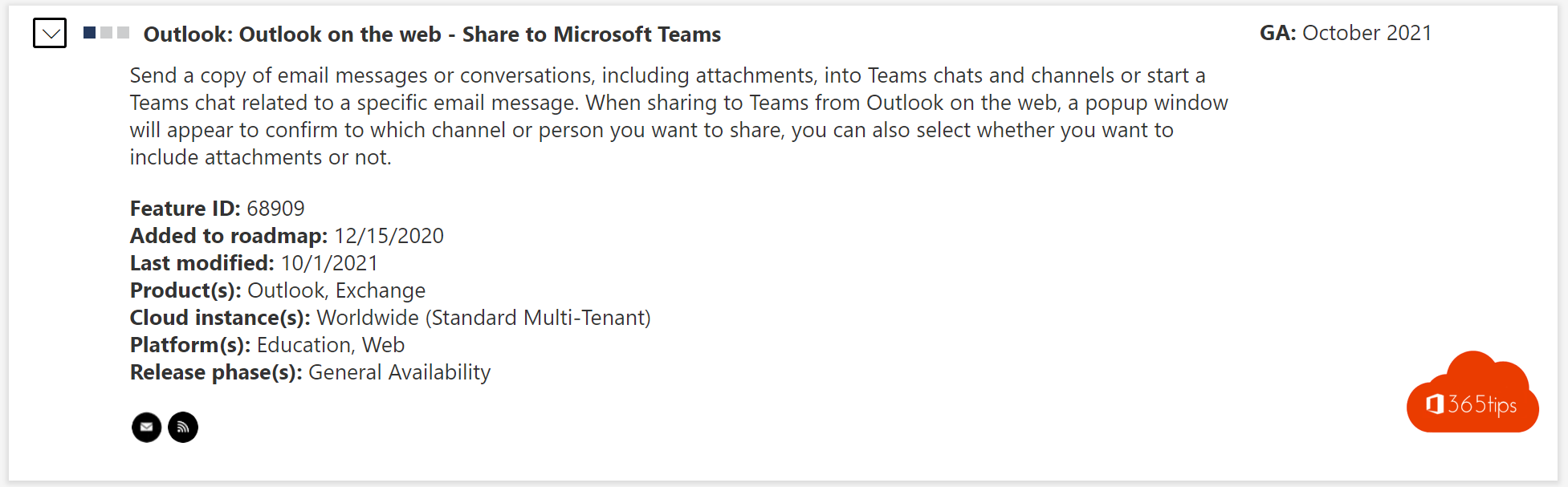
A customer sends an important email and you want to discuss it with your team. Instead of forwarding it to everyone, use Share to Teams to post it straight into a chat or channel, with or without attachments. The team can respond there without filling up everyone's inbox. This article shows how it works in classic Outlook for Windows, the new Outlook, Outlook on the web and mobile, and how to email a channel directly.
Share an email to Teams
- Open or select the email in Outlook.
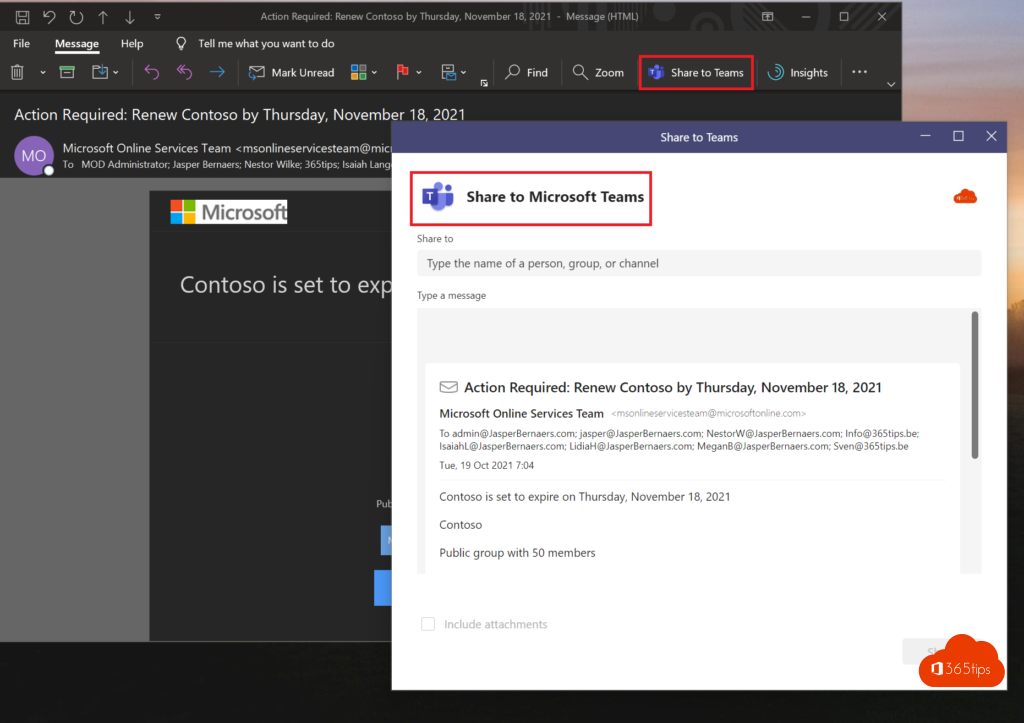
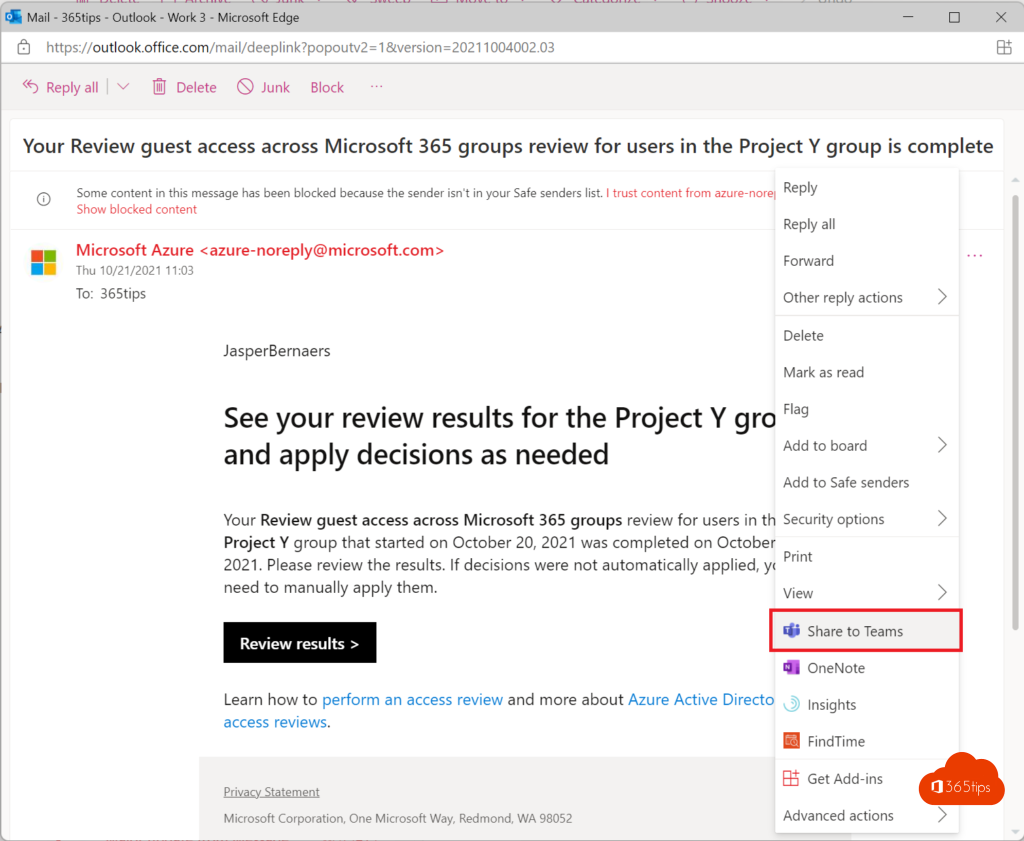
- Select Share to Teams. In Outlook for Windows the button is on the ribbon; in the new Outlook and on the web you find it under ... (More actions) at the top of the message.
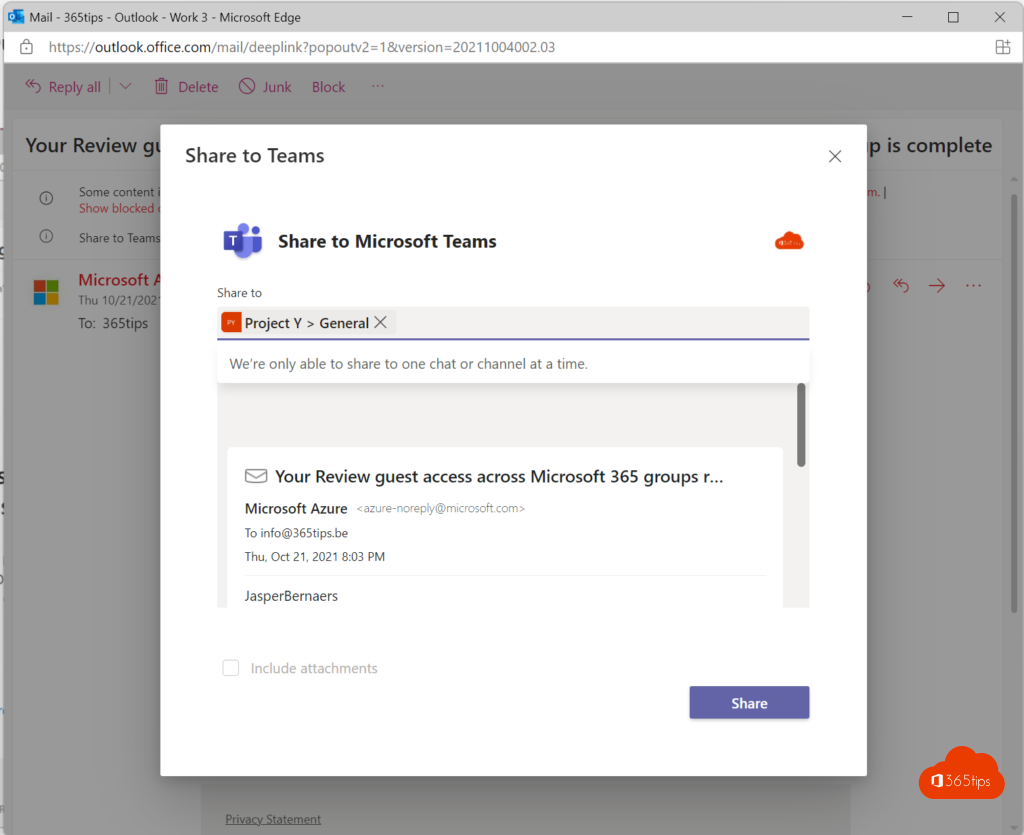
- Pick a person, group chat or channel.
- Optionally add a message and choose whether to include the attachments.
- Select Share.
What do recipients see?
In Teams a post appears with the subject and content of the email. Select it to open the full email with sender, date and formatting. Attachments are saved as files in the chat's files (OneDrive) or the channel's files (SharePoint), so everyone can open them. The email also stays in your mailbox.
On your phone
In the Outlook app, tap ... in the email > Share to Teams. You need the Teams app on the same device, signed in with the same account.
Alternative: a channel's email address
Every standard channel can have its own email address. Select ... next to the channel > Get email address and copy it. Anything you send or forward to that address appears as a post in the channel. Useful for newsletters, system notifications or a shared contact address. Under Advanced settings you can limit who may email that address, for example only team members or specific domains.
The Share to Teams button is missing
- Classic Outlook for Windows: the button is added by the Teams app. Make sure Teams is installed and signed in with the same account, and check under File > Options > Add-ins that the Teams add-ins aren't disabled.
- Personal Outlook.com account: Share to Teams only works with a work or school account.
- Admin settings: the feature may be turned off. Emailing channels is controlled in the Teams admin center under Teams settings > Email integration.
- Shared mailbox: sharing from a shared mailbox doesn't always work. Send the email to the channel address instead.
Read also
How to create a distribution list in Microsoft 365 and use it in Teams
How to schedule a chat message in Microsoft Teams
Use a scheduling poll (formerly FindTime) in Outlook
Nederlandstalige versie: Een e-mail van Outlook delen in een Teams-chat of -kanaal