Do you get system alerts, a newsletter or emails to a shared address that the whole team should really see? Then forward them automatically to a Teams channel. You do that with the channel's email address and a rule in Outlook.
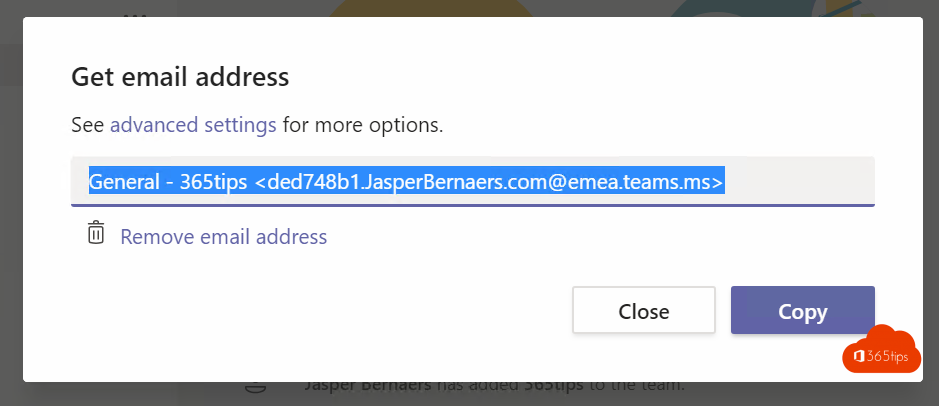
1. Get the channel's email address
- In Teams, hover over the channel > More options (...) > Get email address.
- Select Copy. Read more in email a Teams channel.

2. Create a rule in Outlook
- In the new Outlook or Outlook on the web, go to Settings > Mail > Rules > Add new rule. In classic Outlook: File > Manage Rules & Alerts.
- Name the rule and choose a condition, for example From a certain address or Subject includes a word.
- Choose the action Forward to and paste the channel's email address.
- Select Save.


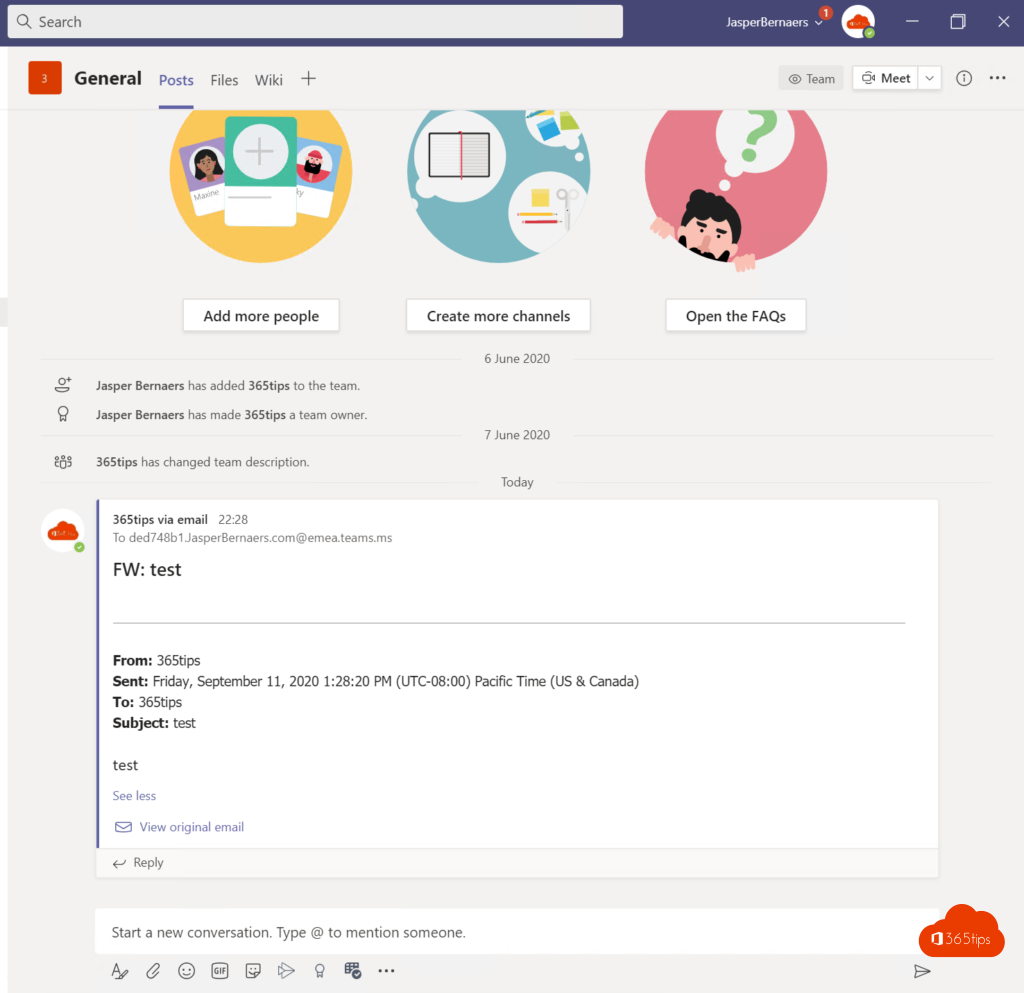
3. The result
Every email that matches the condition appears as a post in the channel. Colleagues can reply to it in Teams.

Not working?
- Check under the channel's Advanced settings who may send email. Choose your own domain or Anyone.
- A channel's email address ends in a Microsoft domain. If your admin blocks automatic forwarding to external addresses, that can also stop forwarding to a channel. Ask for an exception, or use Power Automate or a Workflow in Teams instead. See block automatic email forwarding.
Read also
Send an email to a Microsoft Teams channel
Share an Outlook email to a Teams chat or channel
Block automatic forwarding and outgoing email in Microsoft 365
Nederlandstalige versie: E-mails automatisch doorsturen naar een Teams-kanaal
More in English
▸Share a Teams message with people who don't use TeamsUse Share to Outlook to send a Teams message and its replies as an email, and see the alternatives such as…
▸Save email attachments to OneDrive automaticallySave every email attachment to a OneDrive folder automatically with Power Automate. Template, custom flow and…
▸What is Microsoft Power Automate and how do you start?Power Automate automates tasks across Outlook, Teams, SharePoint and other services. Kinds of flows, Copilot,…
▸Set up email forwarding in Exchange OnlineSet up forwarding for a mailbox via the admin center, PowerShell or Outlook, and learn why external…