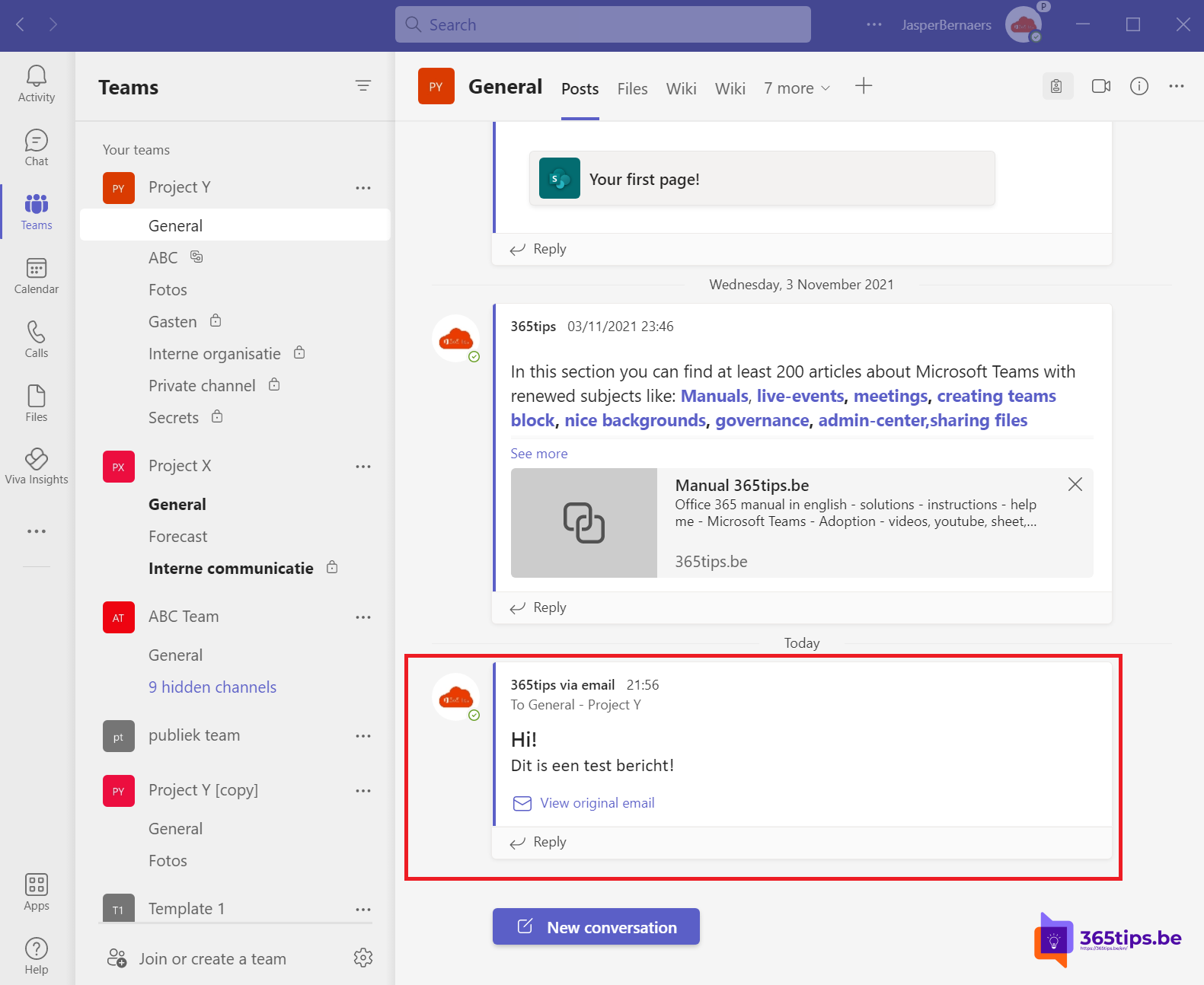
Every Microsoft Teams channel can have its own email address. Send an email to it and it appears as a post in the channel, with attachments in the team's files. Handy for newsletters, system notifications or customer emails the whole team should see. This article shows how.
The channel's email address
- Hover over the channel > More options (...) > Get email address.
- Select Copy.
- Add the address to your contacts or to the mailing list of the system that sends notifications.

Who can send?
In the same window, select Advanced settings:
- Anyone can send emails.
- Only members of this team.
- Only email sent from these domains, such as your own and a regular partner's.
Choose the strictest level that works so the channel doesn't fill up with spam.

What appears in the channel?
The email shows up as a post with the subject and a preview of the text. Select View original for the full email. Attachments and the email itself (as .eml) are on the Files tab, in the Email Messages folder.
Share a Teams post by email
Want to email a Teams post to someone? On the post, select More options > Share to Outlook. See also share an Outlook email to Teams.
Don't see the option?
An admin must allow email integration in the Teams admin center > Teams > Teams settings > Email integration, where allowed domains can also be restricted.
Read also
Share an Outlook email to a Teams chat or channel
Share files in a Teams chat, channel or via a link
Create a standard, private or shared channel in Microsoft Teams
Nederlandstalige versie: Een e-mail sturen naar een Microsoft Teams-kanaal