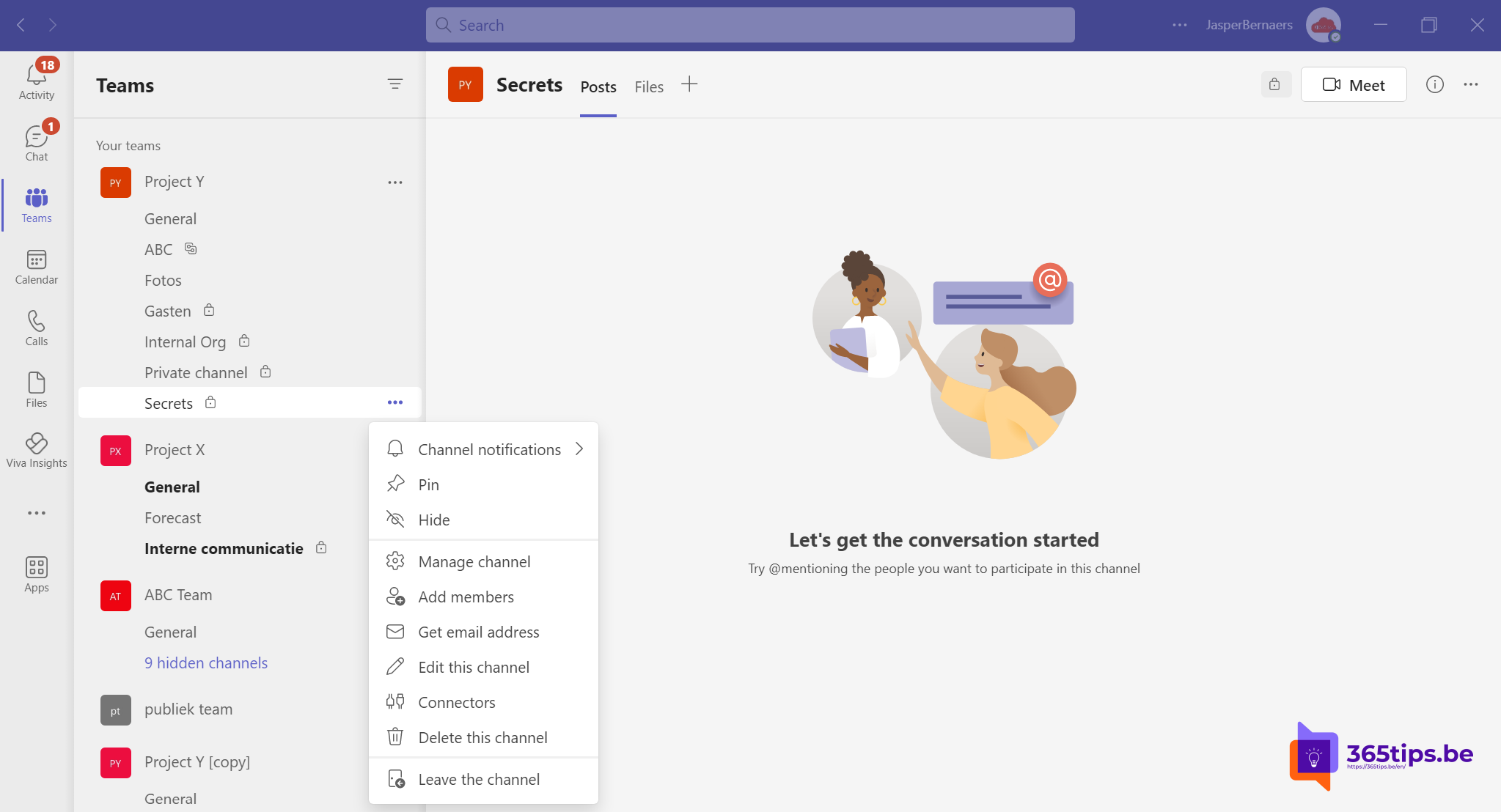
You created a standard channel, but it really needs to be private. Or the other way around. Can you change a channel's type afterwards? Short answer: no. This article explains why and how to solve it anyway.
Why isn't it possible?
A standard channel stores its files in the team's SharePoint site. A private or shared channel gets its own separate SharePoint site with its own permissions. Because the storage and permissions differ, Teams can't convert a channel.
The fix: create a new channel
- Create a new channel of the right type: More options next to the team > Add channel and choose Private or Shared.
- Add the right members.
- Move the files from the old channel to the new one. Read move or copy files in SharePoint or Teams.
- Add tabs and apps again.
- Post a message in the old channel linking to the new one, and delete or archive the old channel later.
And the conversations?
Messages don't move along. You can forward important messages or write a summary. A deleted channel can be restored for 30 days.
Which channel should you choose?
- Standard: everyone in the team sees it.
- Private: only part of the team members.
- Shared: also people outside the team or outside your organization.
Also see can't add anyone to a private channel? and create a channel in Teams.
Nederlandstalige versie: Een standaardkanaal omzetten naar privé (of omgekeerd) in Teams
Related articles
▸Create a standard, private or shared channel in Microsoft TeamsCreate a channel in Microsoft Teams and choose between standard, private and shared. Posts and Threads…
▸Can't add anyone to a private channel in Teams: the fixCan't find someone when adding them to a private channel? They have to be a team member first. Read the fix…
▸Rename a Teams channel together with its SharePoint folderWhen you rename a standard channel in Teams, its SharePoint folder now gets the new name automatically. See…
▸Stop members deleting channels, tabs and apps in TeamsSet member and guest permissions in a team so nobody accidentally deletes channels, tabs or apps. Plus how to…
▸Owners, members and guests in Microsoft Teams: who can do what?An overview of what owners, members and guests can do in a team, and how an owner changes those permissions.