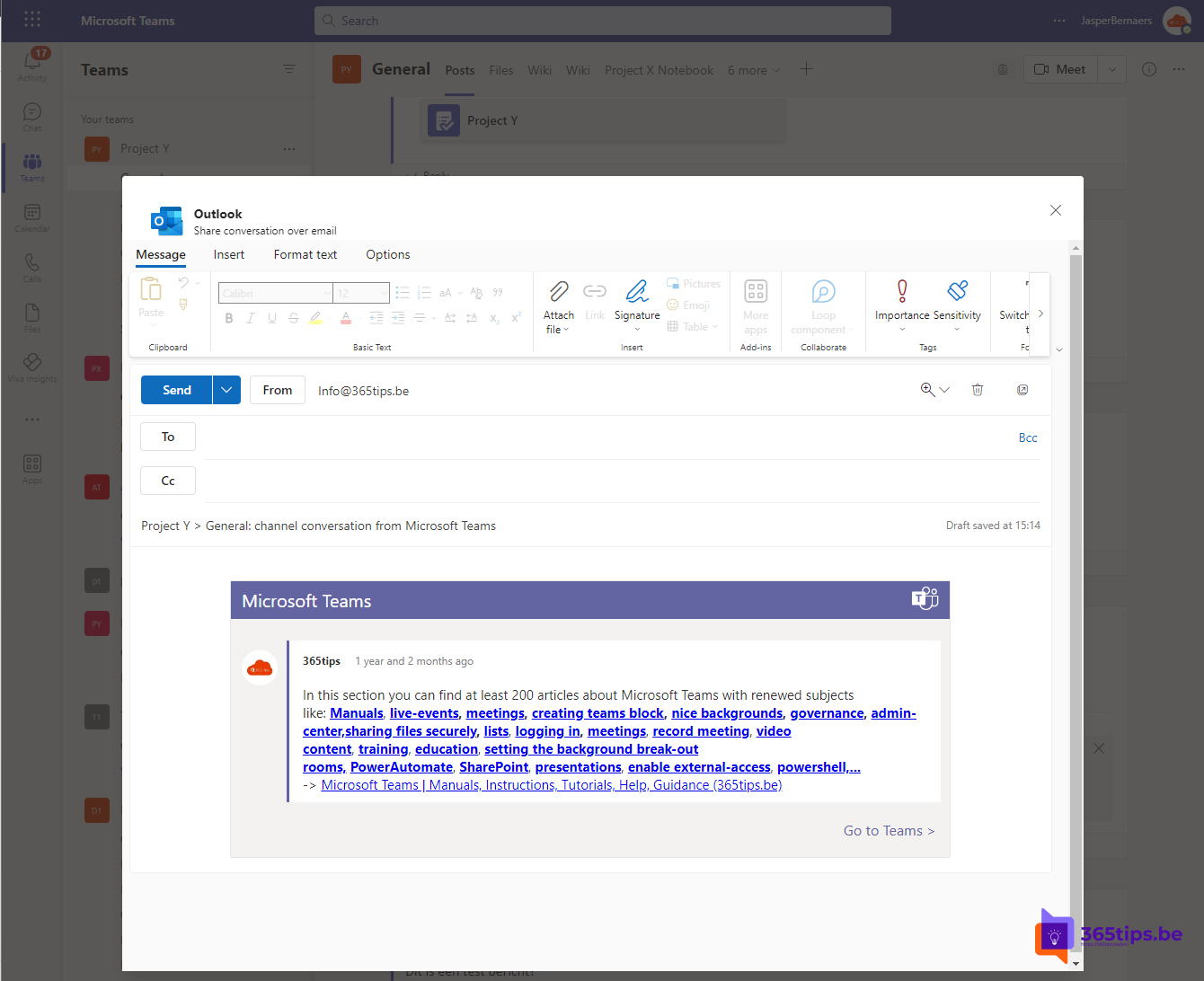
A decision lives in a Teams chat, but a customer, supplier or colleague without Teams needs to see it too. No need to copy and paste: with Share to Outlook you send a Teams message and its replies as an email.
Share a message via Outlook
- Hover over the message in a chat or channel.
- Select More options (...) > Share to Outlook.
- An email window opens with the message and the replies. Fill in the recipient, add some text if you like and select Send.
The email is sent from your own mailbox and appears in your Sent Items. Attachments go along as links, so check that the recipient has access.


Don't see the option?
- You need an Exchange Online mailbox.
- An admin can turn the feature off. Ask your IT department whether Share to Outlook is allowed.
- The option isn't always in the mobile app; use the desktop or web version instead.
Other ways
- Forward: via More options > Forward you send a message to another chat or person in Teams.
- Copy link: handy for colleagues with Teams who want to see the message in its original chat.
- External chat: if your organization allows external access, you can chat directly with people in another organization. Read set up external access in Teams.
Also see share an Outlook email to Teams and email a Teams channel.
Read also
Share an Outlook email to a Teams chat or channel
Send an email to a Microsoft Teams channel
Set up external access in Microsoft Teams
Nederlandstalige versie: Een Teams-bericht delen met mensen zonder Teams
More in English
▸Join a Microsoft Teams meeting as an external participantJoin another organization's Teams meeting without an account or installation: in the browser, on your phone…
▸How to add external guests in Microsoft TeamsAdd an external guest to a team in Microsoft Teams, see what the guest sees and can do, which settings an…
▸Reply to a specific message in Microsoft TeamsReply to a specific message in a Teams chat or channel with the original as a quote, on your computer or…
▸Mark a message as unread in Microsoft TeamsMark a Teams chat or channel message as unread to follow up later, and view all unread messages with the…