Click a Word, Excel or PowerPoint file in Microsoft Teams and by default it opens inside Teams. Fine for a quick look, but for real work you often want the full desktop app, or the browser instead. This article shows how to set the default, how to open one file differently and what to do when the desktop app option is missing.
Teams, desktop app or browser?
| Open in | Pro | Con |
|---|---|---|
| Teams | Fast, you stay in the chat or channel | Limited features, small window |
| Desktop app | All features of Word, Excel and PowerPoint, own window | Office must be installed |
| Browser | Works anywhere, no installation needed | Fewer features than the desktop app |
In all three cases you work in the same file in OneDrive or SharePoint, can co-author with others at the same time, and changes are saved automatically.
Set the default
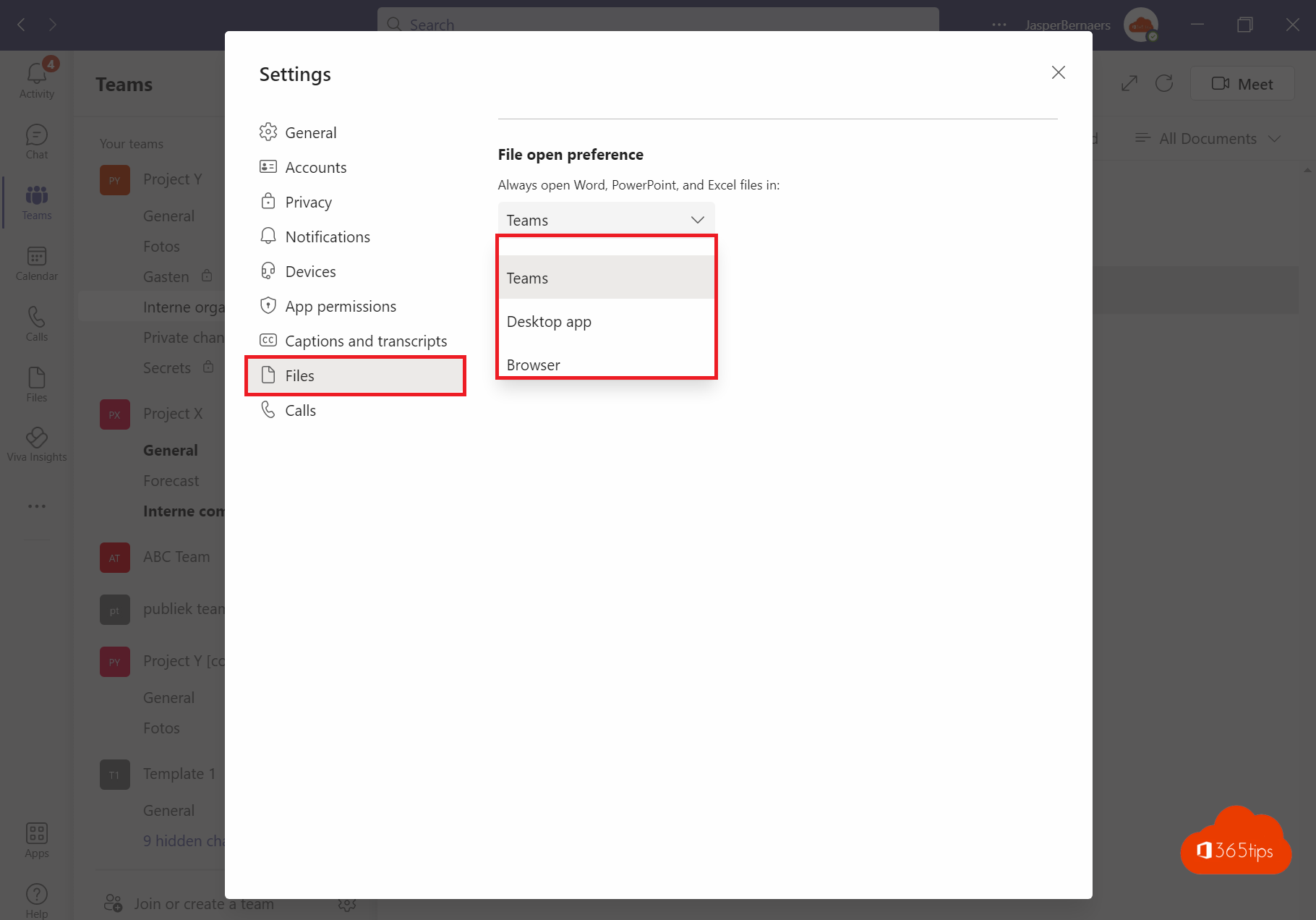
- In Teams, select ... next to your profile picture at the top right > Settings.
- Choose Files and links.
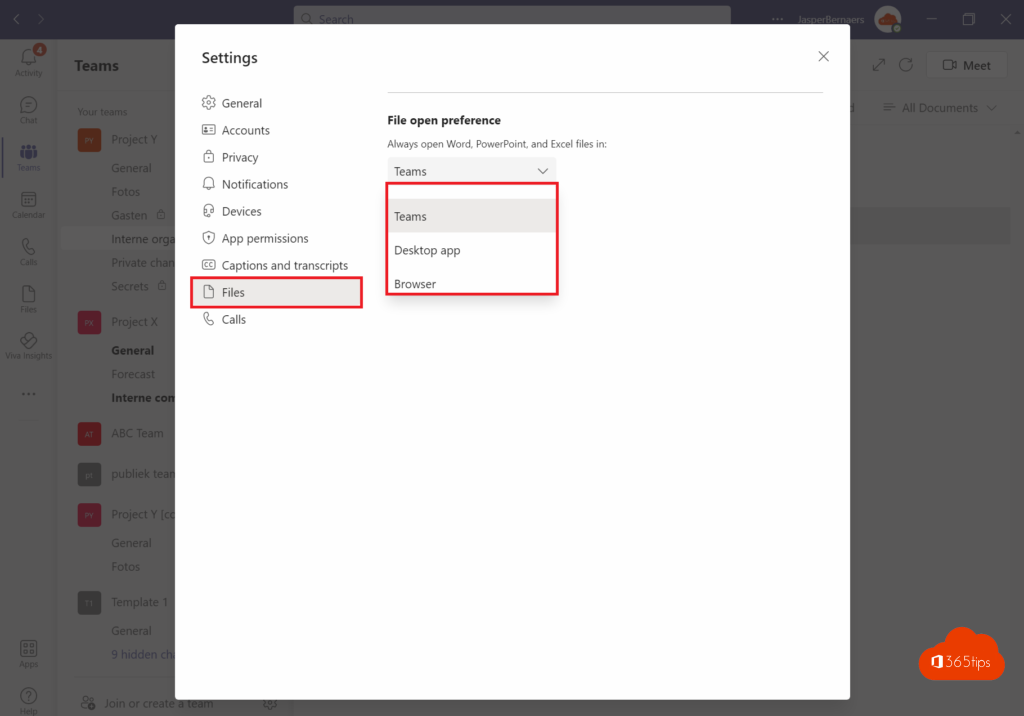
- Under Open Word, PowerPoint and Excel files in, choose Teams, Desktop app or Browser.
The choice applies immediately. In the same settings you also decide which browser opens web links: Microsoft Edge or your default browser.
Open one file differently
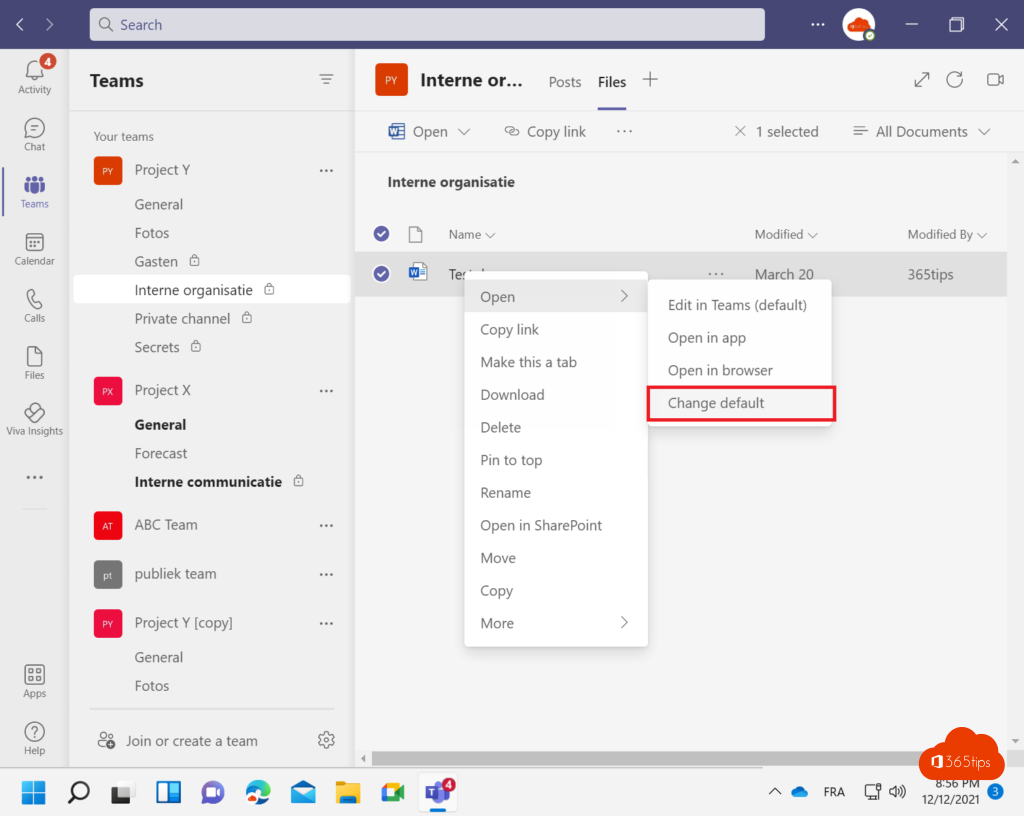
Select ... next to the file (in the Files tab or in the chat) and choose Open in > Open in desktop app or Open in browser. If the file is already open in Teams, select Open or the Open in desktop app button at the top.
File doesn't open in the desktop app
- Office isn't installed or activated. The Desktop app option only appears with an activated Microsoft 365 app for Windows or Mac. Check your license in which Microsoft 365 license do I have.
- You're asked for a password. Sign in to Word with the same work account as in Teams (File > Account).
- The file opens read-only. You don't have edit rights on that folder or channel; ask the owner for access.
- Nothing happens. Repair Office via Settings > Apps > Microsoft 365 > Modify > Quick Repair, and restart Teams.
Tips
- Working with large Excel files or macros? Make the desktop app the default: macros don't run in Teams or the browser.
- Deleted a file by mistake? See restore deleted files in Teams and SharePoint.
Nederlandstalige versie: Word, Excel en PowerPoint vanuit Teams openen in de bureaublad-app of browser