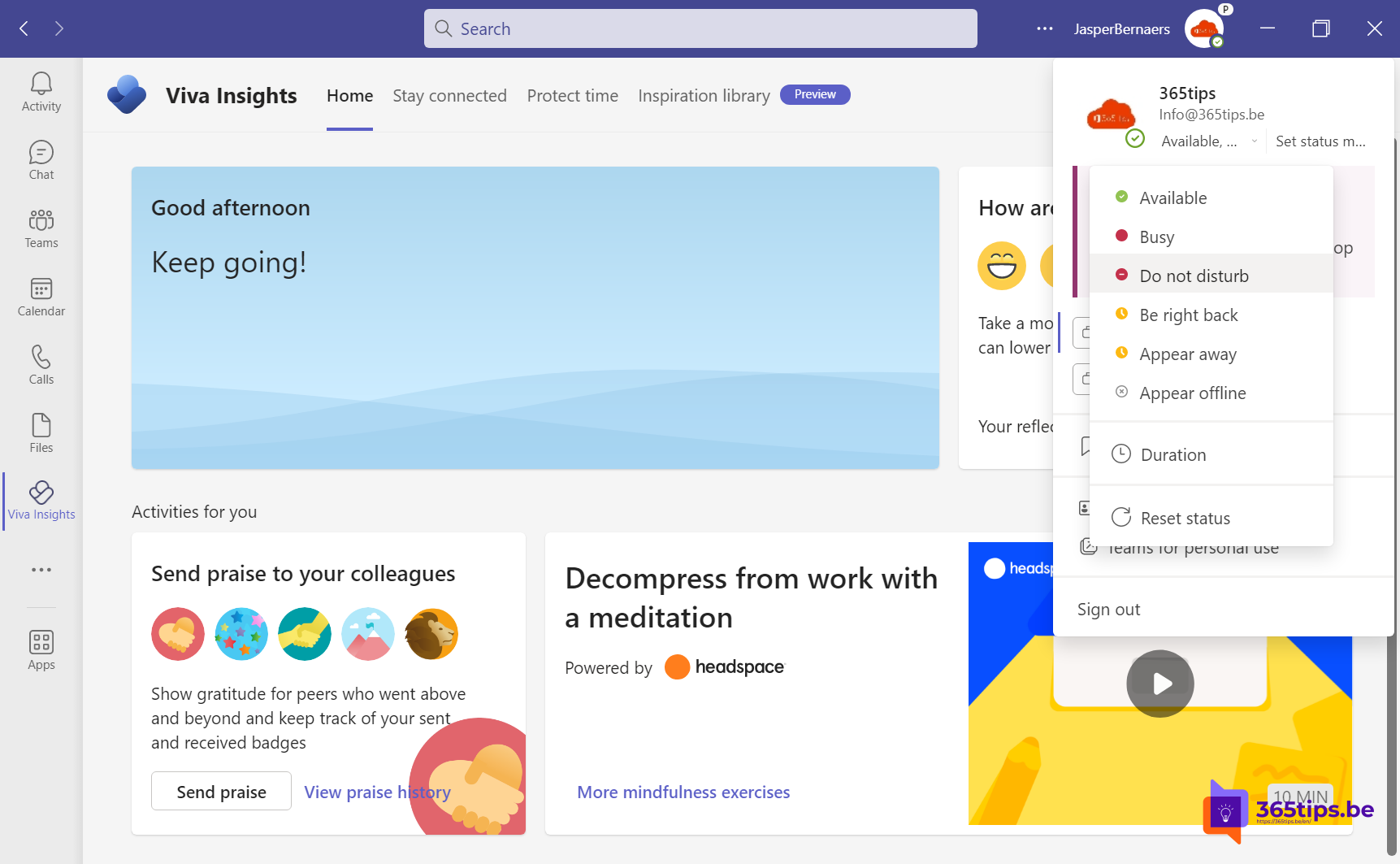
Your status in Microsoft Teams shows colleagues whether you're available, in a meeting or don't want to be disturbed. Teams often sets your status automatically, but you can choose it yourself too, for a set time. This article explains the statuses and how to use them.
The statuses
| Status | Meaning |
|---|---|
| Available (green) | You're active and reachable |
| Busy (red) | You're occupied; notifications still come through |
| Do not disturb (red with a bar) | You only get notifications from people with priority access |
| Be right back (yellow) | You're away briefly |
| Appear away (yellow) | You're working but don't want to look reachable |
| Appear offline (grey) | You look offline but still receive messages |
Teams automatically sets you to In a meeting, In a call or Presenting, and to Away after a period of inactivity.
Set your status
- Select your profile picture at the top right.
- Select your current status and choose a new one.
- Under Duration, choose how long it applies, such as 1 hour or until the end of the day.
Reset status lets Teams handle it automatically again.

A status message
Select your profile picture > Set status message. Type something like At a training today, replying after 4 pm and tick Show when people message me. For holidays, use an out-of-office message instead. Read set out of office in Teams.
Do not disturb with exceptions
Go to Settings > Privacy > Manage priority access. Add your manager, for example: their messages come through even when you're on Do not disturb.
Tips
- Teams can base your status on your Outlook calendar: an appointment shown as Busy makes you busy in Teams too.
- Don't want notifications in the evening? Read set quiet hours.
- Turn off read receipts for more privacy.
Nederlandstalige versie: Je status instellen in Microsoft Teams: beschikbaar, bezet of niet storen