Going on holiday, attending a training day, or just want to work undisturbed? Then let your colleagues in Microsoft Teams know when you are back. Teams has two features for this: a status message that people see when they send you a message, and an out of office message that works together with Outlook's automatic replies. This article shows how to set up both, how they differ and what to do when it does not work.
Status message or out of office: what is the difference?
| Status message | Schedule out of office | |
|---|---|---|
| What do others see? | Your text above the compose box when they chat with you, and on your profile card | A purple Out of office status and your message on your profile card and in chat |
| Automatic e-mail reply? | No | Yes, it turns on Outlook's automatic replies |
| Start and end date | Only "clear after" (for example today or after 1 hour) | Yes, with date and time |
| Message for external senders | No | Yes, a separate message is possible |
| Best for | A short break, focus time, "working from home today" | Holiday, sick leave, training, several days away |
Set a status message in Teams
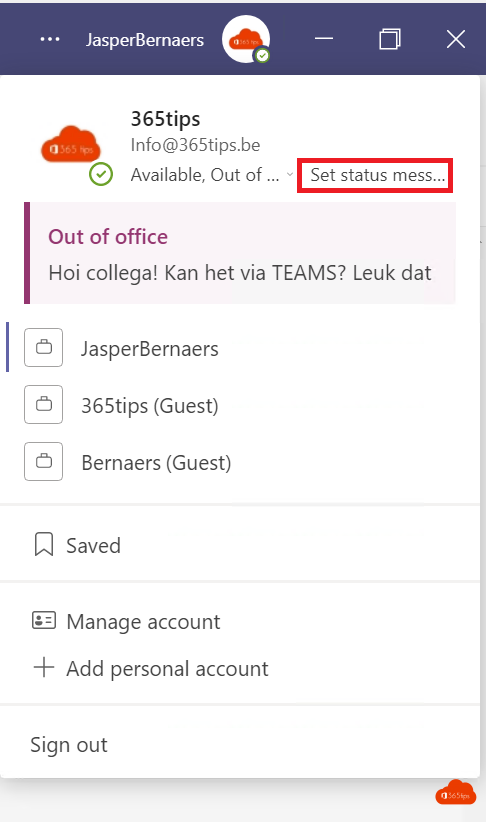
- In Teams, click your profile picture at the top right.
- Click Set status message.
- Type your message, for example "In training until 2 pm, available after that." You can mention colleagues with
@nameso people know who can help them in the meantime. - Tick Show when people message me. Your message then appears above the compose box as soon as someone chats with you.
- Under Clear status message after, choose when it disappears: never, 1 hour, 4 hours, today, this week or a custom time.
- Click Done.
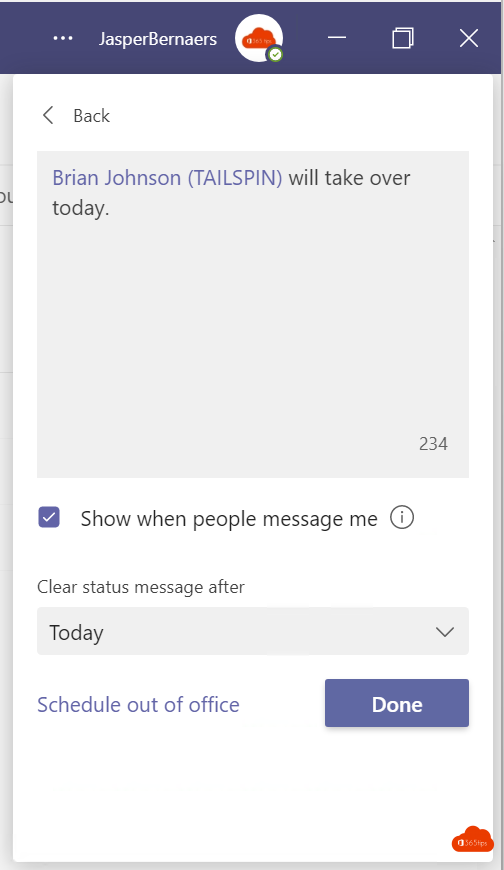
A status message can be up to 280 characters long.
Set an out of office message in Teams
- Click your profile picture at the top right > Set status message.
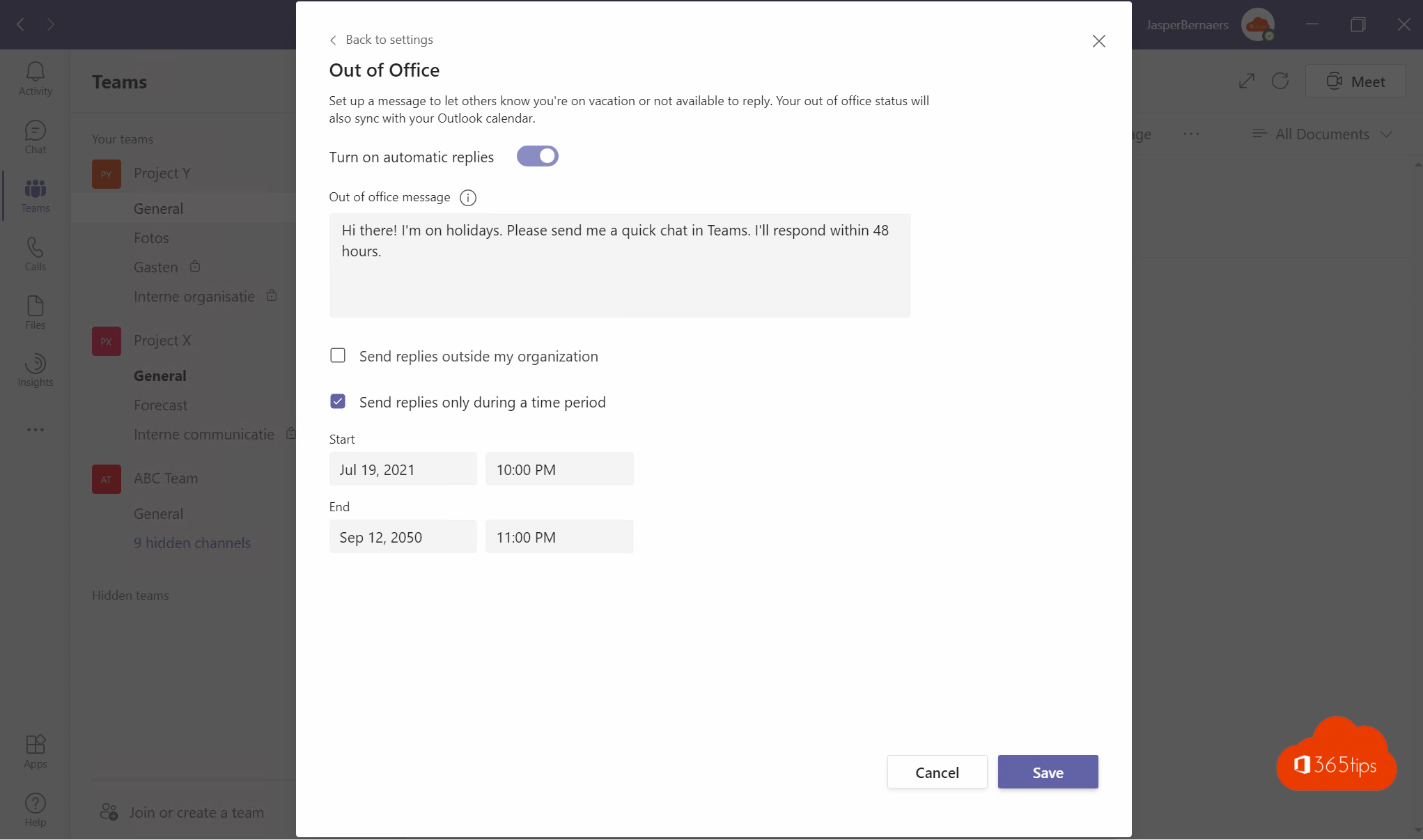
- Click Schedule out of office at the bottom. You also find it under Settings (the three dots at the top right) > General > Out of office.
- Turn on Turn on automatic replies.
- Type the message for colleagues inside your organization.
- To reply to external senders too, turn on Send replies outside my organization and choose whether to reply only to your contacts or to all external senders. Feel free to write a shorter message for them.
- Turn on Only send replies during a time period and choose the start and end date.
- Click Save.

During that period Teams shows the purple Out of office status, and Outlook automatically replies to e-mails.
How it works with Outlook
Teams and Outlook use the same automatic replies from your Exchange Online mailbox. Set out of office in Teams and you see the same message and period in Outlook under Settings > Account > Automatic replies (or in classic Outlook under File > Automatic Replies). It also works the other way round: turn on automatic replies in Outlook and Teams shows you as out of office.
A calendar event with Show as: Out of office also sets your Teams status to Out of office during that event.
Change your status in Teams
Besides a message, you can change your status. Click your profile picture and choose your current status:
- Available: green.
- Busy: red. You still get notifications.
- Do not disturb: red with a line. You only get notifications from priority contacts.
- Be right back and Appear away: yellow.
- Appear offline: you are invisible but can still chat.
Choose Duration to apply a status for a set time only. After that, Teams sets your status automatically again based on your activity and calendar.
Tips for a good out of office message
- Say when you are back, with a date: "I am back on Monday 3 November."
- Name a backup for urgent questions, with name and e-mail address.
- Keep the external message short and do not share where you are.
- Schedule it in advance with an end date, so you do not forget to turn it off.
- Test it by sending an e-mail from another address.
Not working?
- You do not see "Schedule out of office": your mailbox is not in Exchange Online (for example an on-premises mailbox in a hybrid setup), or you are using a guest account. Set the out of office in Outlook instead.
- Your status stays Out of office after you return: check whether automatic replies are still on in Outlook and whether a calendar event marked Out of office is still running.
- External senders get no reply: check that outside my organization is on and that you are not replying to your contacts only. An administrator can also block external automatic replies.
- Your status message does not show in a chat: tick Show when people message me.
- Working with a shared mailbox? Read how to set out of office on a shared mailbox.
Read also
How to set out of office on a shared mailbox in Microsoft 365
How to restore deleted files in Microsoft Teams and SharePoint
All Microsoft 365 admin portals in one list: the right URLs in 2026
Nederlandstalige versie: Afwezigheidsbericht (out of office) en statusbericht instellen in Microsoft Teams