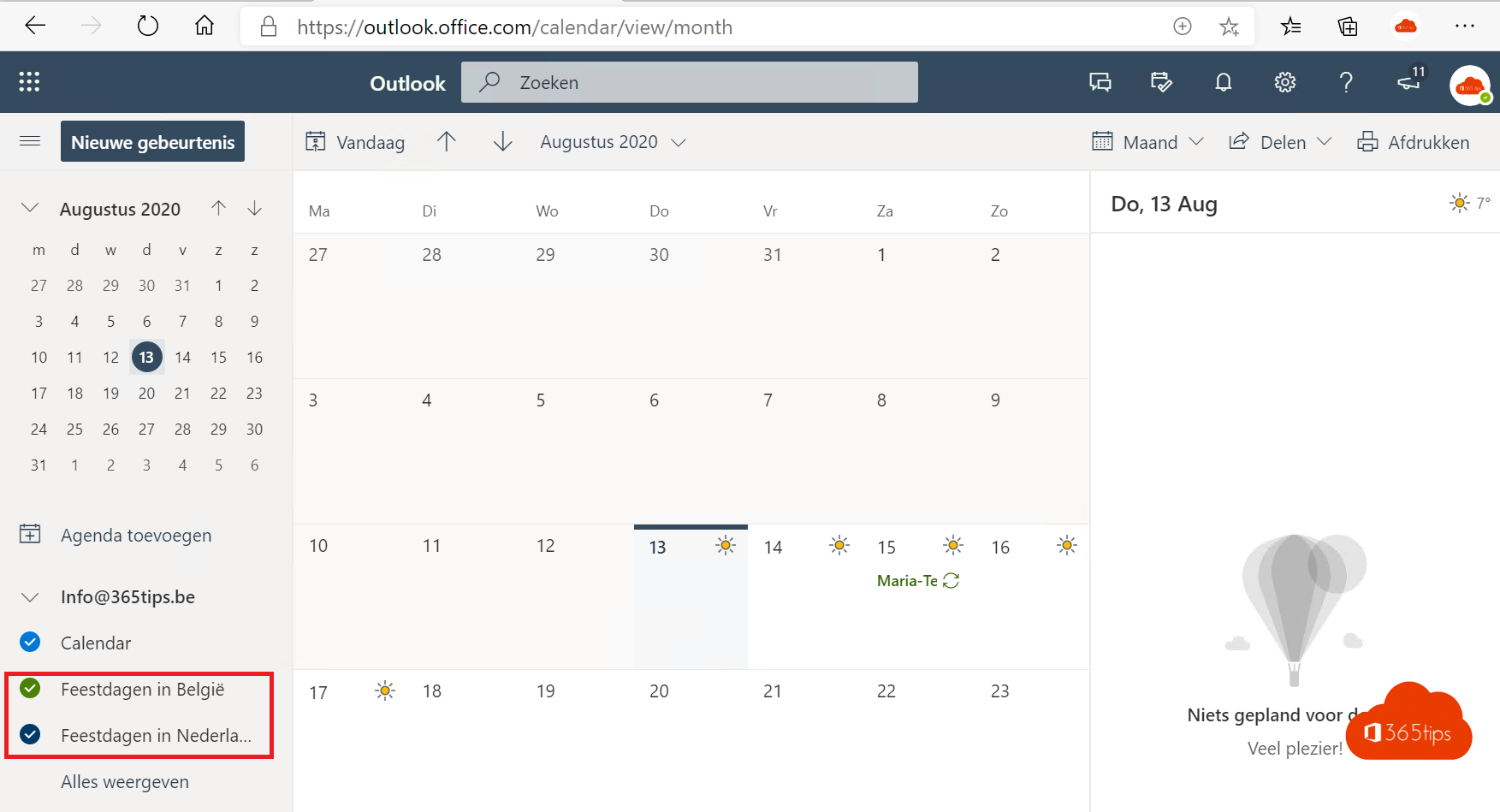
Want public holidays such as Easter, Christmas or your national day in your calendar in one go? Outlook can add a country's holidays automatically. Handy so you don't schedule meetings on a day off by accident, especially when you work with colleagues in other countries.
In the new Outlook and Outlook on the web
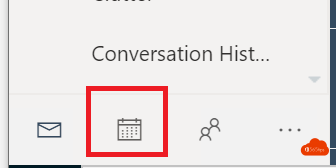
- Open Calendar.
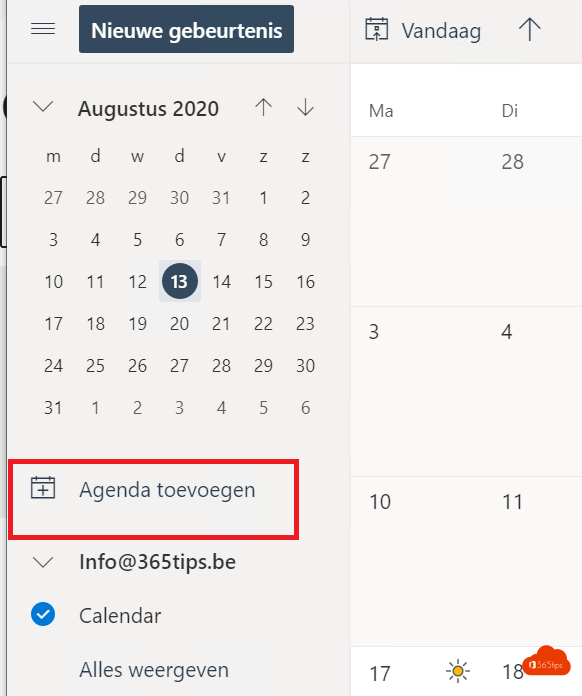
- In the left pane, select Add calendar.
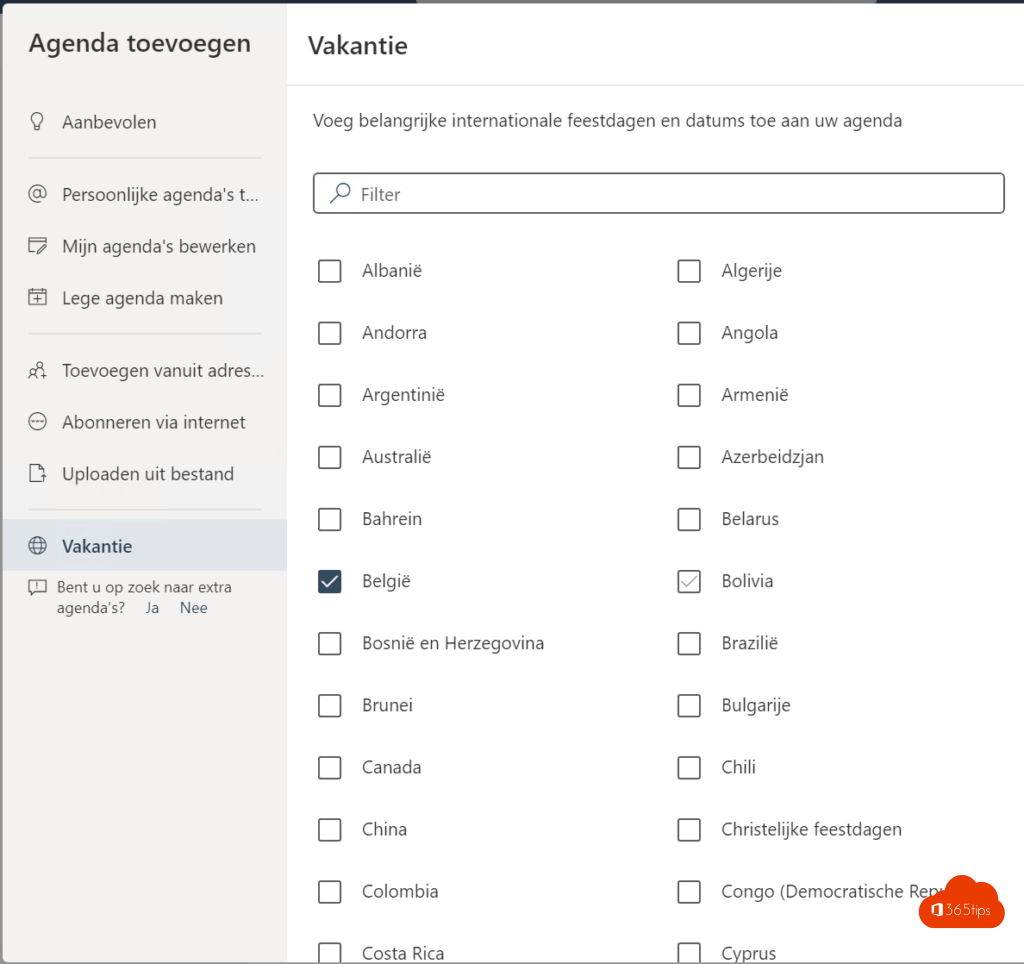
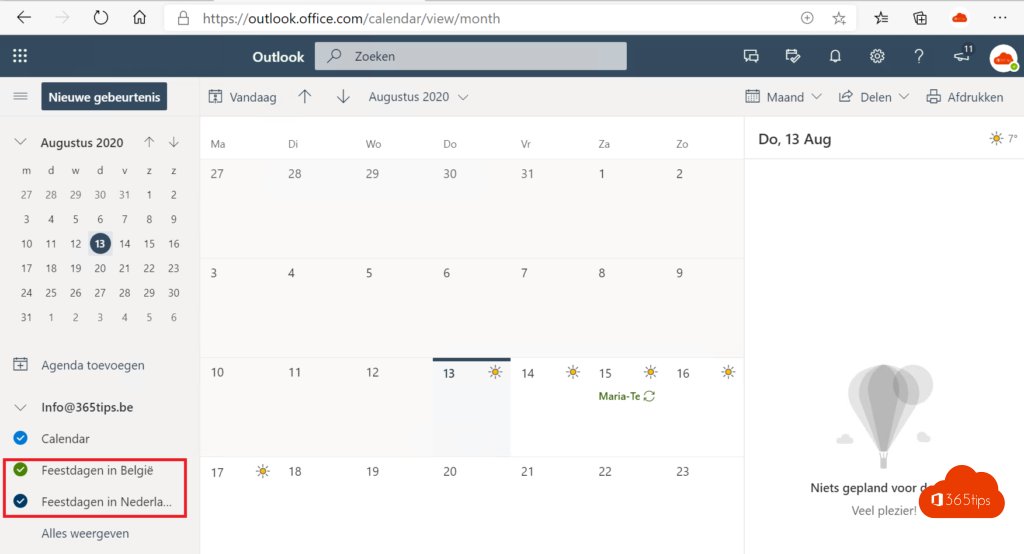
- Choose Holidays and check the country or countries, for example Belgium and the Netherlands.
The holidays appear as a separate calendar you can switch on or off with one click. They don't clutter your own calendar and are updated automatically.
In classic Outlook
- Go to File > Options > Calendar.
- Under Calendar options, select Add Holidays.
- Check the country and select OK.
Classic Outlook adds the holidays as all-day appointments in your own calendar, with the category Holiday.

Remove the holidays again
In the new Outlook, remove the holiday calendar via the three dots next to it. In classic Outlook, switch your calendar to list view, sort by the Holiday category and delete the appointments.
Also see categories and colors in your calendar and set an out-of-office reply.
Read also
Share your Outlook calendar with colleagues or external people
Use categories and colors in your Teams and Outlook calendar
Set an automatic reply (Out of Office) in Outlook
Nederlandstalige versie: Feestdagen automatisch toevoegen aan je Outlook-agenda