Finding a file, app or setting on your PC, or a message in Teams: with the right search features it takes seconds. Here are the handiest ways to search in Windows 11 and Microsoft Teams.
Search in Windows 11
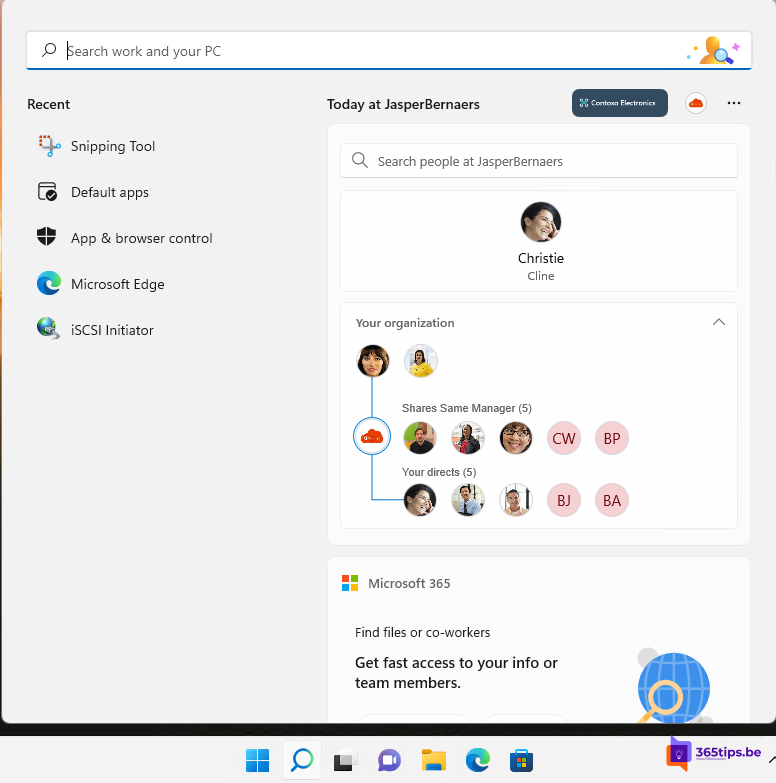
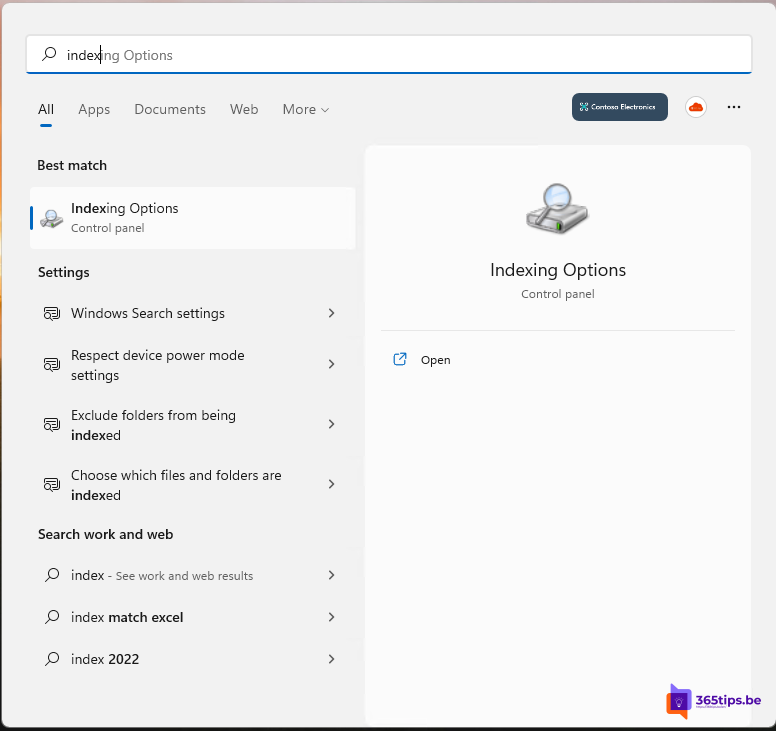
- Press Windows + S, or press Windows and start typing.
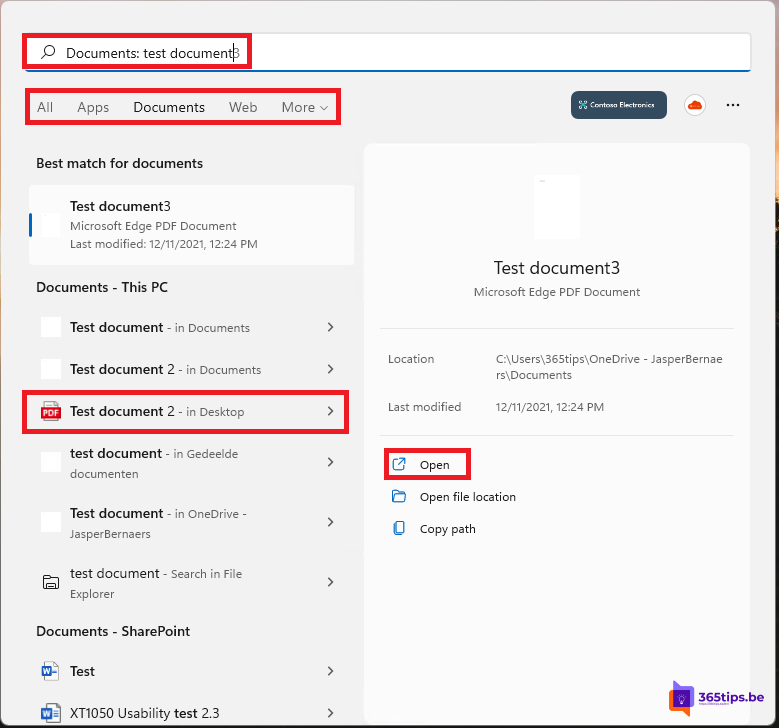
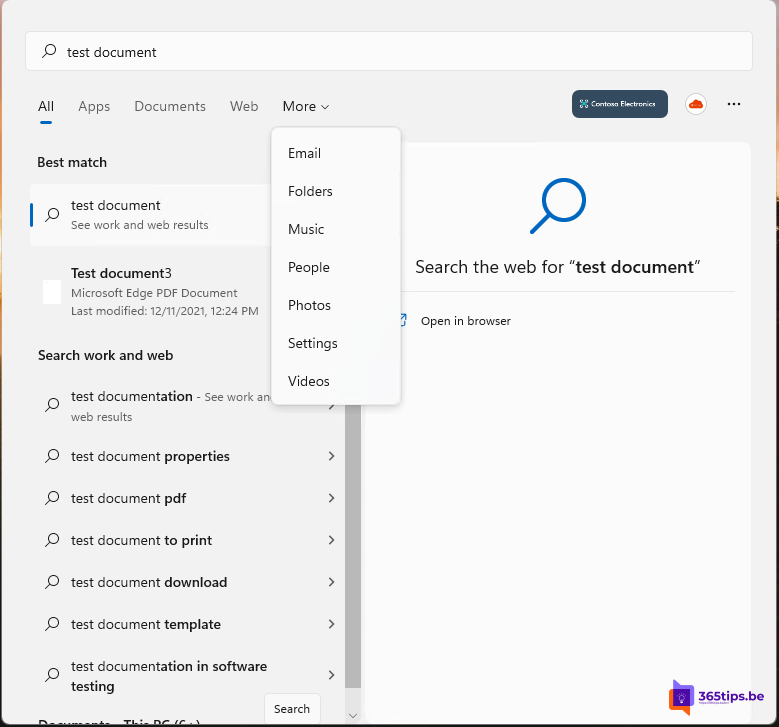
- Use the filters at the top: Apps, Documents, Settings, Photos or Web.
- With a work account you also see files from OneDrive and SharePoint and colleagues in your organization.
Find more files
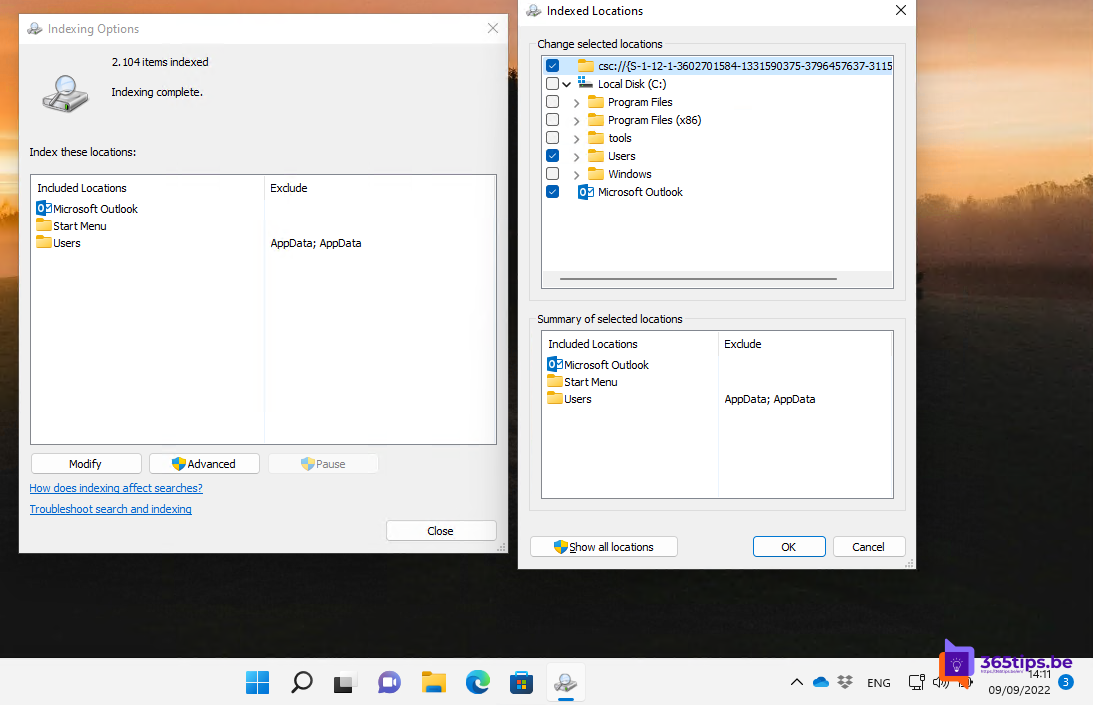
Windows can't find your file? Go to Settings > Privacy & security > Searching Windows and choose Enhanced, so your whole PC gets indexed. In File Explorer you can also search at the top right of a folder.
Search in Teams
- Press Ctrl + E and type a word. Filter by Messages, People or Files.
- In a chat, press Ctrl + F to search just that conversation.
Read more in search Teams quickly.

Also see find large files in Windows 11 and Windows 11 productivity tips.
Read also
Search Microsoft Teams quickly, without the old commands
Find and delete large files in Windows 11 and 10: 5 ways
Seven tips to work more productively in Windows 11
Nederlandstalige versie: Snel zoeken in Windows 11 en Microsoft Teams
More in English
▸The most useful keyboard shortcuts for Windows 11The handiest Windows 11 shortcuts: Start menu, File Explorer, Snap layouts, virtual desktops, Snipping Tool,…
▸Use tabs in File Explorer in Windows 11Open folders in tabs in Windows 11 File Explorer. Shortcuts, dragging files between tabs and tearing tabs off…
▸How to show file extensions in File Explorer in Windows 11 and 10Show file extensions such as .pdf, .docx or .exe in Windows 11 and 10: via View, Folder Options, Settings or…
▸Align the Start button and taskbar to the left in Windows 11Move the Start button and taskbar icons back to the left, like Windows 10, with one setting in Windows…