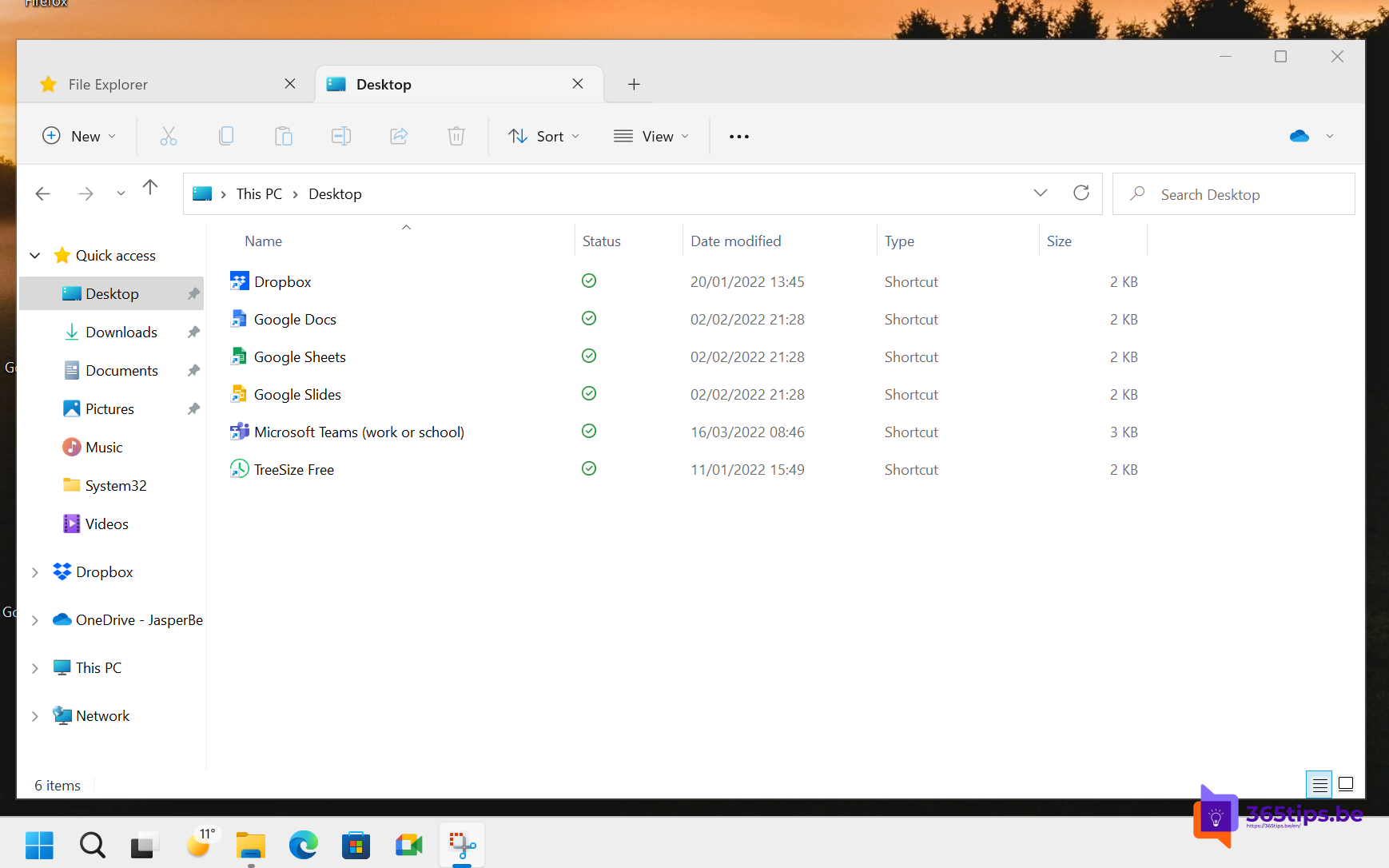
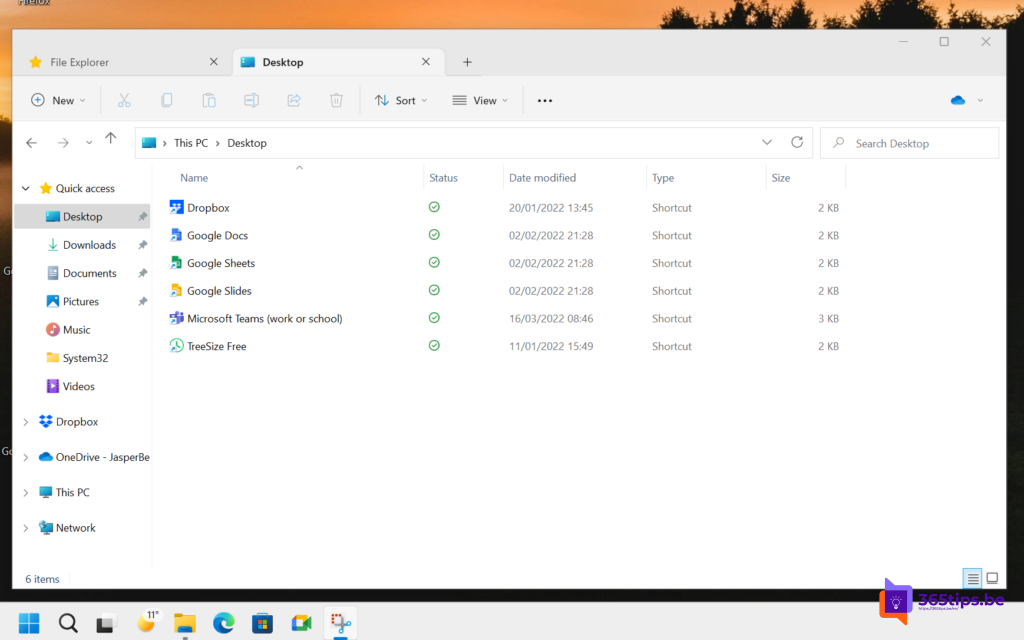
Just like your browser, File Explorer in Windows 11 works with tabs. Instead of five windows, you open five folders in one window and switch with a click. That also makes copying and moving files faster. This article shows how to use tabs, with the handiest shortcuts.
Open a tab
- Select the plus sign next to the last tab, or press Ctrl + T.
- Middle-click (or Ctrl + click) a folder to open it in a new tab.
- Right-click a folder > Open in new tab.
Shortcuts
| Action | Shortcut |
|---|---|
| Open File Explorer | Windows + E |
| New tab | Ctrl + T |
| Close tab | Ctrl + W |
| Next / previous tab | Ctrl + Tab / Ctrl + Shift + Tab |
| Go to tab 1 to 9 | Ctrl + 1 ... 9 |
| New window | Ctrl + N |
Move files between tabs
Drag a file onto another tab and hold for a moment: File Explorer switches to that tab and you drop the file in the right folder. Hold Ctrl to copy instead of move.
Arrange tabs
- Drag tabs to change their order.
- In recent Windows 11 versions, drag a tab out of the window to make it its own window, or into another File Explorer window.
- Right-click a tab for Duplicate, Close other tabs or Close tabs to the right.
Always open folders in a new tab
In File Explorer, open the three dots > Options. On the General tab, under Browse folders, choose whether a folder opens in the same window, a new window or a new tab.
Tips
- Show file extensions so you can see which file you're moving.
- Want two folders side by side? Use Snap layouts with two windows.
- No tabs? Install the latest Windows 11 updates.
Read also
How to show file extensions in File Explorer in Windows 11 and 10
The most useful keyboard shortcuts for Windows 11
How to get the full (classic) right-click menu back in Windows 11
Nederlandstalige versie: Tabbladen gebruiken in Verkenner in Windows 11