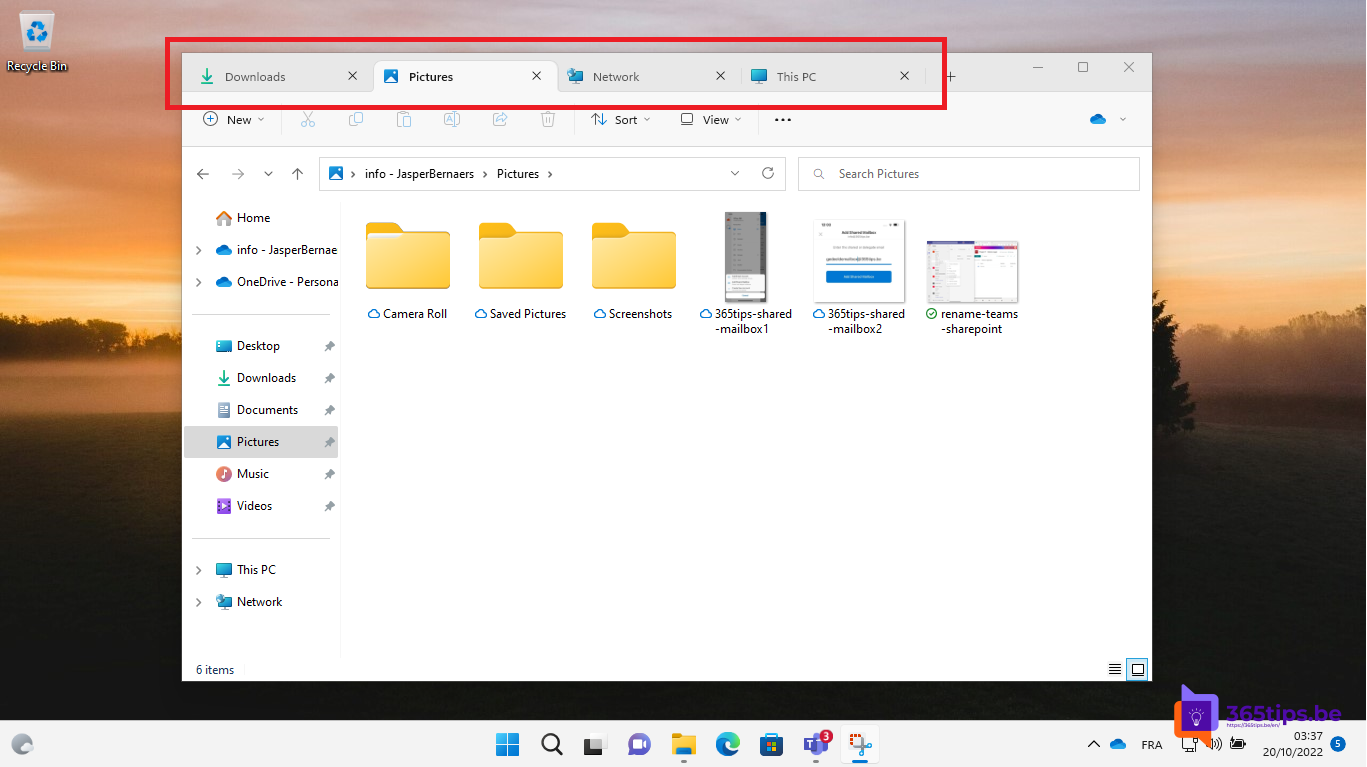
File Explorer in Windows 11 supports tabs, just like Microsoft Edge. That way you keep several folders open in one window and switch quickly between, say, your Downloads folder, a SharePoint library and your desktop. This tip shows how to open tabs and which keyboard shortcuts to use.
Tabs arrived in File Explorer in October 2022 with update KB5019509 for Windows 11 22H2. Today they're standard in every supported version of Windows 11, so you don't need a separate update. Windows 10 doesn't have tabs in File Explorer.
Open a new tab
- Click the + next to the last tab at the top of File Explorer.
- Press Ctrl+T.
- Right-click a folder and choose Open in new tab.
- Middle-click (click the scroll wheel on) a folder.

Keyboard shortcuts for tabs
| Shortcut | What it does |
|---|---|
| Ctrl+T | Open a new tab |
| Ctrl+W | Close the current tab |
| Ctrl+Tab | Go to the next tab |
| Ctrl+Shift+Tab | Go to the previous tab |
| Ctrl+N | Open a new File Explorer window |
| Windows+E | Open File Explorer |
Drag and arrange tabs
- Drag a tab left or right to change the order.
- Drag a tab out of the window to turn it into a separate window. You can also drag it back into another File Explorer window.
- Drag files onto another tab to move or copy them.
- Right-click a tab for more options, such as closing other tabs. The options available can vary by Windows 11 version.
Tip: start File Explorer in the right place
Via ... > Options, use Open File Explorer to to choose whether a new window or tab starts at Home, This PC or another location. Also see use tabs in File Explorer, the most-used Windows 11 keyboard shortcuts and show file extensions in File Explorer.
Read also
Use tabs in File Explorer in Windows 11
The most useful keyboard shortcuts for Windows 11
How to show file extensions in File Explorer in Windows 11 and 10
Nederlandstalige versie: Tabbladen gebruiken in Verkenner van Windows 11: tips en sneltoetsen