Is your C: drive almost full, or does Windows say there is not enough space for an update? Usually a few large files or folders take up most of the space: old downloads, videos, ISO files, a Windows.old folder or a large hibernation file. This article shows five ways to find large files in Windows 11 and Windows 10, which files you can safely delete and which ones you should leave alone.
Which method should you use?
| Method | Install? | Best when |
|---|---|---|
| Settings > Storage | No | You want a quick view of what uses the most space |
| Search by size in File Explorer | No | You are looking for files above a certain size |
| PowerShell | No | You want an exact top 20 for the whole drive |
| TreeSize Free or WinDirStat | Yes | You want to see per folder where the space goes |
| Disk Space Analyzer in your browser | No | You want to explore a folder visually without installing anything |
Method 1: Settings > System > Storage
- Open Settings (
Windows + I) > System > Storage. - You immediately see which categories use the most space: apps, temporary files, documents, pictures, videos.
- In Windows 11, click Cleanup recommendations. Under Large or unused files, Windows lists the biggest files you have not opened for a while. Tick what can go and click Clean up.
- Click Temporary files to clean up the Recycle Bin, the Windows Update cache, Previous Windows installation(s) and more. Check carefully what you tick: your Downloads folder is in that list.
Also turn on Storage Sense on the same page. Windows then cleans temporary files and the Recycle Bin automatically when the drive fills up.
Method 2: search by size in File Explorer
- Open File Explorer (
Windows + E) and go to This PC or the C: drive. - Type one of these filters in the search box at the top right and press Enter.
- Choose View > Details and sort by the Size column.
| Filter | Finds files of |
|---|---|
size:large | 128 MB to 1 GB |
size:huge | 1 GB to 4 GB |
size:gigantic | more than 4 GB |
size:>500MB | larger than a size you choose |
Searching a whole drive can take a while if the folder is not indexed.
Method 3: the 20 largest files with PowerShell
Open PowerShell as administrator and paste this command:
Get-ChildItem C:\ -Recurse -File -Force -ErrorAction SilentlyContinue |
  Sort-Object Length -Descending |
  Select-Object -First 20 @{n='GB';e={[math]::Round($_.Length/1GB,2)}}, FullName
You get the twenty largest files with their size in GB and the full path. On a full drive this takes a few minutes. Replace C:\ with a folder, such as $env:USERPROFILE, to search only your own files.
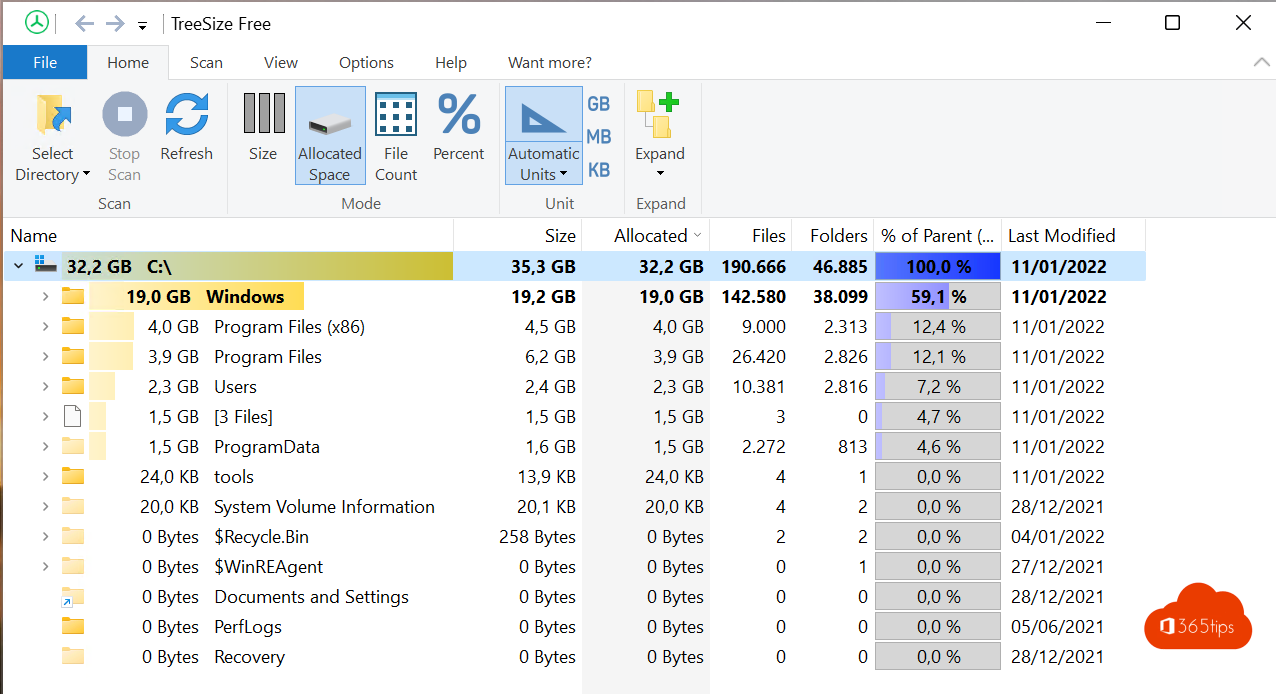
Method 4: TreeSize Free or WinDirStat
Not looking for one big file but for a folder full of smaller ones? A tool that shows the size of each folder helps.
- TreeSize Free (JAM Software): lists all folders sorted by size.
- WinDirStat: free and open source, with a colourful treemap in which every block is a file.
Both install with winget too: winget install JAMSoftware.TreeSize.Free or winget install WinDirStat.WinDirStat.
- Start the tool as administrator, otherwise it cannot read system folders and the drive looks fuller than what you see.
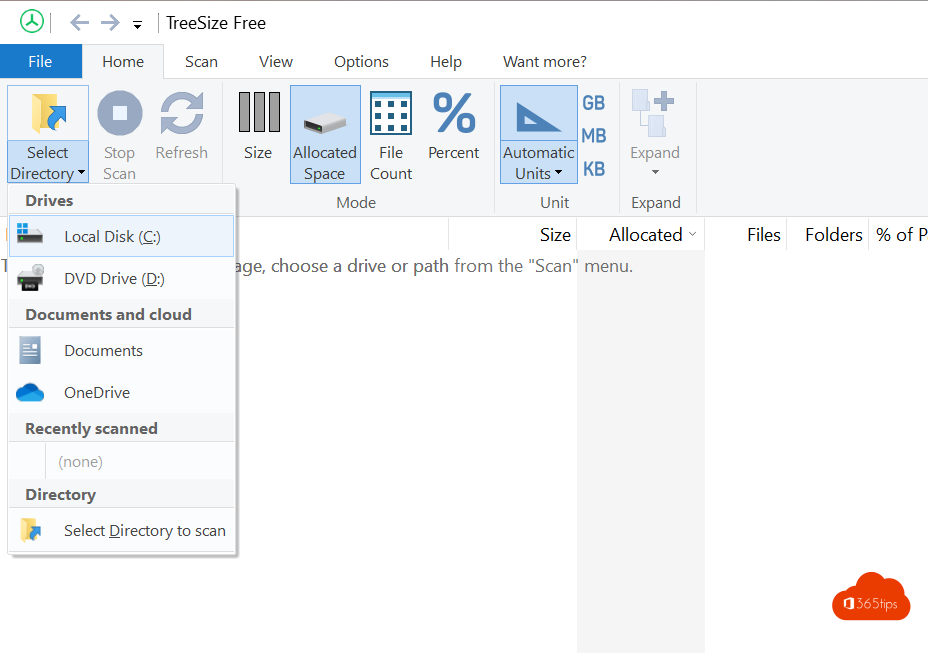
- Choose the C: drive and wait for the scan to finish.
- Expand the largest folders until you reach the files that take up the space.
- Only delete files you are sure about (see below).

Method 5: without installing anything, in your browser
Not allowed to install software on your computer? With the free Disk Space Analyzer you pick a folder (for example your user folder or Downloads) and see in a treemap what takes the most space. The scan runs entirely in your browser; nothing is uploaded. It works in Chrome and Edge. It cannot scan system folders such as C:\Windows; use method 3 or 4 for those.
The biggest space hogs and what to do with them
| File or folder | What is it? | Safe to clean up? |
|---|---|---|
C:\Windows.old | Your previous Windows version after a major update | Yes, via Storage > Temporary files > Previous Windows installation(s). After that you can no longer roll back. |
hiberfil.sys | Hibernation file, often several GB | Only if you do not use hibernation: powercfg /h off as administrator. Never delete it by hand. |
pagefile.sys | Page file for memory | No, let Windows manage it. |
C:\Windows\WinSxS | Windows component store | Never by hand. Clean it with Dism.exe /Online /Cleanup-Image /StartComponentCleanup. |
| Downloads | Installers, ISO files, zip files | Usually, after checking. |
| OneDrive folder | Files downloaded locally | Right-click a folder > Free up space. The files stay in OneDrive. |
| Recycle Bin | Deleted files | Yes, empty it if you no longer need anything. |
Tips
- Do not delete anything from
C:\Windows,C:\Program FilesorC:\ProgramDatabased on size alone. Remove programs via Settings > Apps > Installed apps, sorted by size. - Make a backup first of photos and documents before deleting them, or move them to OneDrive or an external drive.
- Empty the Recycle Bin after deleting; otherwise you do not get the space back.
- On a work computer, ask your IT department first. Some folders (such as OneDrive with Files On-Demand) are managed centrally.
Read also
Run Command Prompt as administrator in Windows 11 and 10: 6 ways
Turn Windows features on or off in Windows 11 and 10: 4 ways
How to restore deleted files in Microsoft Teams and SharePoint
Nederlandstalige versie: Grote bestanden vinden en verwijderen in Windows 11 en 10: 5 manieren