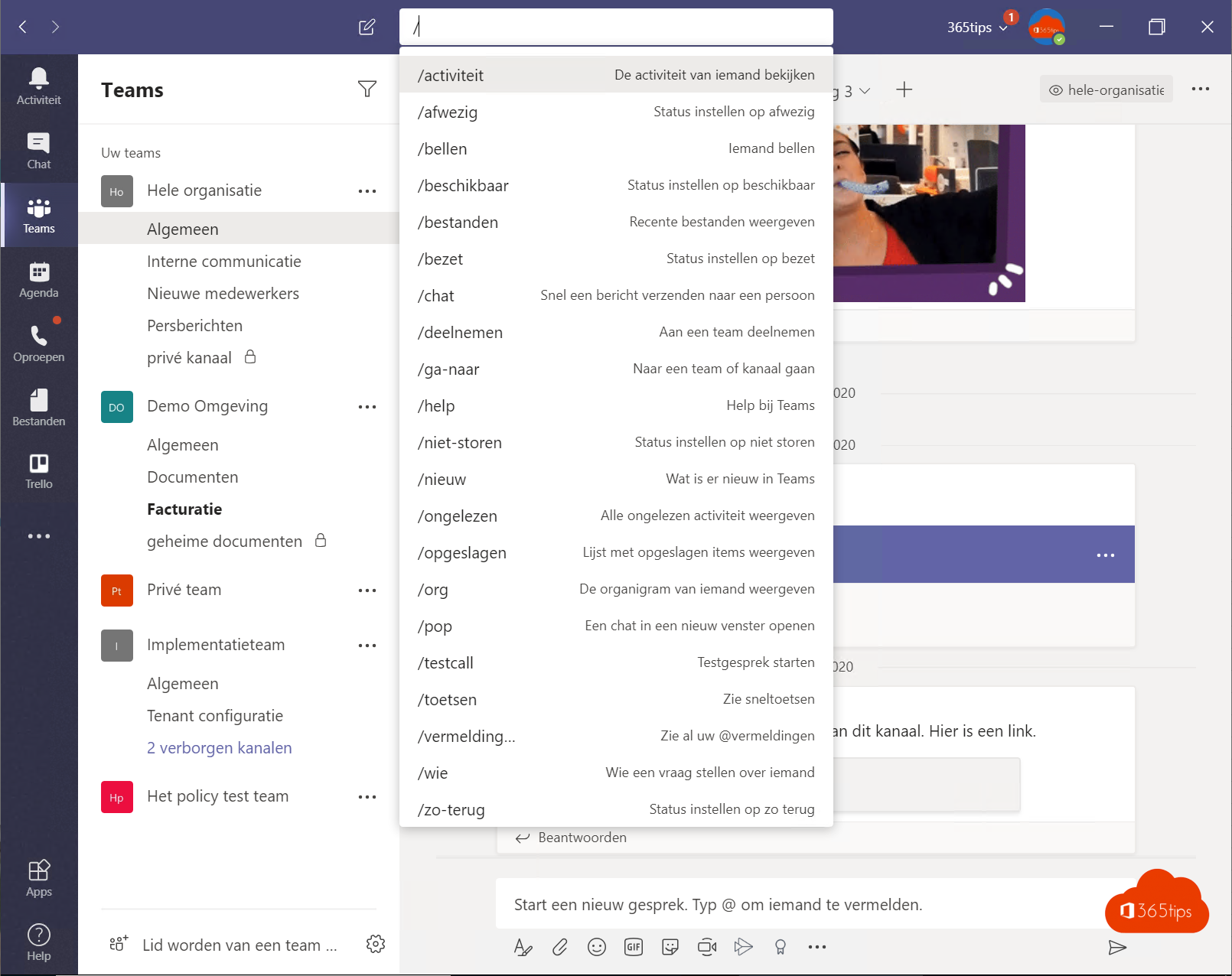
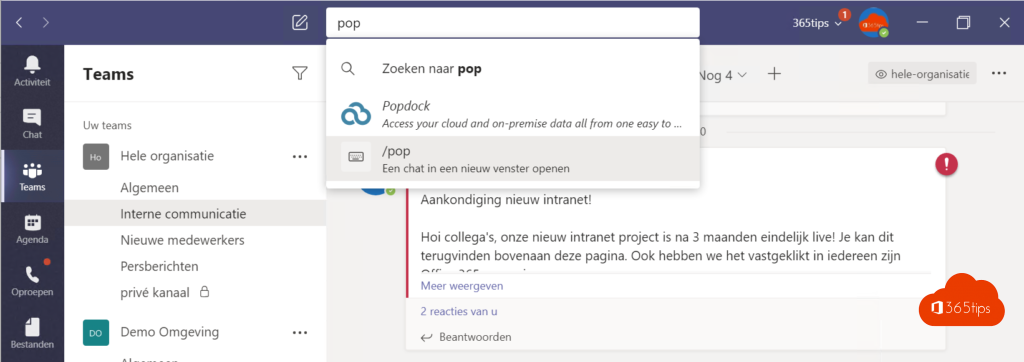
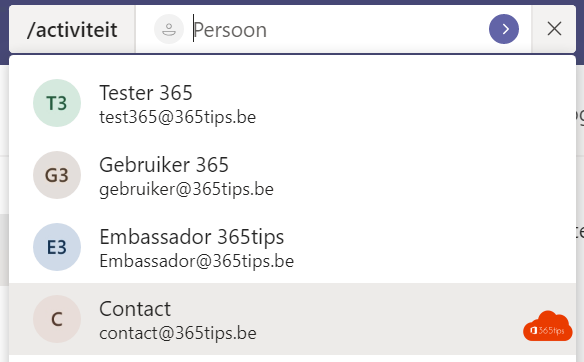
The search bar at the top of Teams is the fastest way to find a message, file or person again. You used to be able to type commands there too, such as /files or /unread. Those slash commands no longer exist in the new Teams. This article shows what works now.
Search and filter
- Select the search bar or press Ctrl + E (Mac: Cmd + E).
- Type a word and press Enter.
- Choose a tab at the top: Messages, People, Files or Teams and channels.
- Refine with filters such as From, Date, File type or Mentions me.


Search in one chat or channel
In a chat or channel, press Ctrl + F. Teams then only searches that conversation.
What replaces the old commands?
- /unread: filter Activity or Chat on Unread.
- /mentions: filter Activity on @Mentions.
- /files: open OneDrive or Files in Teams for your recent files.
- /available, /busy, /away: select your profile picture and choose your status.
- /keys: press Ctrl + . for all shortcuts. See Teams keyboard shortcuts.
Nederlandstalige versie: Snel zoeken in Microsoft Teams, zonder de oude commando's
Related articles
▸Save messages in Microsoft Teams and find them again fastSave important chat and channel messages in Teams with one click and find them quickly in your saved messages…
▸Mark a message as unread in Microsoft TeamsMark a Teams chat or channel message as unread to follow up later, and view all unread messages with the…
▸Suggested replies and searching within a chat in Microsoft TeamsReply faster with suggested replies and use Ctrl+F to search within one chat or channel in Microsoft Teams.
▸The most useful Microsoft Teams keyboard shortcuts for Windows and MacThe most useful shortcuts for the new Teams app: navigation, chat, mute, camera, raise hand and screen…
▸View and organize chats and channels together in the new TeamsShow chats and channels in one list, create custom sections and use filters in the refreshed chat and…