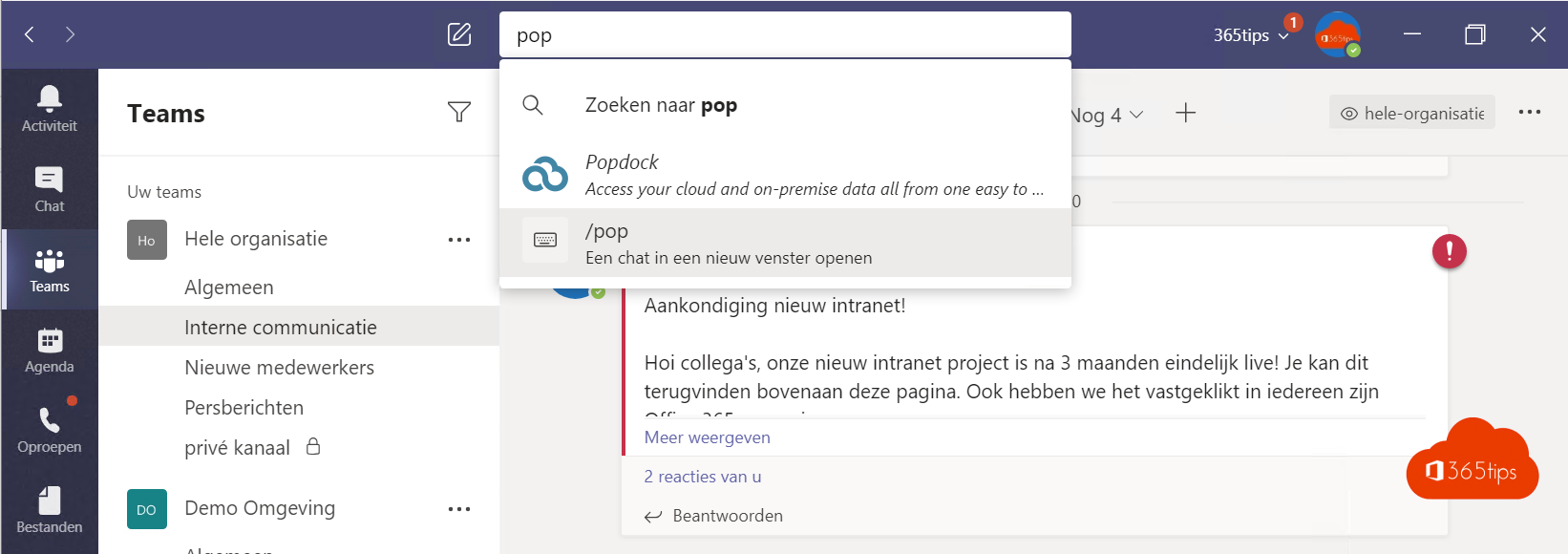
Replying quickly to a message or finding something in a single conversation: Teams has handy features for that. Here is how suggested replies and searching within a chat or channel work. Both are standard in Teams, and with a Copilot license Copilot can also help draft replies or summarize a conversation.
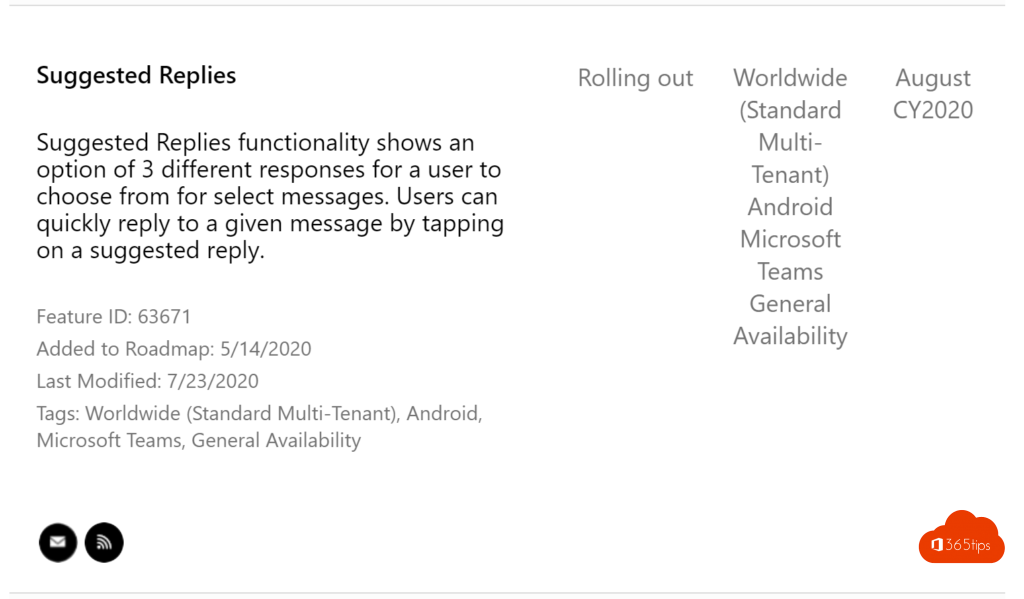
Suggested replies
Below a received chat message, Teams sometimes shows short replies such as "Sounds good!" or "I'll look into it". Tap or click one to send it right away. You mostly see them in the mobile app and in one-on-one chats.
Don't find them useful? In the mobile app you can usually turn them off in the messaging settings. The exact name of the option may differ.
Search within one chat or channel
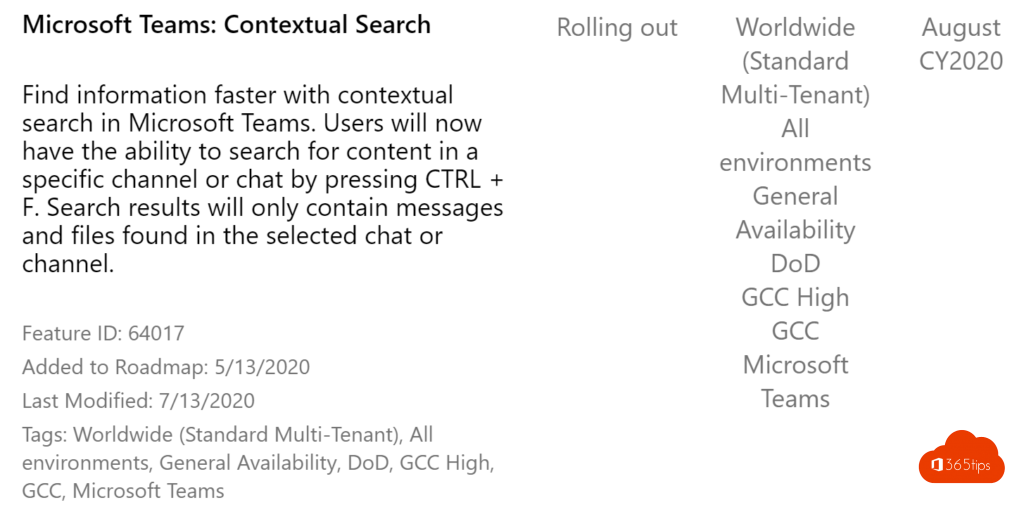
- Open the chat or channel.
- Press Ctrl + F (on a Mac Cmd + F).
- Type your search term. You only get results from that conversation.
Want to search all of Teams? Press Ctrl + E and filter by messages, people or files.
Also see search Teams quickly and Teams keyboard shortcuts.
Read also
Search Microsoft Teams quickly, without the old commands
Reply to a specific message in Microsoft Teams
The most useful Microsoft Teams keyboard shortcuts for Windows and Mac
Nederlandstalige versie: Voorgestelde antwoorden en zoeken in één chat in Microsoft Teams