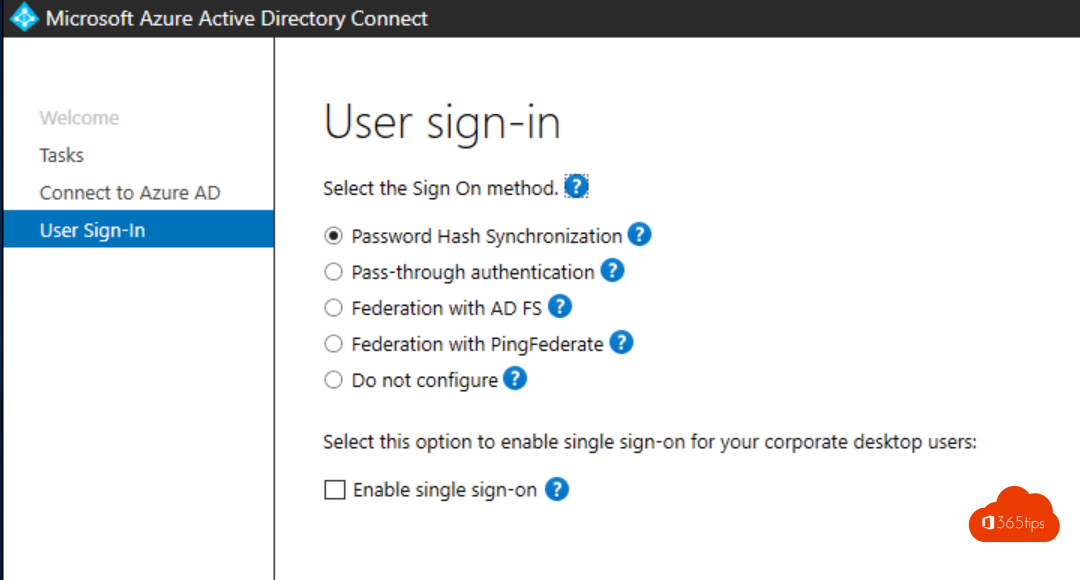
With Seamless Single Sign-On, users on a domain-joined computer sign in to Microsoft 365 automatically, without typing their password again. It's a feature of Microsoft Entra Connect (formerly Azure AD Connect) and you set it up in about half an hour. Seamless SSO still exists, but for Windows 10 and 11 Microsoft recommends making devices Entra joined or hybrid joined. Those use a Primary Refresh Token (PRT) and don't need Seamless SSO.
When do you still need Seamless SSO?
- You have Windows computers that are only joined to your on-premises domain, not to Entra ID.
- You have older devices or scenarios where hybrid join isn't possible.
Are all your devices Entra joined or hybrid joined? Then users already get SSO via the PRT. Read Entra joined vs hybrid joined.
Requirements
- You already sync your users with Microsoft Entra Connect Sync. Not yet? Follow set up Microsoft Entra Connect.
- You use password hash synchronization (PHS) or pass-through authentication (PTA). Seamless SSO works with both, so you don't need to switch to PTA.
- You have an account with domain admin rights and an admin in Entra ID.
1. Enable Seamless SSO in Entra Connect
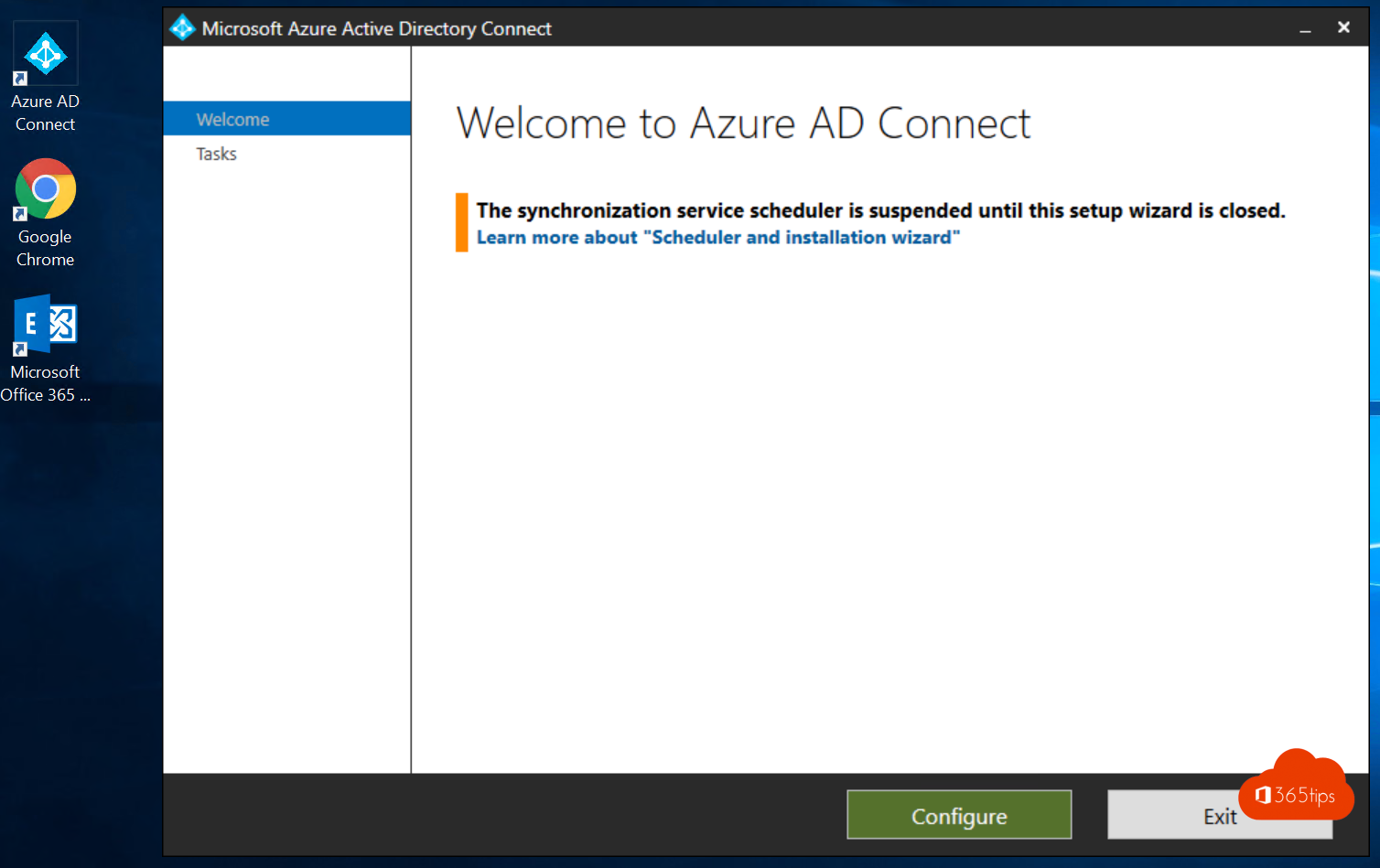
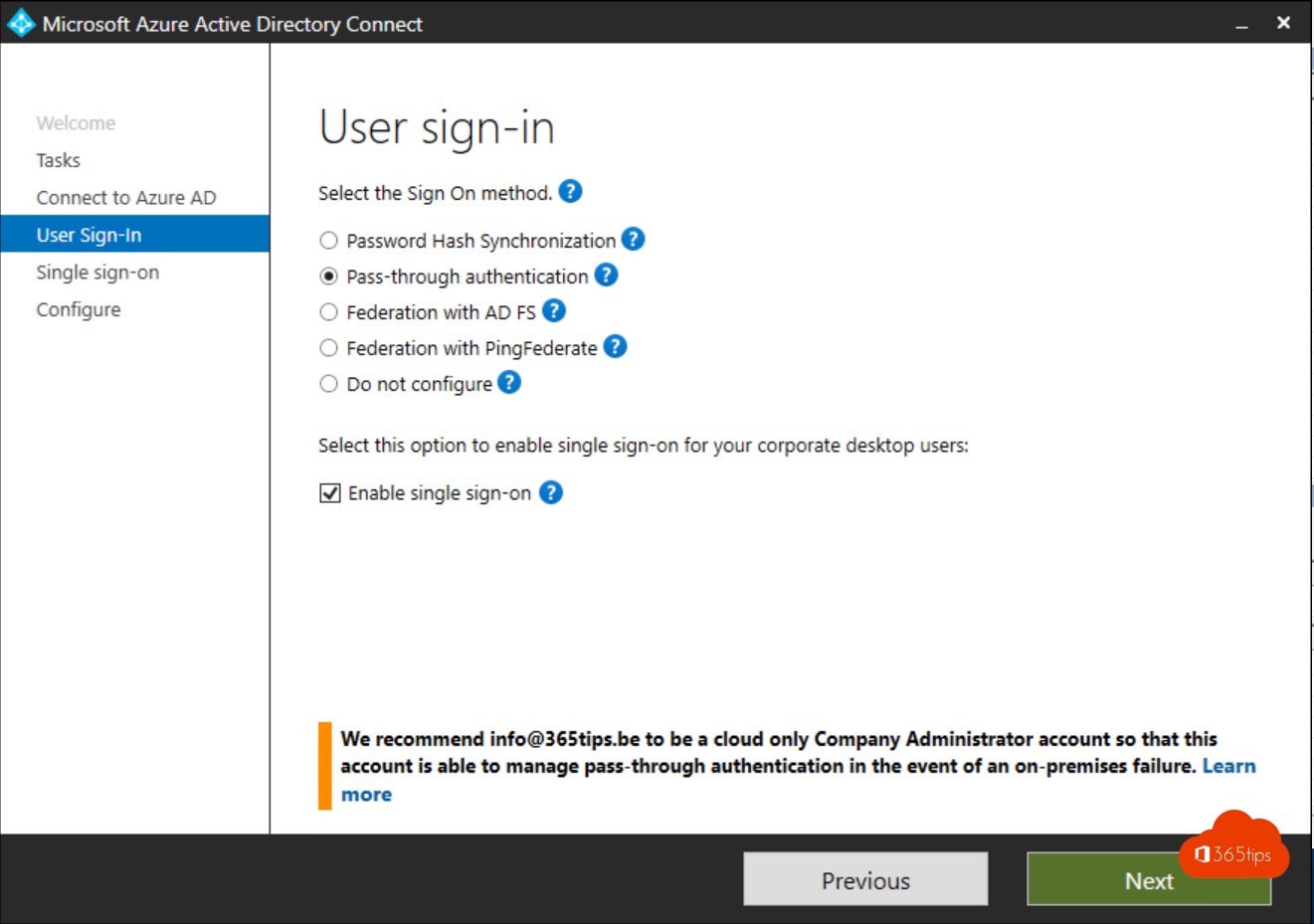
- Open Microsoft Entra Connect on your sync server and select Configure.
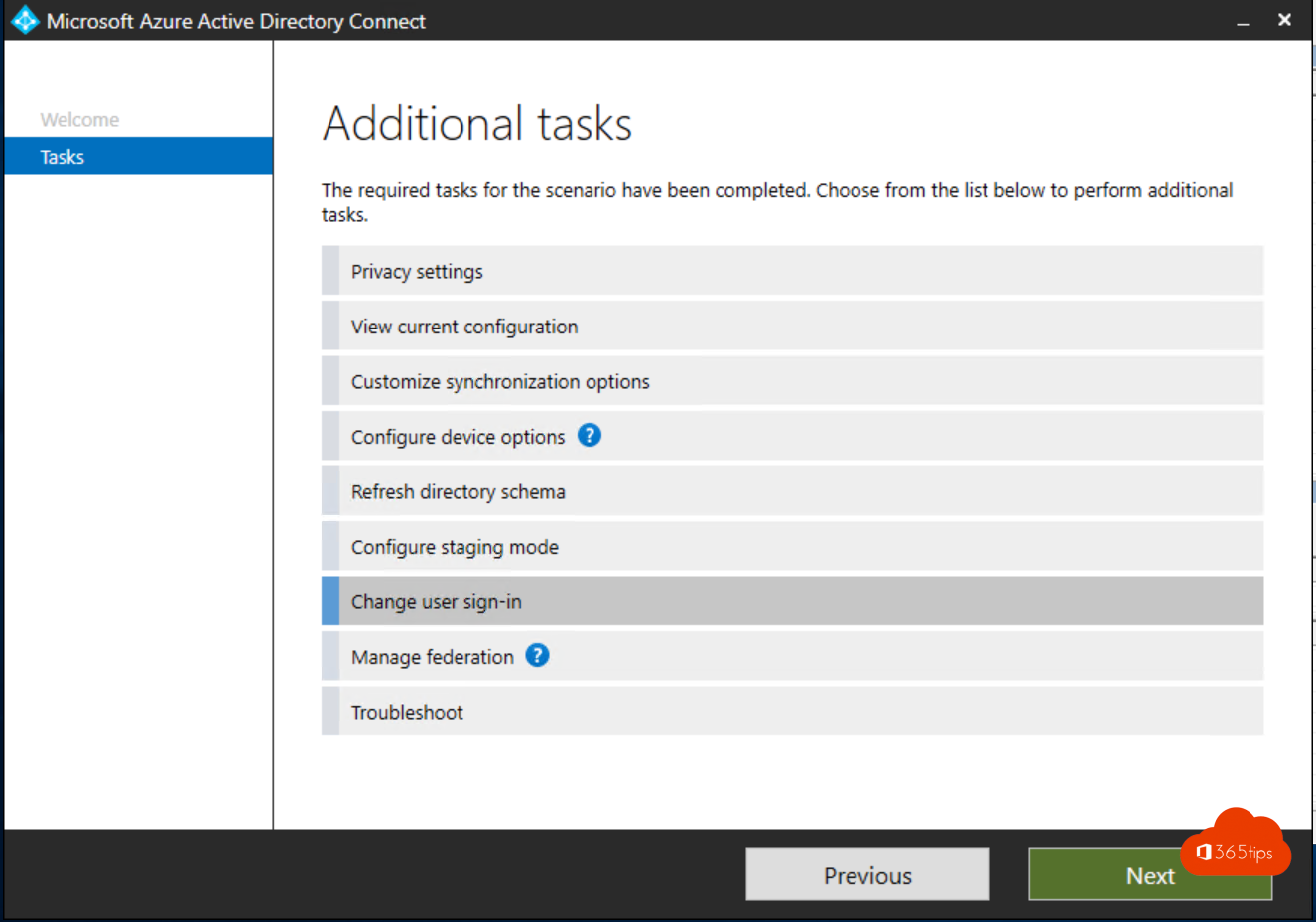
- Choose Change user sign-in.
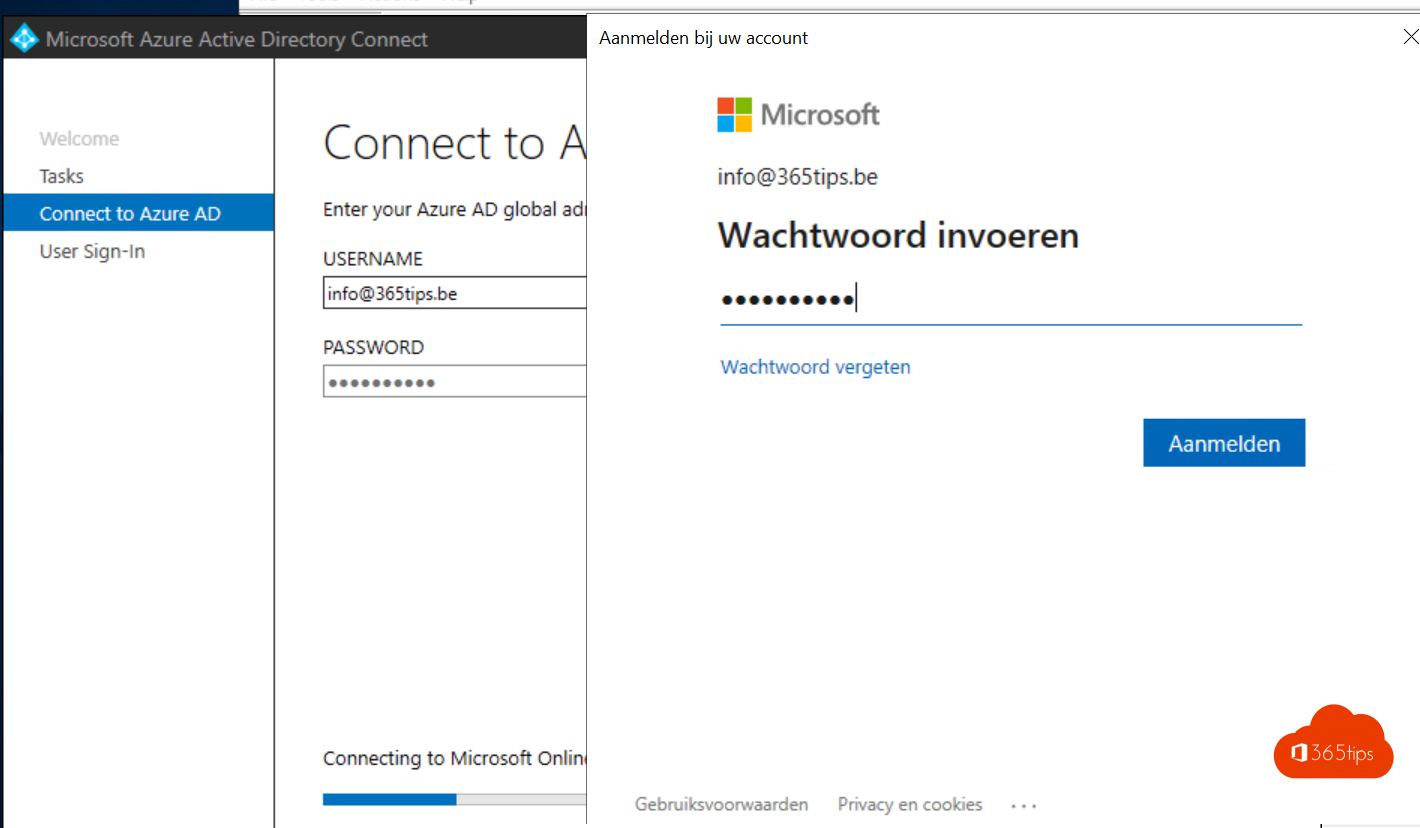
- Sign in with your Entra ID admin account.
- Keep your current sign-in method (password hash synchronization or pass-through authentication).
- Check Enable single sign-on and select Next.
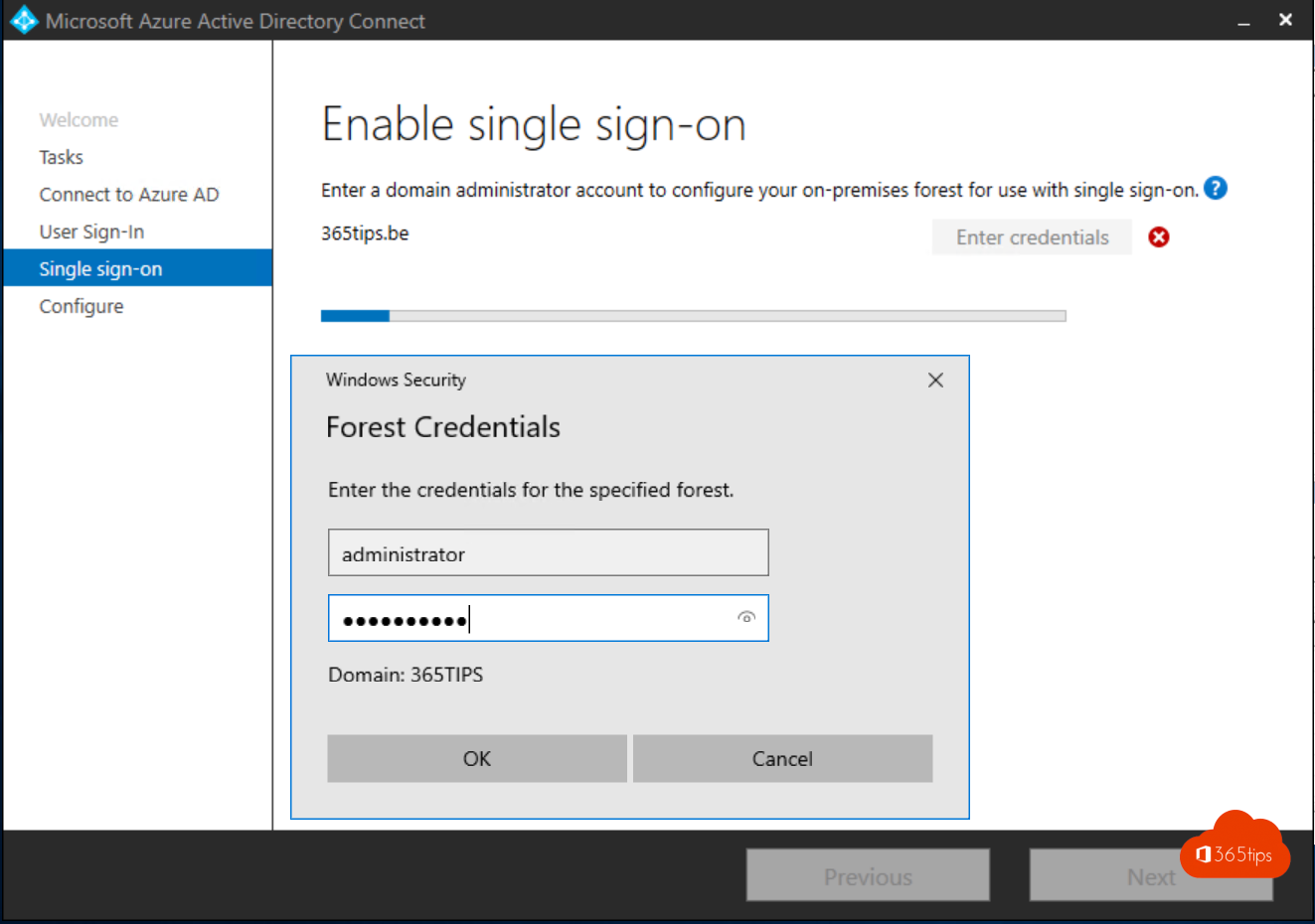
- Enter the credentials of a domain admin. Entra Connect creates a computer account AZUREADSSOACC in your Active Directory.
- Select Configure.
2. The Group Policy settings
The browser must treat the sign-in URL as an intranet site. You do that with a GPO for your users.
- Open Group Policy Management and create a new GPO.
- Go to User Configuration > Policies > Administrative Templates > Windows Components > Internet Explorer > Internet Control Panel > Security Page.
- Open Site to Zone Assignment List and add:
- Value name:
https://autologon.microsoftazuread-sso.com - Value:
1(intranet zone)
- Value name:
- Go to Security Page > Intranet Zone and enable Allow updates to status bar via script.
- Link the GPO to the OU with your users.
These settings also apply to Microsoft Edge and Google Chrome on Windows. Firefox and browsers on macOS need separate settings, described in Microsoft's documentation.
3. Test
- Sign in on a domain computer with a synced user.
- Open a private window and go to myapps.microsoft.com.
- Type your user name. You're signed in without typing a password.
Maintenance: roll over the Kerberos key
The AZUREADSSOACC computer account has a Kerberos key. Microsoft recommends rolling it over regularly, at least every 30 days. You do that with the PowerShell module installed with Entra Connect. Also protect this computer account like a domain controller.
Also see passwordless sign-in for Microsoft 365 and add a UPN suffix in Active Directory.
Nederlandstalige versie: Seamless Single Sign-On activeren voor je organisatie