Have an on-premises Active Directory and want users to sign in to Microsoft 365 with the same account and password? Then you sync your users and groups to Microsoft Entra ID with Microsoft Entra Connect. This article shows how to install it, which sign-in method to choose and when Cloud Sync is the better choice.
Preparation
- A server running Windows Server 2016 or later (2019 or 2022 recommended), joined to the domain.
- Add and verify your email domain in Microsoft 365. Read add a domain.
- Make sure users' UPN matches their email address (add a UPN suffix in AD if needed).
- Fix errors with the IdFix tool, such as duplicate addresses or invalid characters.
Install
- Download Microsoft Entra Connect from the Entra admin center > Hybrid management > Microsoft Entra Connect.
- Start the wizard. Choose Express settings for a single forest, or Customize for more control (for example only certain OUs).
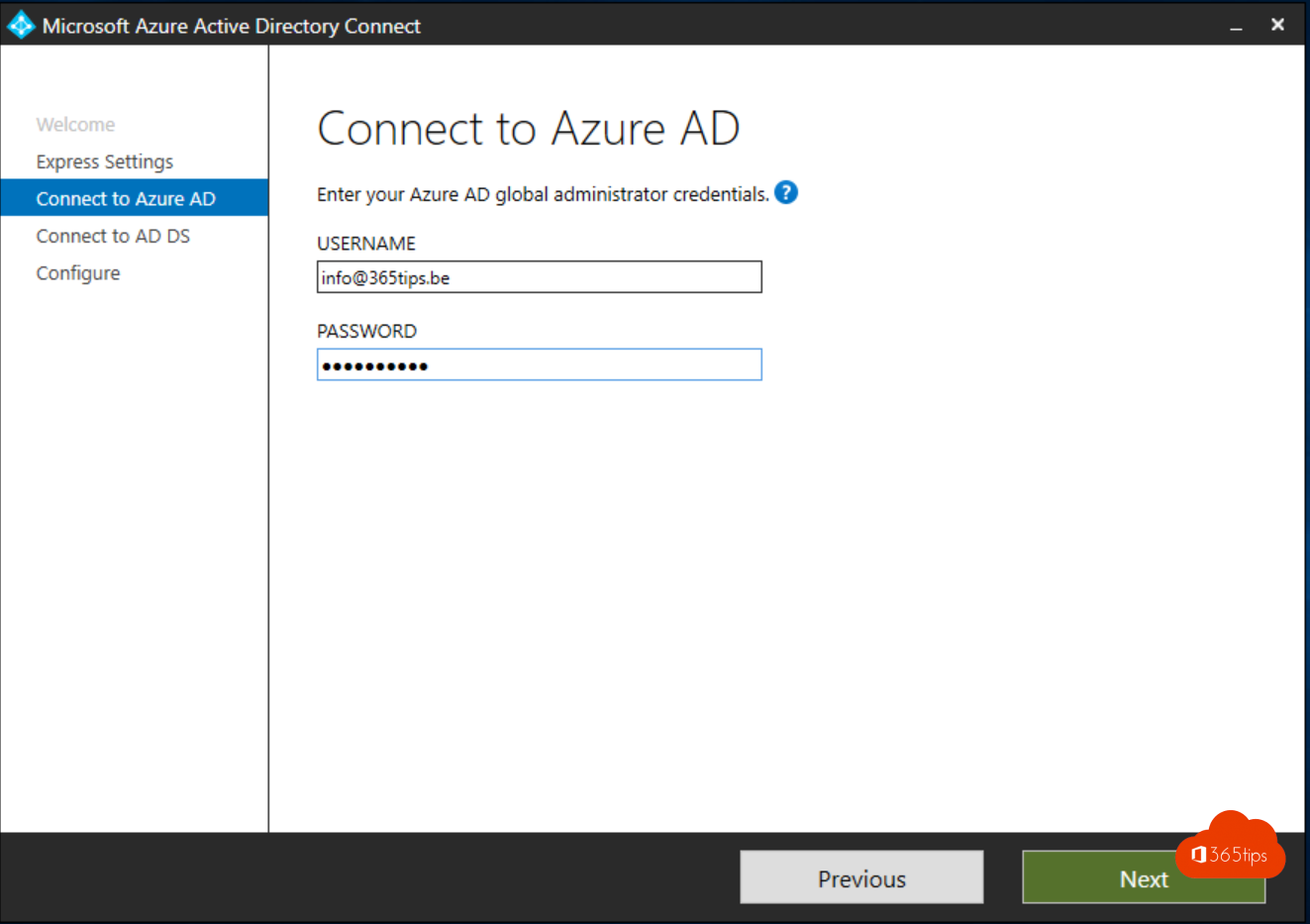
- Sign in with a Hybrid Identity Administrator or Global Administrator, and with an AD enterprise admin.
- Choose the sign-in method and select Install.
Which sign-in method?
- Password hash synchronization: recommended. Simple, and users can sign in even if your on-premises servers go down. Also needed for leaked credential detection.
- Pass-through authentication: passwords are validated on your own domain controllers.
- Federation (AD FS): only if you really need it. More complex to manage.
Or: Entra Cloud Sync
Simple environment, several disconnected forests or don't want a full server? Entra Cloud Sync is a lightweight agent you manage centrally in the Entra admin center. Check that it supports every feature you need.
Afterwards
- Check in the Entra admin center that users appear with On-premises sync enabled: Yes.
- Start a sync right away? Read start a sync manually.
- Turn on SSPR with password writeback.
Read also
Start a Microsoft Entra Connect sync manually
Turn off Entra Connect and manage all objects in the cloud
Entra joined, hybrid joined or registered: which should you choose?
Nederlandstalige versie: Microsoft Entra Connect (Azure AD Connect) installeren en instellen