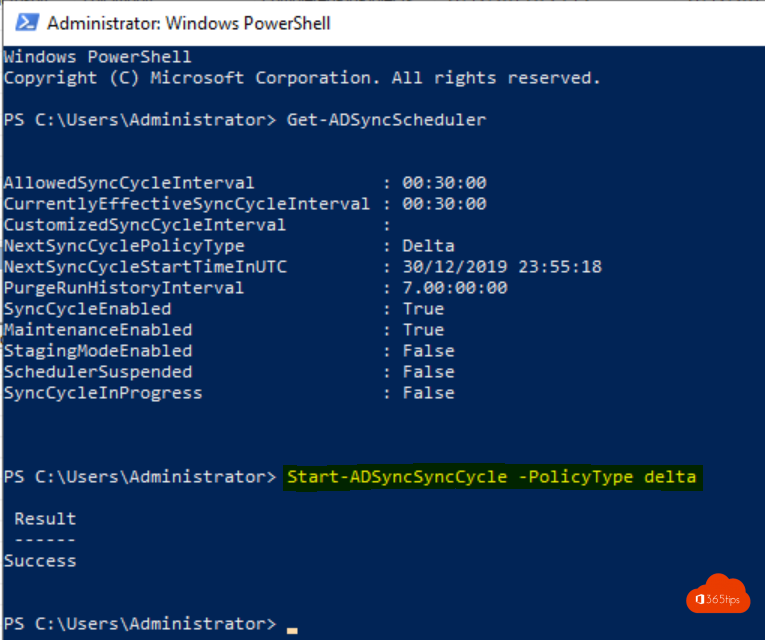
You created a new user in Active Directory, but they don't show up in Microsoft 365 yet. Microsoft Entra Connect syncs every 30 minutes by default. Can't wait? Start a sync manually. This article shows how.
Start a delta sync
- Sign in to the server running Entra Connect.
- Open PowerShell as administrator.
- Type: Start-ADSyncSyncCycle -PolicyType Delta
A delta sync only processes changes and usually takes just a few minutes.
A full sync
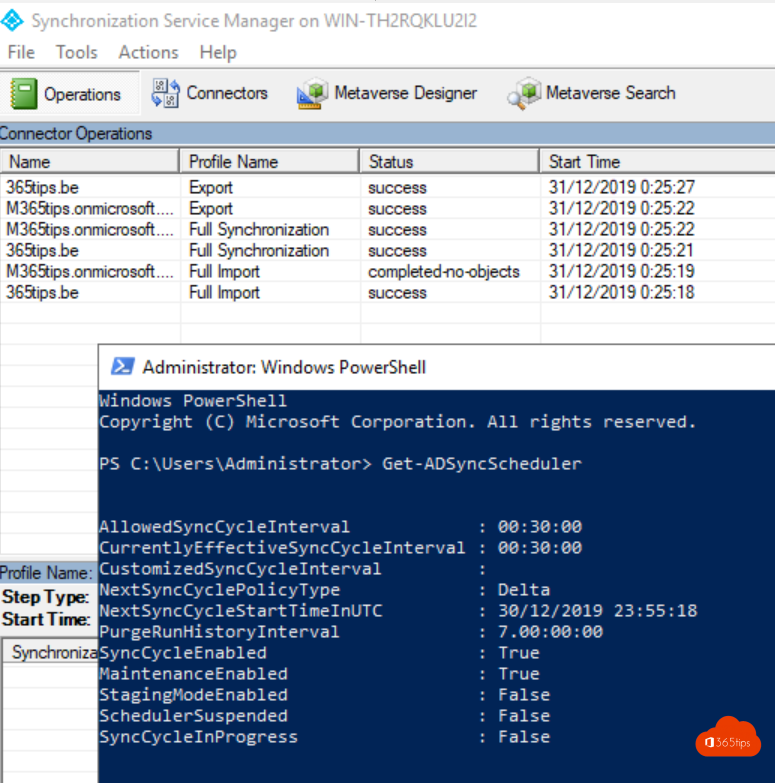
Changed sync rules or scope (OUs)? Then run a full sync: Start-ADSyncSyncCycle -PolicyType Initial. It takes longer, depending on the number of objects.
Check the status
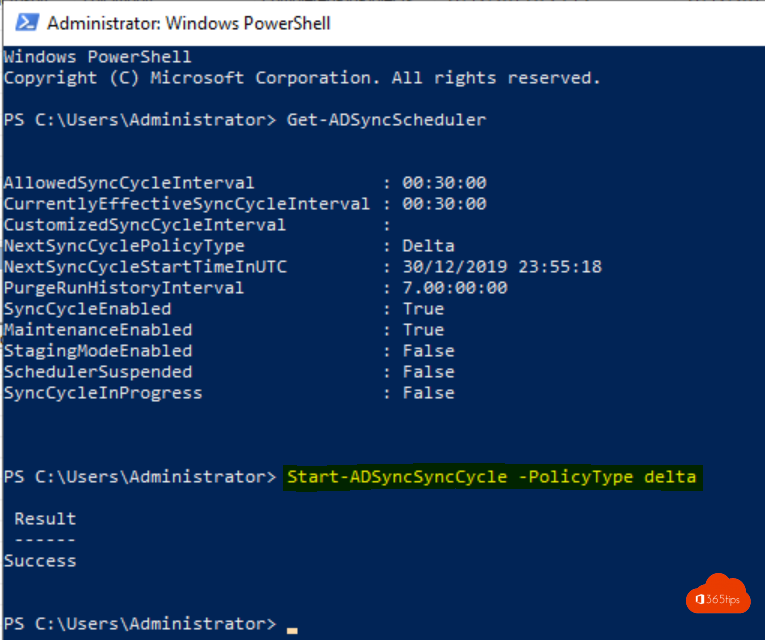
- Get-ADSyncScheduler shows the interval, the next scheduled sync and whether one is running.
- Open Synchronization Service Manager on the server for details and errors per step.
- In the Entra admin center > Hybrid management > Microsoft Entra Connect you see when the last sync ran.
With Entra Cloud Sync
Using Cloud Sync? In the Entra admin center, choose Provision on demand on your configuration to sync one user immediately, or Restart sync.
User not coming through?
- Is the user in an OU that's in sync scope?
- Is the UPN suffix a verified domain?
- Are there duplicate values, such as an email address that already exists? Check the Entra admin center > Microsoft Entra Connect Health > Sync errors.
Related: install Microsoft Entra Connect and add an alias via proxyAddresses.
Read also
Install and configure Microsoft Entra Connect (Azure AD Connect)
Turn off Entra Connect and manage all objects in the cloud
Add an email alias in Microsoft 365, Exchange or Active Directory
Nederlandstalige versie: Een Microsoft Entra Connect-synchronisatie handmatig starten