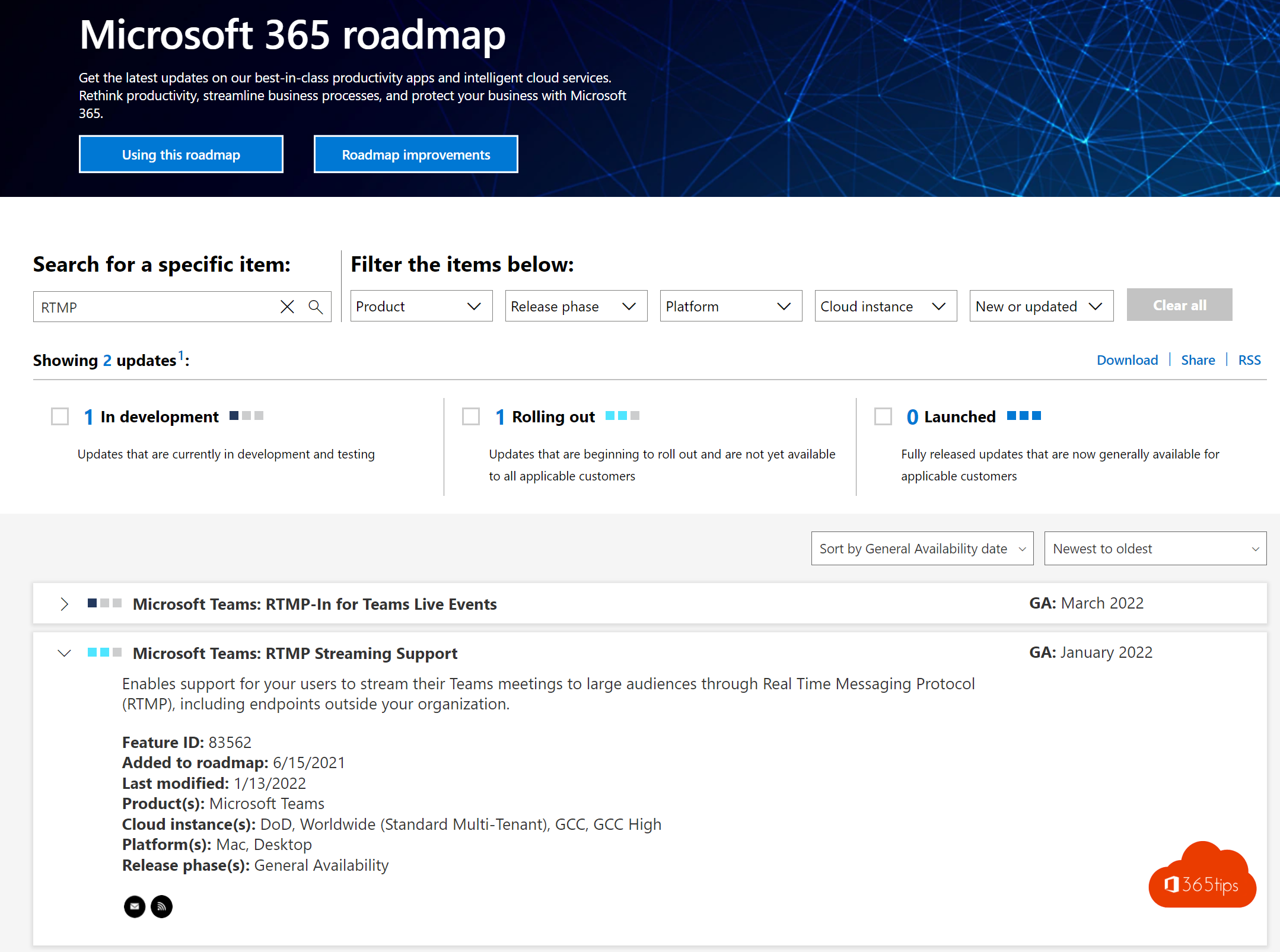
Want to show a Teams meeting or webinar live on YouTube, LinkedIn or your own video platform? You can with RTMP streaming. Teams sends a live video signal to an external service. This article explains how to turn it on and use it. Note that Teams Live Events have been replaced by town halls, so for large broadcasts inside Teams, look at town halls first.
What is RTMP streaming?
RTMP (Real-Time Messaging Protocol) is a standard way to send live video to a streaming service. Almost every platform gives you a stream URL (server) and a stream key. Teams uses those details to forward the meeting. You used to need extra software such as OBS for that; now you can do it straight from the meeting.
Step 1: the admin turns on live streaming
Live streaming to a custom app is part of the meeting policy. You manage it in the Teams admin center under Meetings > Meeting policies, or with PowerShell:
Connect-MicrosoftTeams
Set-CsTeamsMeetingPolicy -Identity Global -LiveStreamingMode Enabled
Want to allow this only for certain users? Create a separate policy and assign it to them. New to PowerShell? First read how to install the Teams PowerShell module.

Step 2: start the stream in the meeting
- Get the stream URL and stream key from your streaming platform and set up the live stream.
- Start the Teams meeting as organizer or presenter.
- Click More (the three dots) and look for the option to live stream to a custom streaming app.
- Paste the stream URL and key, and optionally the link to the live page.
- Start the stream. Meeting participants get a notice that the meeting is being broadcast.
The exact menu name can differ between Teams versions. If you don't see the option, the policy probably isn't active for your account yet.

Tips for a good broadcast
- Always test first with a private or unlisted stream.
- Use presenter mode and spotlight to control who is on screen.
- Tell meeting participants they are being broadcast live, and ask for consent where needed.
- Is your audience mostly internal? Then a webinar or town hall in Teams is often simpler.
Also see using OBS with Microsoft Teams and meeting roles in Teams.
Read also
OBS Studio and Microsoft Teams: how to use the virtual camera
Schedule and host a webinar with Microsoft Teams
Install and use the Microsoft Teams PowerShell module
Nederlandstalige versie: Een Teams-vergadering live streamen naar YouTube of andere platformen met RTMP