"I forgot my password" is one of the most common helpdesk requests. With Self-Service Password Reset (SSPR) in Microsoft Entra ID, users reset their own password after an extra check via the Authenticator app, text message or email. This article shows how to turn on SSPR, which methods to choose and how it works with on-premises Active Directory.
What do you need?
- SSPR for cloud users is included in Microsoft 365 Business Premium, Entra ID P1 or P2, and a number of other Microsoft 365 plans.
- For password writeback to on-premises Active Directory you need Entra ID P1 or higher.
- Admins always have SSPR enabled, with two required methods. You can't turn that off.
Turn on SSPR
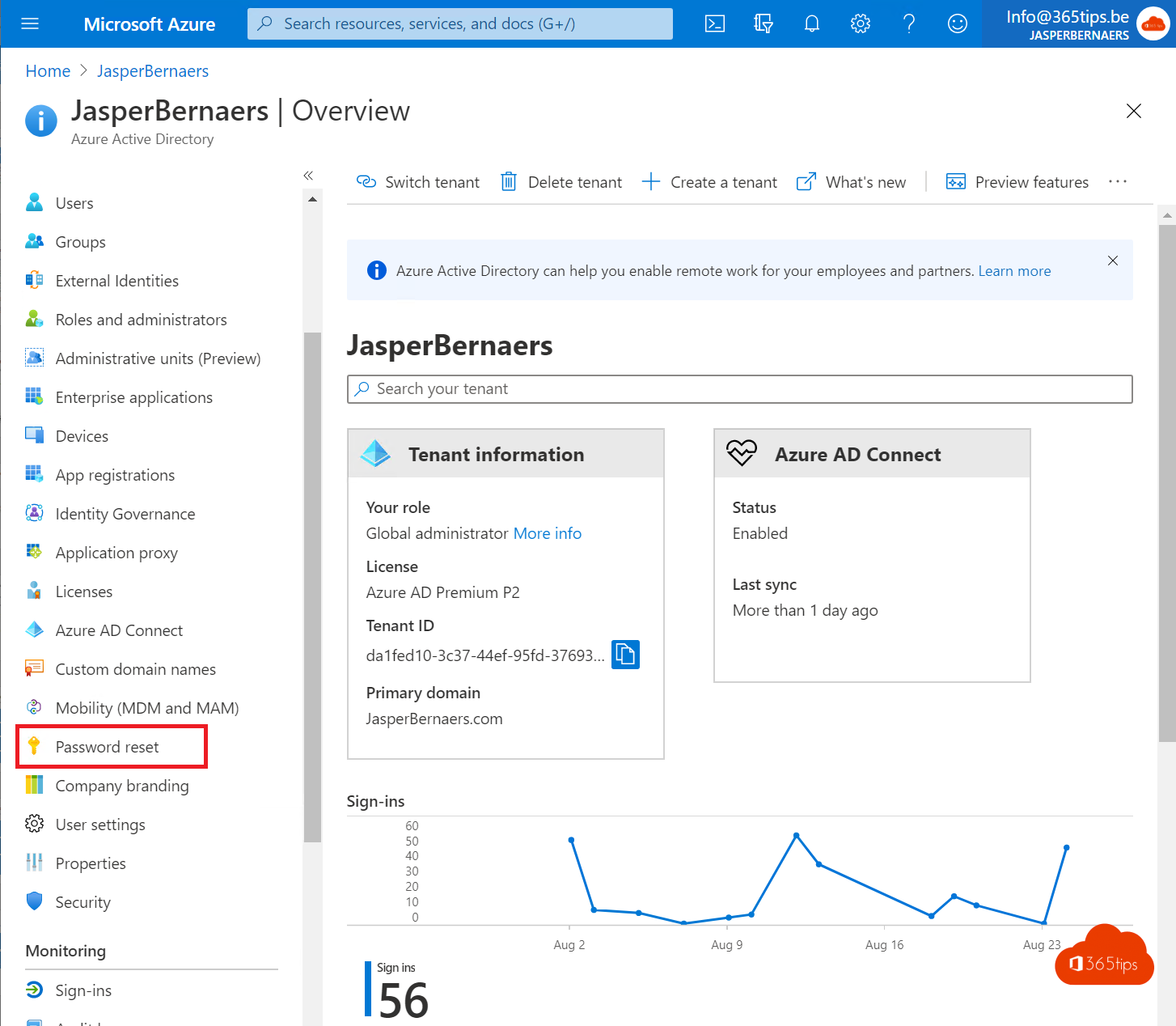
- Go to entra.microsoft.com > Protection > Password reset.
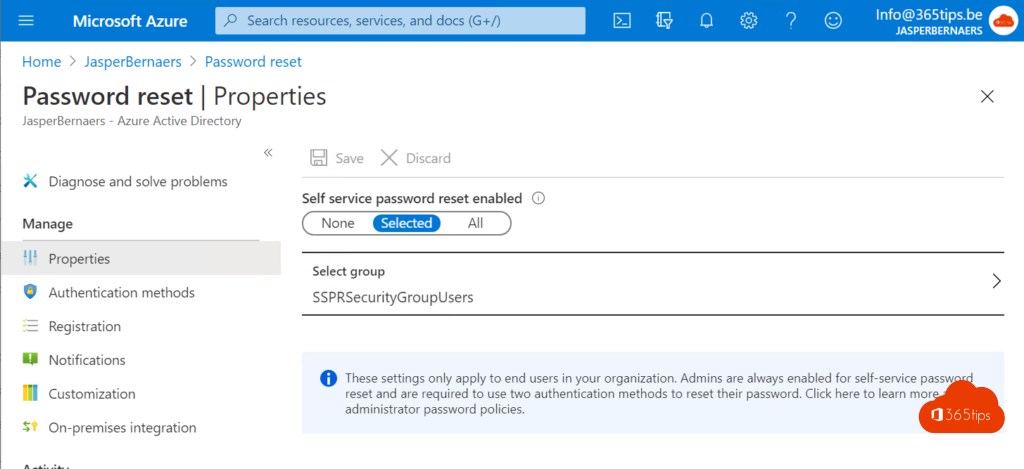
- Under Properties, choose Selected (a test group) or All.
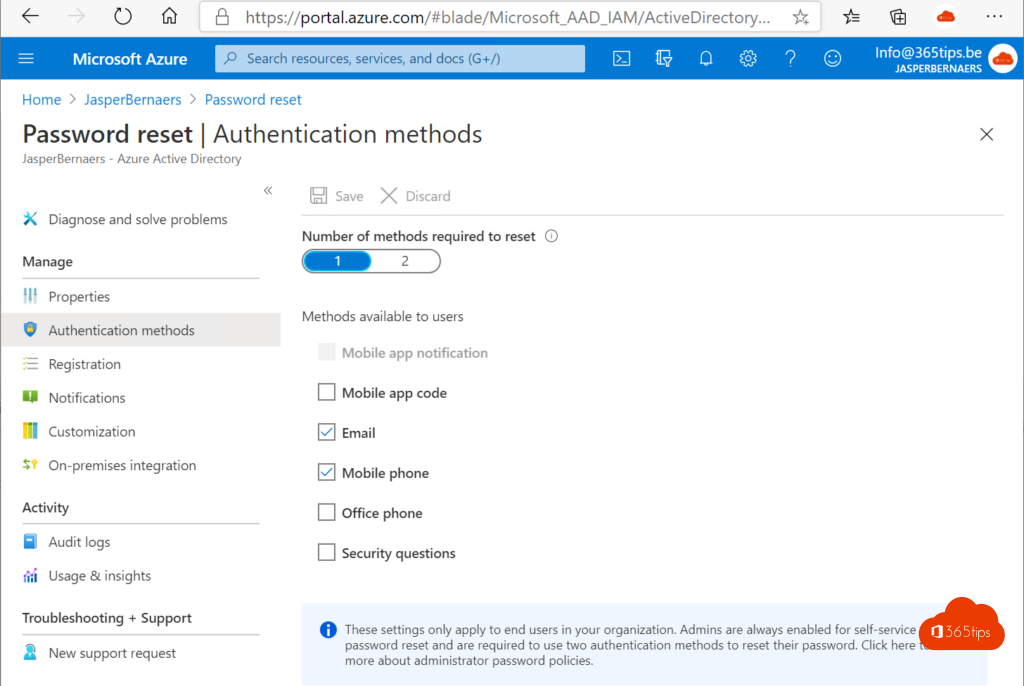
- Under Authentication methods, choose how many methods are required: one or two. Two is safer.
- Under Registration, require users to register when signing in.
- Under Notifications, notify users and admins when a password is reset.
Which methods?
Methods are now managed centrally under Protection > Authentication methods > Policies. Prefer:
- Microsoft Authenticator (notification or code);
- email to a personal address;
- optionally SMS or phone as a fallback. Security questions are best avoided.
For the user
- Register your methods at aka.ms/mysecurityinfo.
- Forgot your password? Select Forgot my password on the sign-in screen, or go to aka.ms/sspr.
- Verify with your method(s) and choose a new password.
On Entra-joined Windows 11 devices, the link is on the lock screen too.

With on-premises Active Directory
Syncing users with Entra Connect or Entra Cloud Sync? Turn on password writeback in the sync tool and under Password reset > On-premises integration. Otherwise the new password won't work on your local network.
Related: enable MFA, passwordless sign-in and the password expiration policy.
Read also
Enable multi-factor authentication (MFA) in Microsoft 365
Enable passwordless sign-in in Microsoft 365 in 3 steps
How to set the password expiration policy in Microsoft 365
Nederlandstalige versie: Self-Service Password Reset (SSPR) inschakelen in Microsoft Entra ID