A strange notification, an email in Sent Items you didn't send or a sign-in request you don't recognise? Then check where and when someone signed in to your account. Microsoft shows your recent sign-ins with location, device and app. This article shows where to find that and what to do about a suspicious sign-in.
With a work or school account
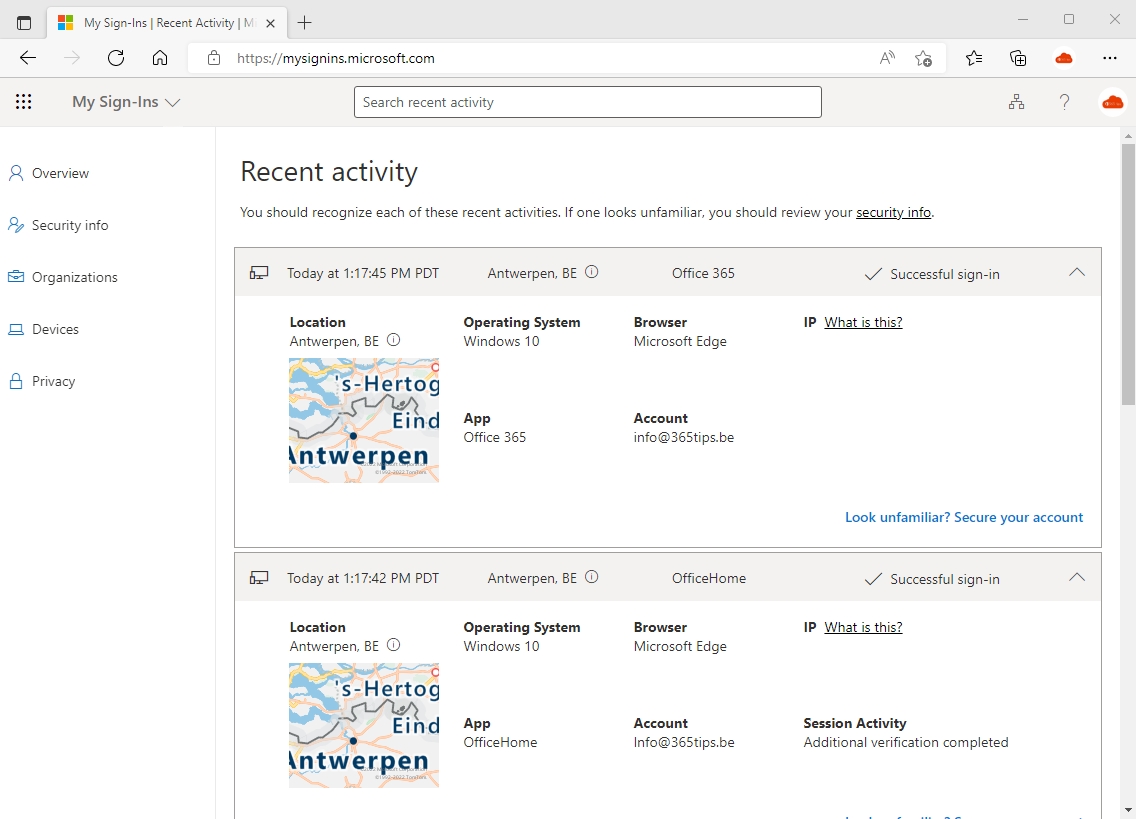
- Go to mysignins.microsoft.com (or myaccount.microsoft.com > Recent activity).
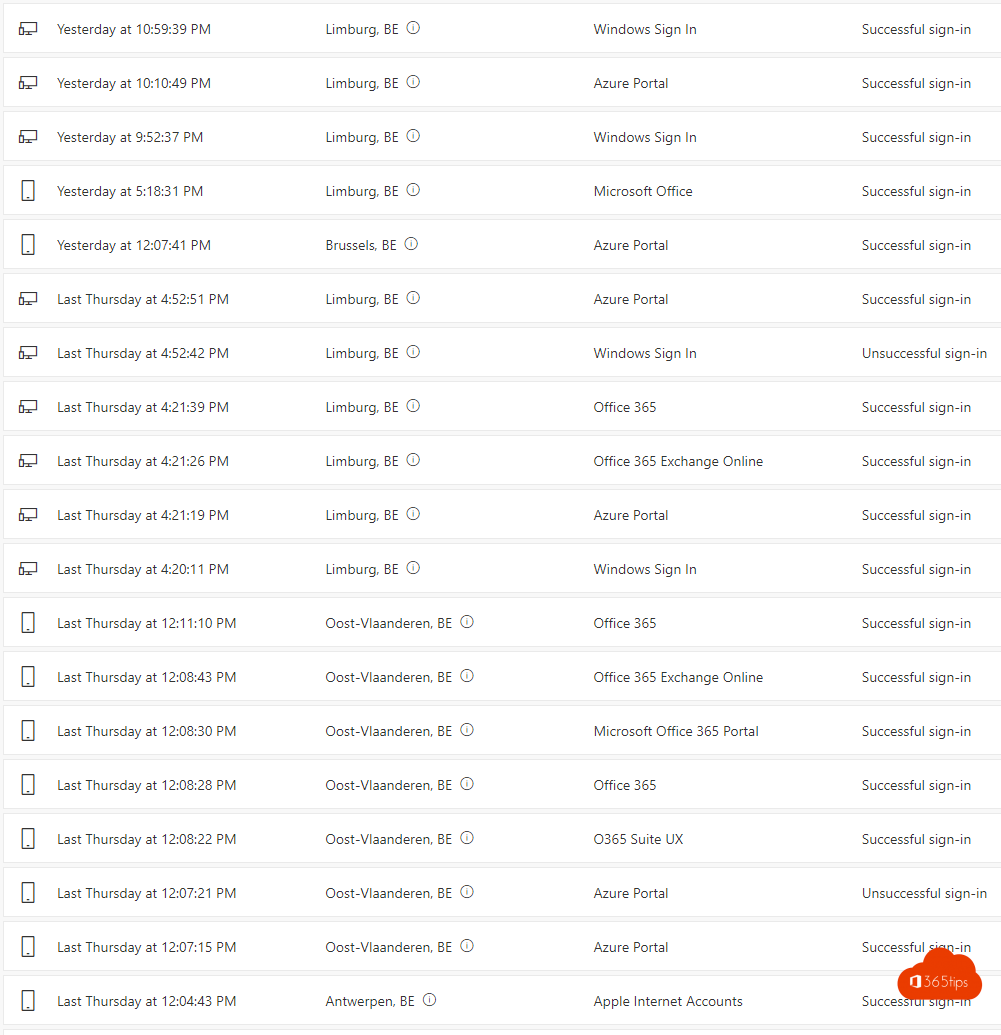
- You see each sign-in with date, location, device and whether it succeeded.
- Select a sign-in for details such as the IP address and app.
Don't recognise a sign-in? Choose the option to secure your account on that sign-in and change your password immediately.
With a personal Microsoft account
Go to account.microsoft.com > Security > Sign-in activity. There, too, you see the location of each sign-in and can report that it wasn't you.
Be careful with locations
Location is based on your IP address and isn't always precise. Mobile data or a VPN can make a sign-in look like another city or even another country. Focus on the device and the time.
Suspicious sign-in: what now?
- Change your password. Read change your password.
- Sign out everywhere: myaccount.microsoft.com > Sign out everywhere.
- Review your security info at aka.ms/mysecurityinfo and remove methods you don't recognise.
- Check Outlook for rules that forward or delete email.
- Tell your IT department.
For admins
In entra.microsoft.com > Monitoring > Sign-in logs you see every sign-in in your organisation. Entra ID P2 adds risky sign-ins. Related: Have I Been Pwned and enable MFA.
Read also
Have I Been Pwned: check whether your email is in a data breach
Change or reset your password in Microsoft 365
Enable multi-factor authentication (MFA) in Microsoft 365
Nederlandstalige versie: Controleren waar en wanneer er op je Microsoft-account is aangemeld