You delete a guest or a former employee from Microsoft 365, but their name keeps showing up in SharePoint: in the people picker, in permissions or as created by. Worse: if you later create a new account with the same email address, that person sometimes gets Access denied. The cause is each site's hidden User Information List. This article shows how to remove a guest or user from SharePoint Online completely.
Why does a user stay in SharePoint?
The first time someone opens a SharePoint site or OneDrive, SharePoint stores their details in that site's User Information List. When you delete the user from Entra ID, that entry stays so old documents still show who created them. If a new account with the same name is created later, it has a different internal ID. SharePoint sees a mismatch and denies access.
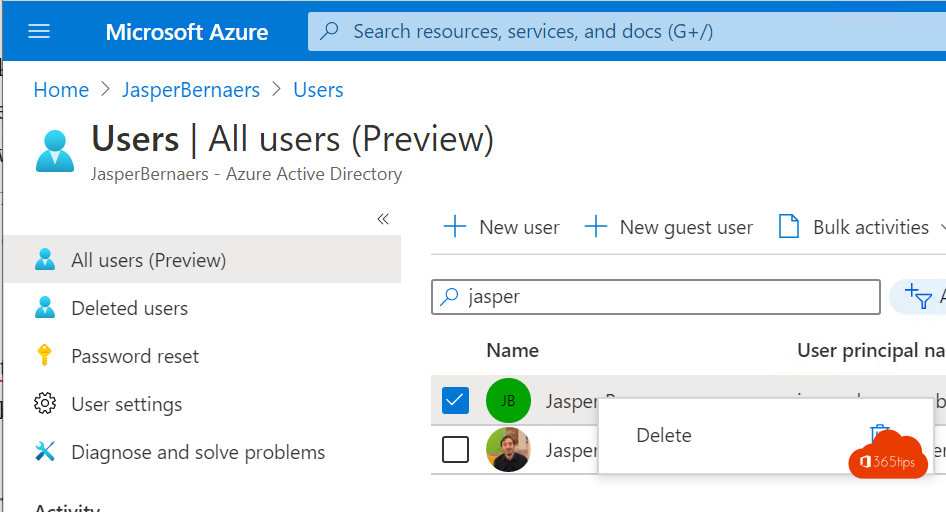
Step 1: Delete the guest from Entra ID
- Go to the Microsoft Entra admin center > Users > All users.
- Filter on User type: Guest and find the person.
- Select the guest and choose Delete.
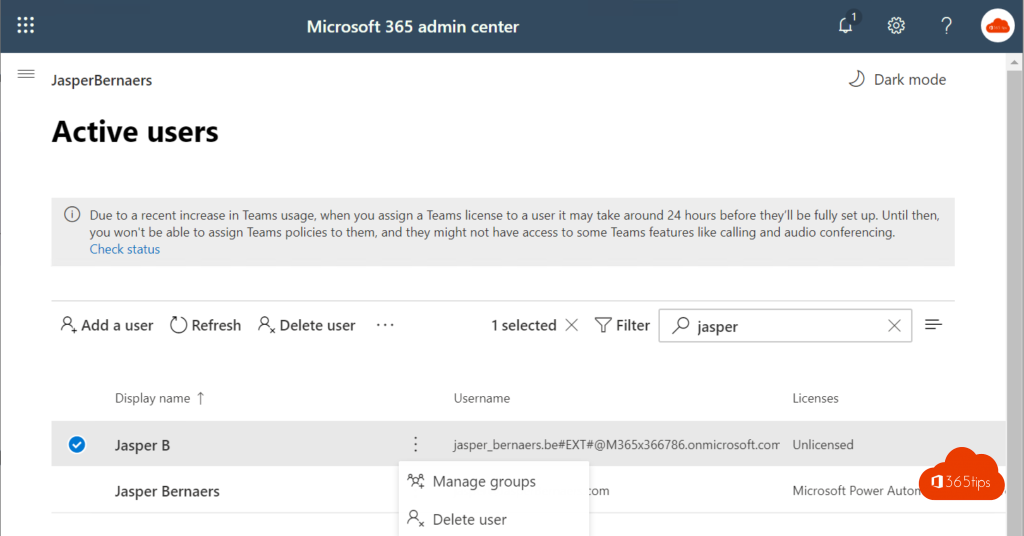
The guest goes to Deleted users for 30 days and can no longer sign in. Guests also appear in the Microsoft 365 admin center under Users > Guest users.
Step 2: Remove them from the site
- Open the SharePoint site as a site admin.
- Go to the hidden list: add /_layouts/15/people.aspx?MembershipGroupId=0 to the end of the site URL.
- Check the user and choose Actions > Delete Users from Site Collection.
- Confirm with OK.
With PowerShell, for several sites
With the SharePoint Online Management Shell you remove someone from a site in one go:
Connect-SPOService -Url https://contoso-admin.sharepoint.com
Remove-SPOUser -Site https://contoso.sharepoint.com/sites/project -LoginName "ann_customer.com#ext#@contoso.onmicrosoft.com"
A guest's LoginName contains #ext#. Find them with Get-SPOUser -Site <url> | Where-Object LoginName -like "*#ext#*". Loop over all sites with Get-SPOSite -Limit All to remove someone everywhere.
Clean up guests regularly
- In the SharePoint admin center > Sites > Active sites, check which sites are shared externally.
- Under Policies > Sharing, set guest access to expire automatically after, for example, 90 days.
- Use access reviews (Entra ID P2) so owners regularly confirm which guests are still needed.
- Check the inactive guest reports in the Entra admin center.
Still "Access denied"?
- Remove the old entry from every site the person had access to, including colleagues' OneDrives they shared with.
- Have the user sign out, clear the browser cache and sign in again.
- Share the files again with the new account. See also add guests in Microsoft Teams.
Read also
How to add external guests in Microsoft Teams
Clean up Microsoft Teams automatically with expiration policies and archiving
How to restore deleted files in Microsoft Teams and SharePoint
Nederlandstalige versie: Een gast of oud account volledig verwijderen uit SharePoint Online