An employee leaves and you want to remove their account from Microsoft 365. There are two steps worth knowing: a soft delete, after which you can still restore the account for 30 days, and a hard delete, after which it's gone for good. This article explains the difference and how to do both.
Before you delete
- Convert the mailbox to a shared mailbox if colleagues still need the email. A shared mailbox doesn't need a licence (up to 50 GB).
- Give a colleague access to the user's OneDrive. By default it's kept for 30 days after deletion.
- Block sign-in and reset the password first if the departure wasn't on good terms.
Soft delete
- Go to admin.microsoft.com > Users > Active users.
- Select the user > Delete user.
- Choose what happens with the mailbox and OneDrive, and confirm.
The account now sits under Deleted users for 30 days. You can bring it back with Restore, including mailbox and licences.

Hard delete
Want to remove the account permanently right away, for example to reuse the same name?
- Go to entra.microsoft.com > Users > Deleted users.
- Select the user and choose Delete permanently.
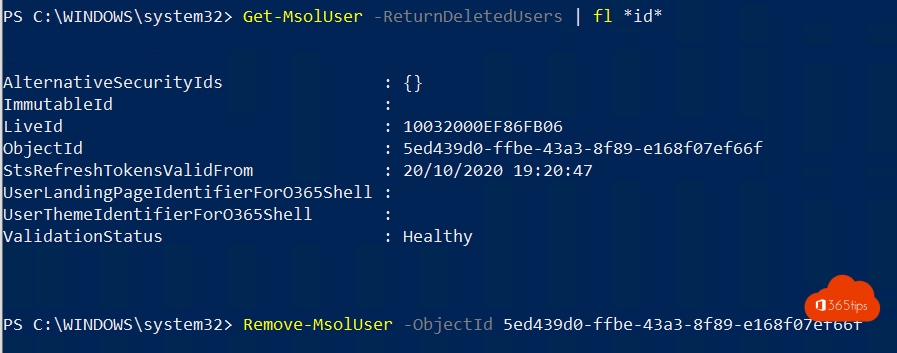
With PowerShell: Connect-MgGraph -Scopes User.ReadWrite.All, then Remove-MgDirectoryDeletedItem -DirectoryObjectId <id>.
Synced users
Does the user come from on-premises Active Directory? Delete them there or remove them from sync scope. Otherwise they'll come back at the next sync.
Related: recover deleted emails and restore deleted OneDrive files.
Read also
Recover deleted emails in Outlook and Exchange Online
Restore deleted OneDrive files up to 93 days after deletion
Set up Full Access, Send As and Send on Behalf in Exchange Online
Nederlandstalige versie: Een gebruiker verwijderen in Microsoft 365: soft delete en hard delete