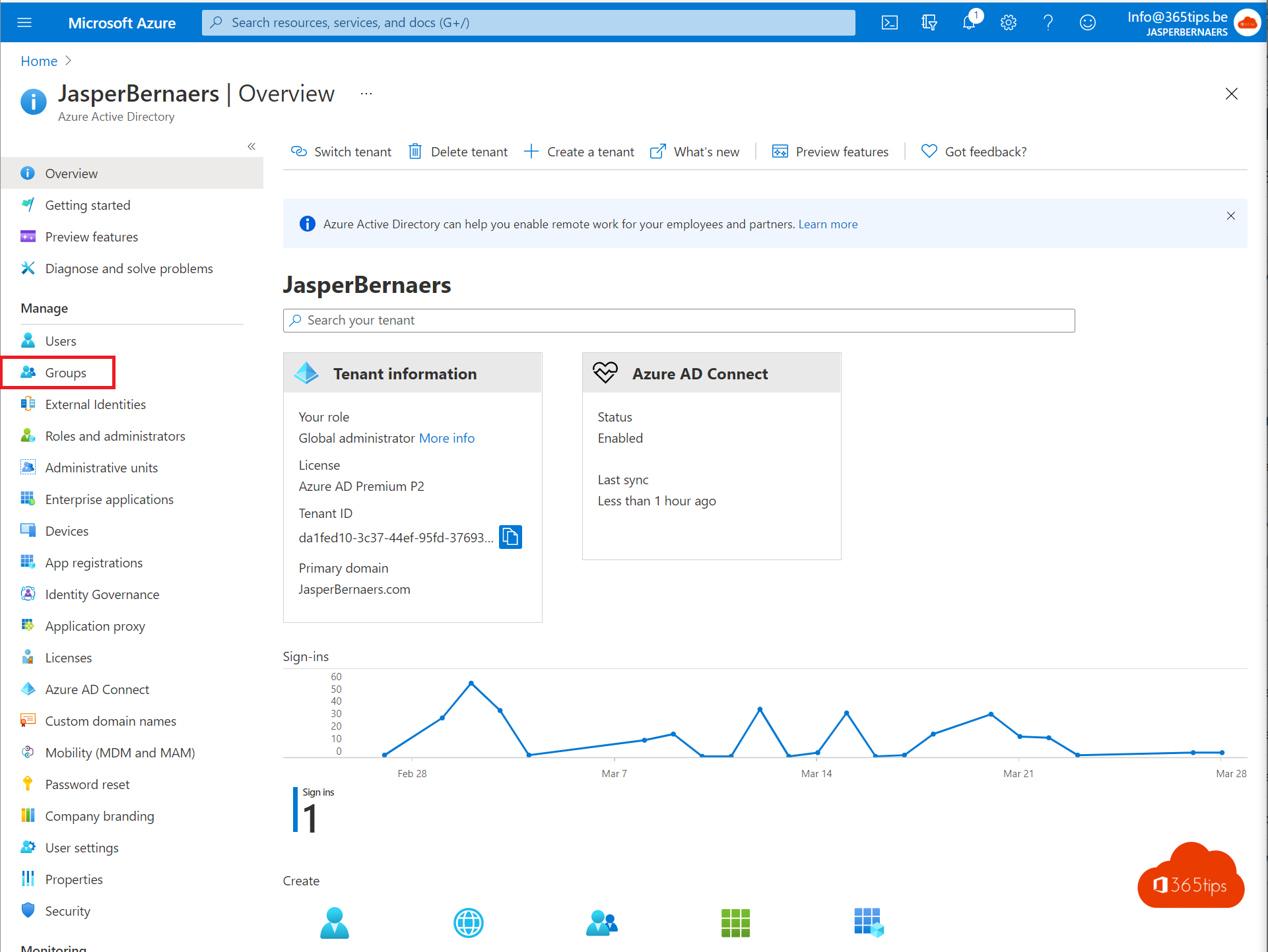
A new colleague, someone leaving or a department that needs a shared group: you manage users and groups in Microsoft Entra ID (formerly Azure Active Directory) or in the Microsoft 365 admin center. This article shows how to create a user, assign a license and create a group.
Create a user
For most organizations the fastest way is the Microsoft 365 admin center:
- Go to Users > Active users > Add a user.
- Fill in the first name, last name and username, and choose the domain.
- Choose a license. With the license the user also gets a mailbox, OneDrive and Teams.
- Review and select Finish adding. You'll see the temporary password.

In the Entra admin center it's Identity > Users > All users > New user. There you also choose between creating an internal user and inviting an external guest.
Create a group
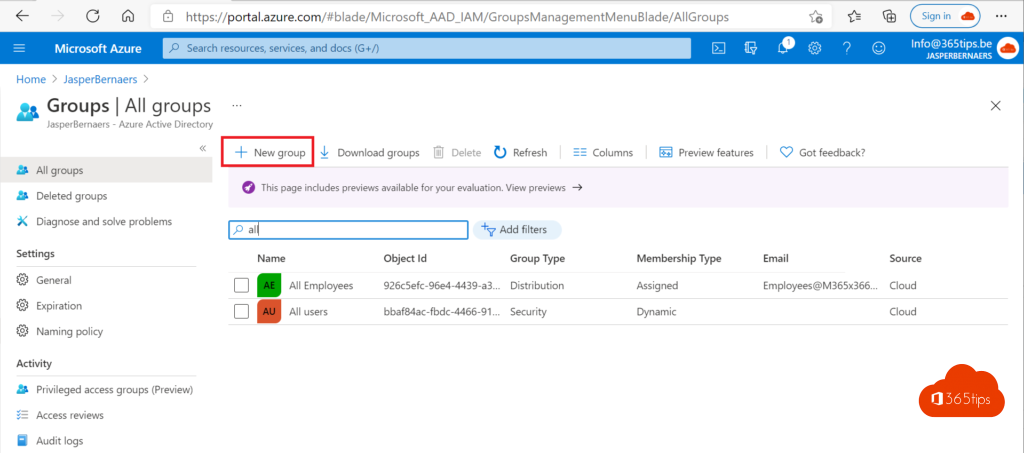
- In the Entra admin center, go to Groups > All groups > New group.
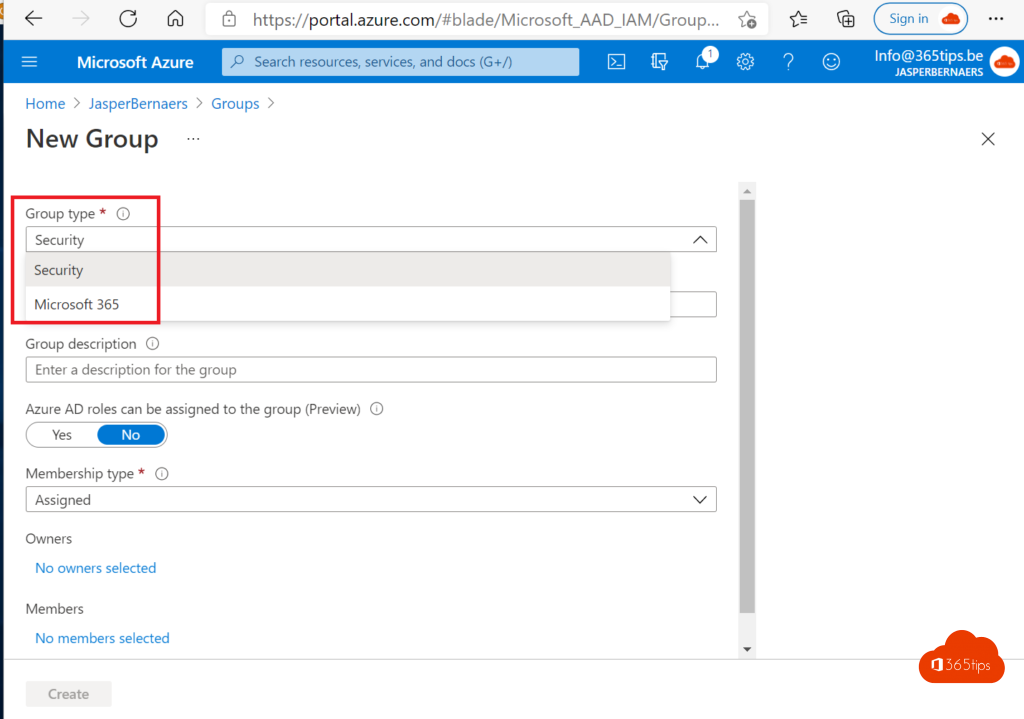
- Choose the group type:
- Security for access to apps, files and policies.
- Microsoft 365 for collaboration, with a shared mailbox, calendar and SharePoint site.
- Choose the membership type: Assigned (you add members yourself) or Dynamic (based on properties such as department; requires Entra ID P1).
- Add owners and members and select Create.
A user with a mailbox
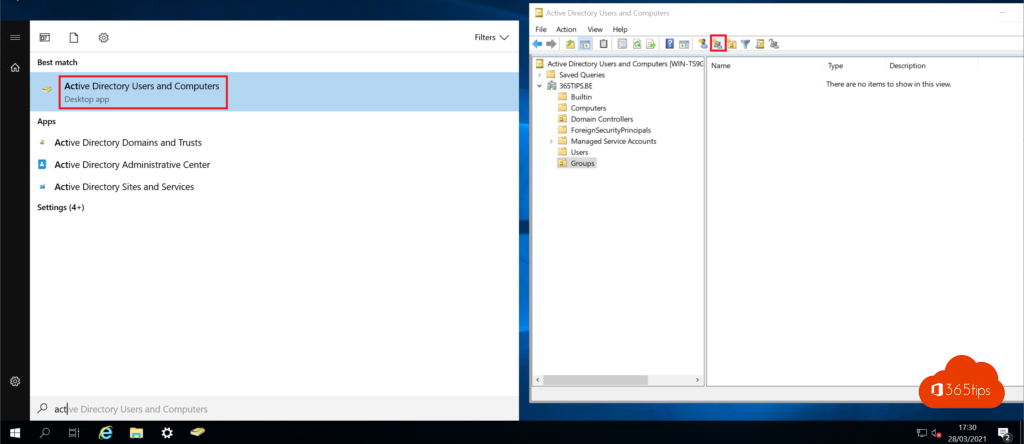
The mailbox is created automatically once the user gets a license that includes Exchange Online. That can take a few minutes. After that you manage the mailbox in the Exchange admin center.

Many users at once
For dozens of users, a CSV file is faster. Read bulk import users into Entra ID. To remove someone, see delete a user in Microsoft 365.
Read also
Bulk import users or guests with a CSV file
Delete a user in Microsoft 365: soft delete and hard delete
Create a dynamic distribution group in Exchange Online
Nederlandstalige versie: Gebruikers en groepen beheren in Microsoft Entra ID