Working late, but don't want to disturb colleagues outside working hours? Or want to send a reminder only on Monday morning? In Microsoft Teams you can schedule a chat message: write it now, and Teams sends it automatically at the time you choose. This article shows how it works on the desktop and on your phone, how to change or cancel a scheduled message, and what isn't possible.
Schedule a chat message on the desktop
- Open the chat with the person or group. You need an existing conversation with that person; for a new chat, send one normal message first.
- Type your message.
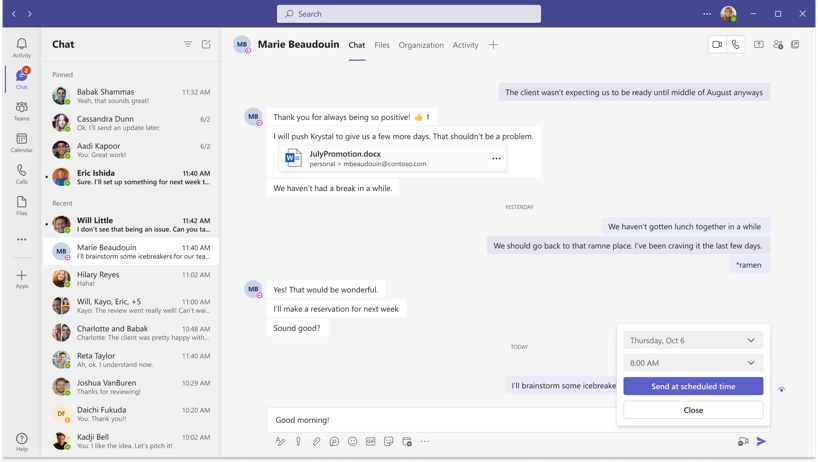
- Right-click the send button (the paper plane) and choose Schedule message. In newer versions you'll also find the option in the Actions and apps menu (+) next to the compose box.
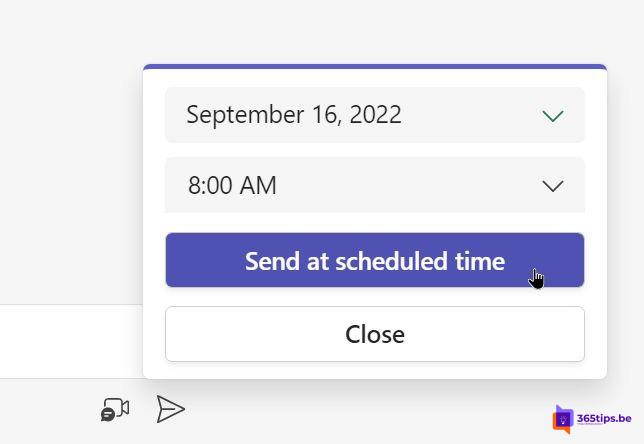
- Pick a date and time, or one of the suggestions such as Tomorrow at 9:00 AM.
- Click Send at scheduled time.
The message appears in the chat with a clock icon and the scheduled time. Only you see it until it is sent.
On your phone
- Open the chat in the Teams app on iPhone or Android and type your message.
- Press and hold the send button.
- Pick a time and tap Schedule.
Change or cancel a scheduled message
- Change the text: hover over the scheduled message and click the pencil (Edit). Change the text and confirm.
- Change the time: click Edit, open the menu next to the scheduled time and pick a new date and time.
- Send now or cancel: click ... (More options) on the message and choose Send now or Delete.
Schedule messages in a channel
You can schedule a channel post too, for example an announcement that should appear on Monday at 8 am. Click Post in channel (or New post), write your post and right-click the send button to choose a time. For bigger announcements you can also create a formatted post with a headline and an image.
Colleagues in other time zones
The scheduled time is your local time. Working with colleagues in another time zone? Check their profile card: Teams shows their local time there. Schedule the message for a time that fits their working hours.
Good to know
- The message is sent from the cloud. Your computer doesn't have to be on at that moment.
- The recipient sees it as a normal message, with no indication that it was scheduled.
- Attachments and mentions (
@name) work in scheduled messages. - Option not working? Update Teams and check you're using the new Teams app. In some environments, such as certain government clouds, the feature may not be available yet.
Alternative: quiet hours instead of scheduling
Don't want to be disturbed yourself outside working hours? Set quiet hours in the mobile app: Settings > Notifications > Quiet time. You then get no push notifications during those hours, even if people message you. You can also set a status message with your working hours.
Read also
How to set out of office and a status message in Microsoft Teams
How to record and transcribe a Teams meeting automatically from the start
How to create a free Microsoft Teams account
Nederlandstalige versie: Een chatbericht plannen in Microsoft Teams