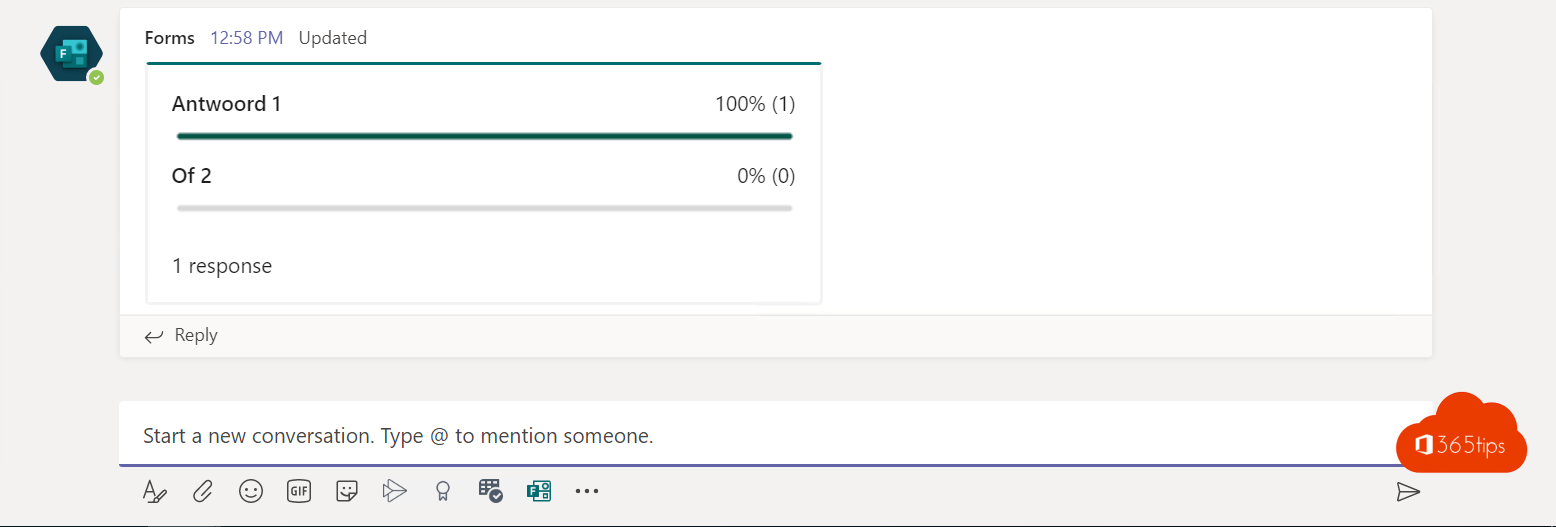
Want a quick read on what the team thinks, a quiz question during training, or a vote on a date? With the Polls app (built on Microsoft Forms) you create a poll in a Microsoft Teams chat, channel or meeting. Everyone answers in one click and results appear instantly. This article shows how to create a poll, prepare it before a meeting and which question types exist.
A poll in a chat or channel
- Select + (Actions and apps) below the message box and choose Polls.
- Pick a type, for example Multiple choice, and type your question and options.
- Choose whether multiple answers are allowed, whether results are anonymous and whether everyone can see results.
- Select Save and then Send.
The poll appears as a card in the chat. People who answer then see the current results.

Prepare polls for a meeting
- Open the meeting in your Teams calendar and select + (Add a tab) at the top.
- Choose Polls and select Save.
- Open the Polls tab and select New poll. Create all questions as drafts in advance.
- During the meeting, select Polls in the toolbar and Launch the question you want to ask.
The question pops up in the middle of every attendee's screen, on mobile too. You see results live and can share them with everyone.

Question types
| Type | Use |
|---|---|
| Multiple choice | Choose between options, such as a date or a preference |
| Quiz | Multiple choice with one correct answer and feedback; great for training and classes |
| Word cloud | Everyone types a word or two; the most popular appear larger |
| Rating | Stars or a scale, for example how useful was this session? |
| Ranking | Put options in order of preference |
View and export results
Open the Polls tab in the chat or meeting to see all polls and results. Select ... > Export results on a poll for an Excel file. Polls are also kept in Microsoft Forms under My forms.
Polls or a full form?
For one or a few quick questions, use Polls. Need a longer questionnaire with branching, required fields or file uploads? Create a form in Microsoft Forms and share the link. Want to stop emoji reactions during the meeting instead? See turn off reactions in Teams meetings.
Read also
Turn live reactions on or off in Microsoft Teams meetings
Track attendance with the Microsoft Teams attendance report
Request and give approvals with the Approvals app in Teams
Nederlandstalige versie: Peilingen maken in Microsoft Teams met Polls en Microsoft Forms