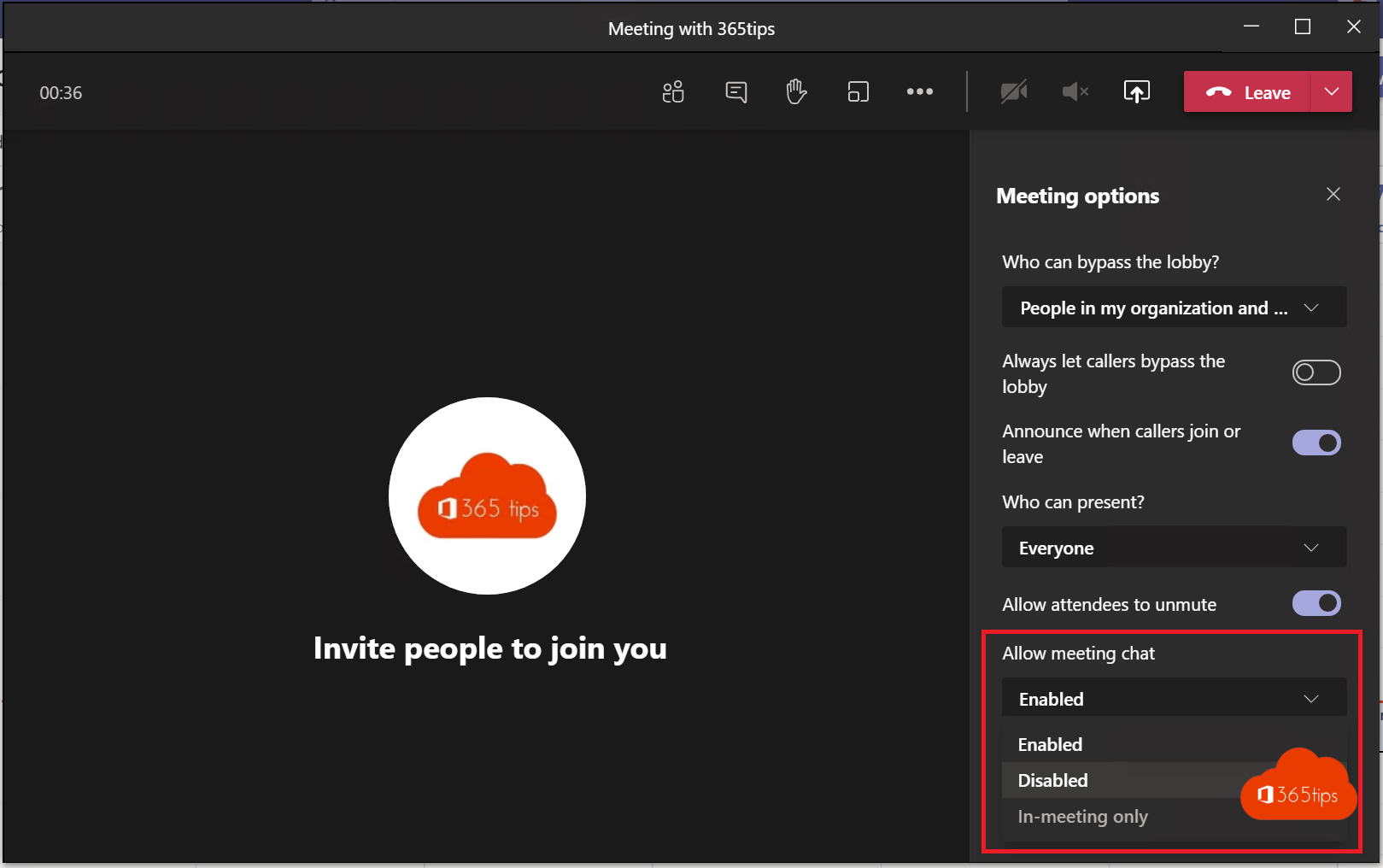
During a big presentation, a webinar or a class you sometimes don't want attendees chatting all over the place. As the organizer you can turn off chat in a Teams meeting or limit it to the duration of the meeting. Admins can also set this for the whole organization.
Turn off chat in meeting options
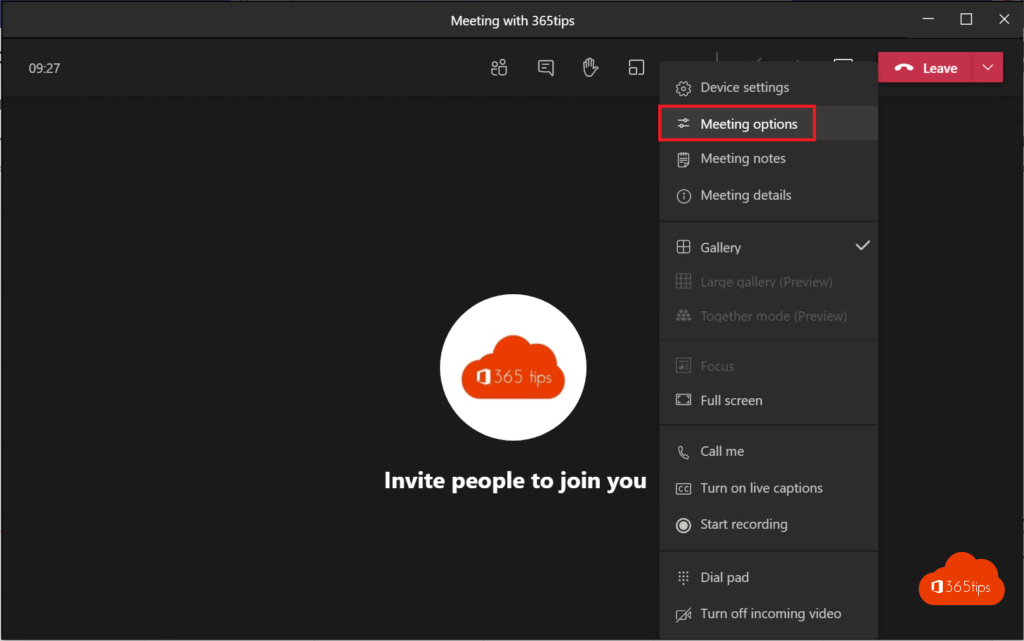
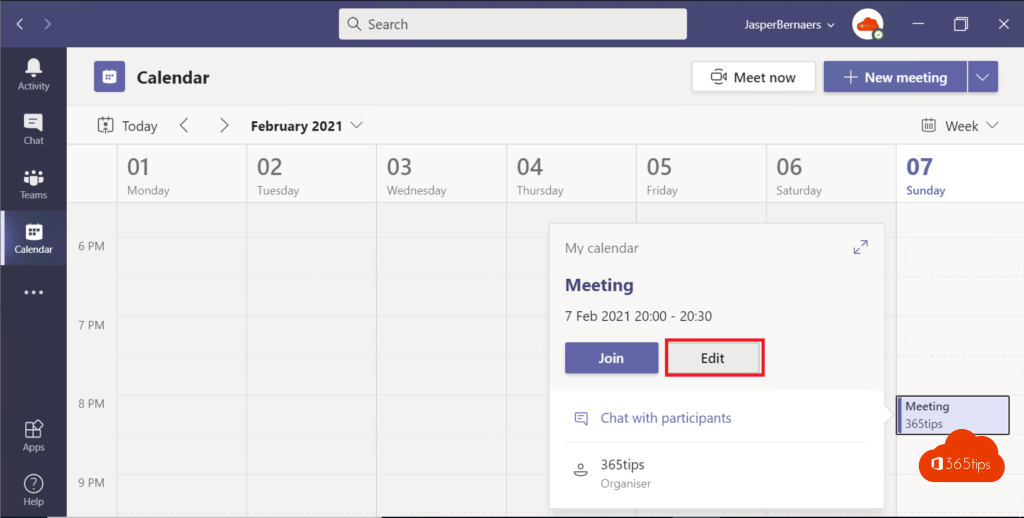
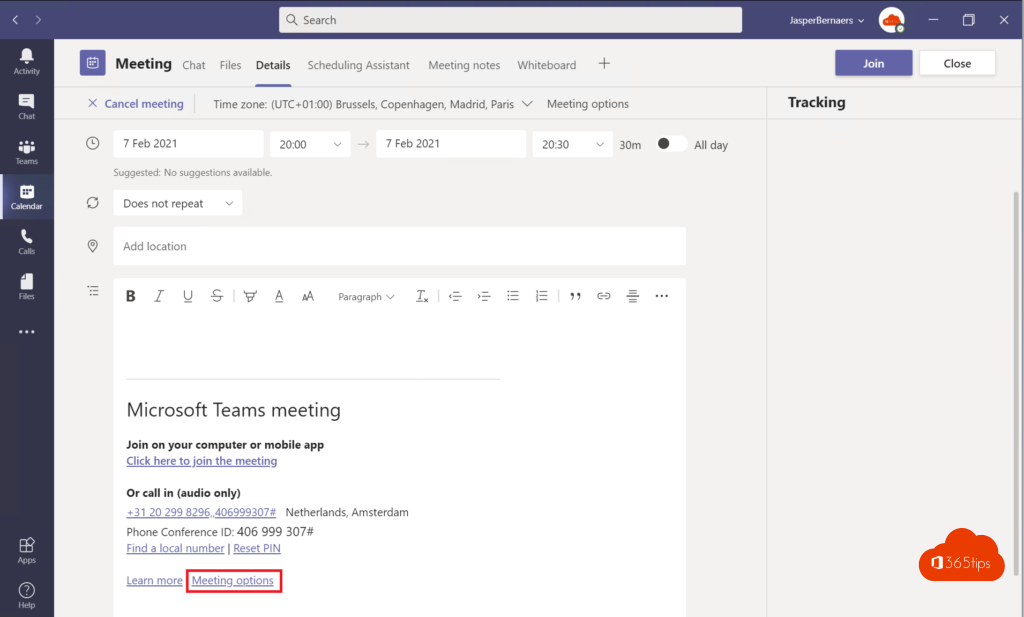
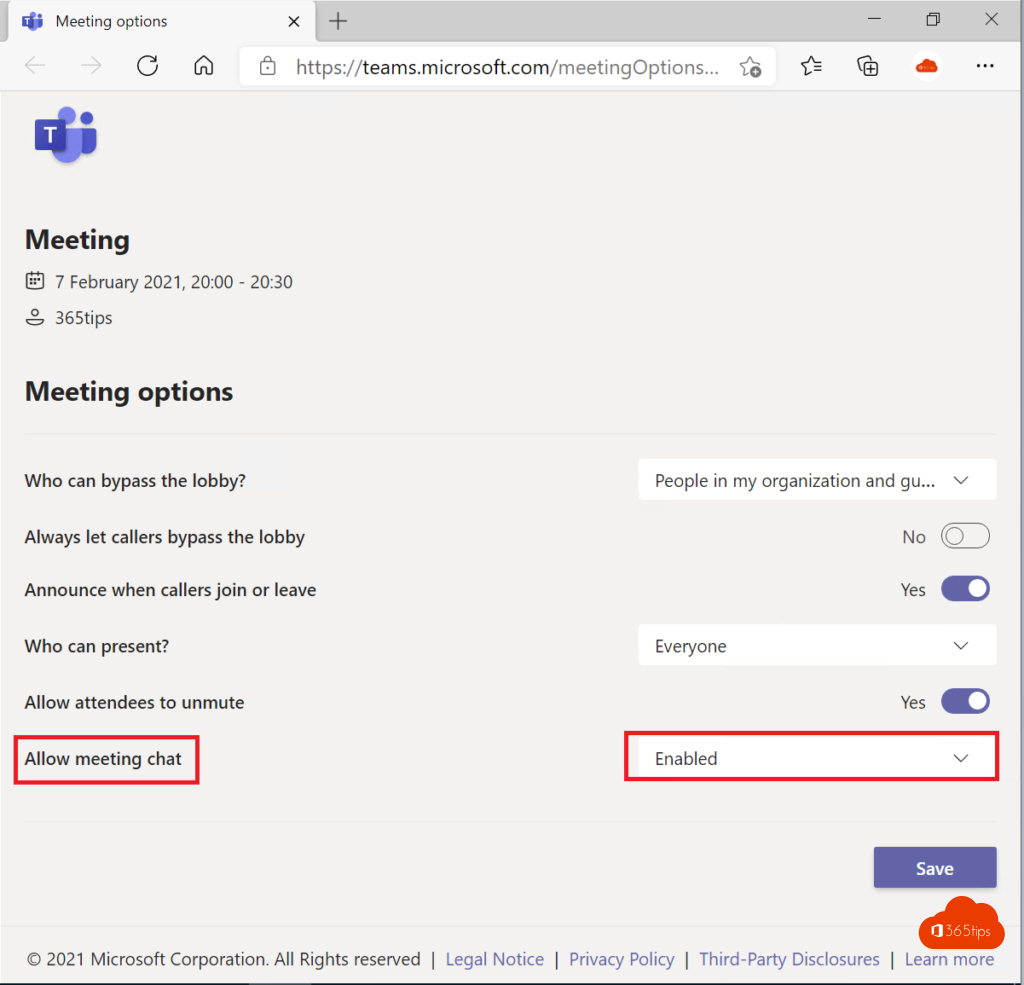
- Open the meeting in your Teams calendar and select Options > Meeting options. During the meeting, go to More (...) > Settings > Meeting options.
- Find Meeting chat (under Engagement).
- Choose:
- Enabled: everyone can chat before, during and after the meeting.
- In-meeting only: the chat is only open while the meeting is running.
- Disabled: nobody can chat.
- Select Save.

Rather collect questions?
Want questions, but not a busy chat? Use Q&A in a Teams meeting, or turn off reactions.
For admins
In the Teams admin center, go to Meetings > Meeting policies. In the policy, set Meeting chat for everyone or for a group of users. Assign the policy to organizers; it applies to the meetings they schedule. To turn off all chat for certain users, see turn off chat in Teams.

Read also
Turn off chat for users in Microsoft Teams
Meeting roles in Microsoft Teams: organizer, presenter and attendee
Turn off attendees' cameras in a Microsoft Teams meeting
Nederlandstalige versie: De chat in een Teams-vergadering uitschakelen of beperken