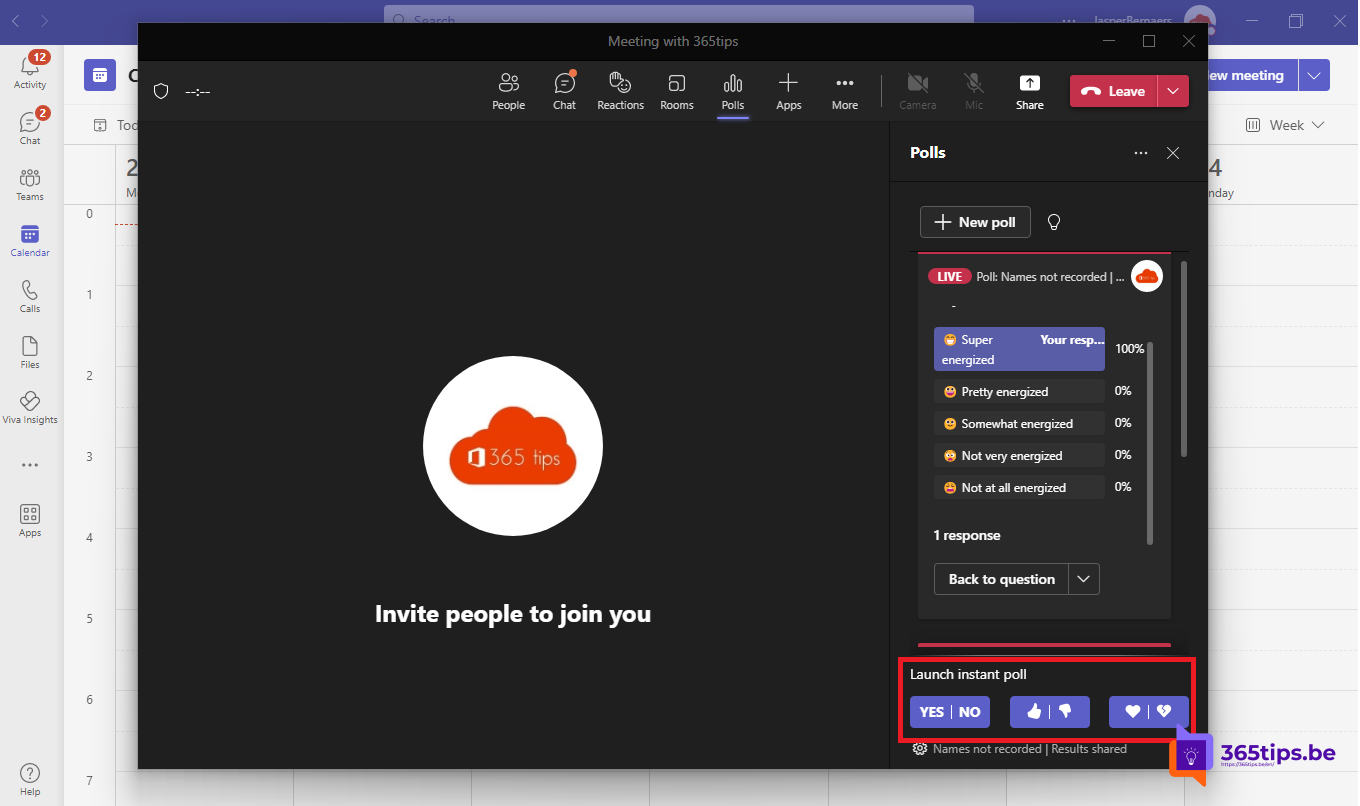
Want to quickly check whether everyone agrees, without preparing anything? With the Polls app in Teams you ask a question during the meeting and attendees instantly get a pop-up to vote. You can also prepare multiple-choice questions, a quiz or a word cloud in advance.
Add Polls to your meeting
- Open the meeting, beforehand in your Calendar or during the meeting.
- Click Apps (or the plus sign next to the tabs).
- Search for Polls and click Add.

Create a quick poll
- During the meeting, open the Polls pane.
- Choose a quick poll, for example Yes / No or thumbs up and down. You simply ask the question out loud.
- Attendees get a pop-up and vote with one click.
- Results appear live in the pane and in the meeting chat.


Other poll types
Click New poll to create a more detailed question:
- Multiple choice: one or more answers.
- Quiz: with a correct answer.
- Word cloud: short answers, the most popular words appear bigger.
- Rating: stars or a scale.
- Ranking: put options in order.
Prepare these questions in advance so you can launch them with one click during the meeting. You can also choose whether results are anonymous and whether attendees can see them.
Keep the results
After the meeting, polls and results stay available in the meeting's Polls tab. To analyze them further, export the results to Excel through Microsoft Forms. Menu names can differ slightly in the new Teams app.
Also see polls in Microsoft Teams and create a form in Microsoft Forms.
Nederlandstalige versie: Zo maak je een instant poll in een Teams-vergadering