With Present Live in PowerPoint for the web, your audience could follow your presentation on their own laptop or phone. They scanned a QR code, picked their own language for captions, browsed the slides themselves and gave feedback. That feature no longer exists, but you can still do almost all of it with PowerPoint Live in Teams.
What was Present Live?
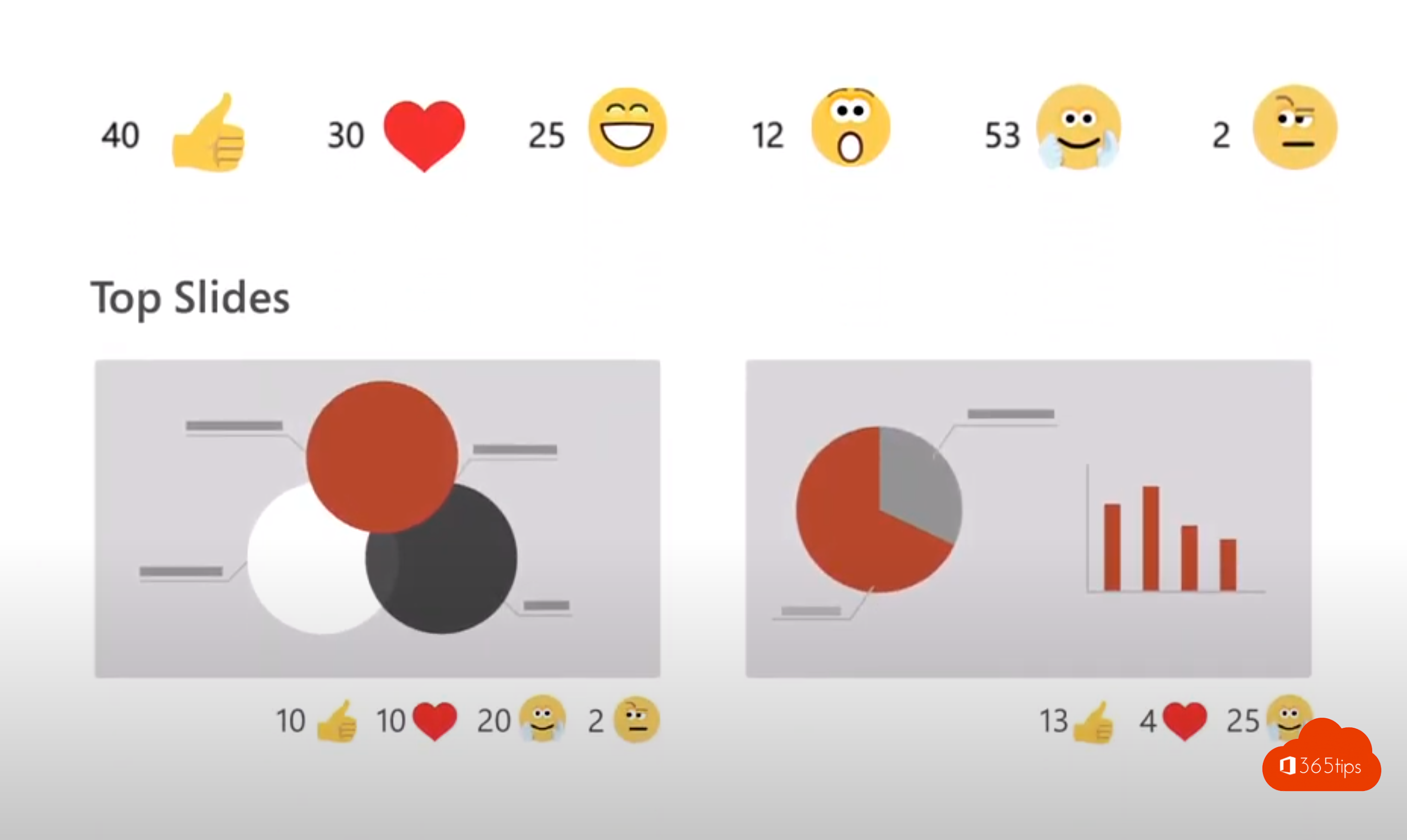
Present Live appeared on the Microsoft roadmap in 2020. Attendees could:
- join via a QR code or short link;
- follow live captions in their own language;
- go back to a previous slide themselves;
- send reactions during the presentation;
- give feedback on content and delivery afterwards.
Microsoft has removed Present Live from PowerPoint for the web. Use PowerPoint Live in a Teams meeting instead.
The alternative: PowerPoint Live in Teams
In a Teams meeting you share your presentation via Share and pick the PowerPoint file. That's PowerPoint Live. As the presenter you get your notes, upcoming slides and the chat on one screen. Your attendees can:
- browse the slides privately without you seeing it, unless you turn that off;
- turn on live captions. Translated captions in other languages usually need a Teams Premium license;
- send reactions, such as a thumbs-up or applause;
- follow the presentation in high contrast or with a screen reader.
Don't want attendees to skip ahead? Read how to prevent that.
How to present with PowerPoint Live
- Start or join a Teams meeting.
- Select Share in the meeting controls.
- Under PowerPoint Live, choose your presentation, or browse to the file in OneDrive or SharePoint.
- Use the arrows or the keyboard to move through the slides.
- Select Stop presenting when you're done.
Want to appear next to your slides? Use Cameo or a presenter mode in Teams.
Feedback and practice
The built-in feedback of Present Live is gone. Want to ask your audience something? Add a poll with Microsoft Forms in the meeting. Want to rehearse? Use Speaker Coach in PowerPoint. It gives you tips on pace, filler words and reading your slides aloud.
Also see present with PowerPoint Live in Teams and live translated captions in Teams.
Read also
Present a PowerPoint in Teams with PowerPoint Live
Prevent attendees from browsing your presentation in Teams
Put your camera feed in your slides with Cameo in PowerPoint and Teams
Nederlandstalige versie: Present Live in PowerPoint is verdwenen: gebruik PowerPoint Live