Is someone in your Teams meeting speaking English, French or German while you would rather read along in your own language? With live captions you see what is being said at the bottom of the screen, and with live translated captions you read it straight away in the language you choose. This article shows how to turn captions on, how to set the spoken language and the translation, which license you need and what to do when the option is missing.
Captions, translated captions and transcription
| Feature | What it does | License |
|---|---|---|
| Live captions | Text of what is said, in the spoken language, visible only to you | Included in Teams |
| Live translated captions | The same text, translated into a language you pick | Teams Premium (for the organizer) |
| Transcription | A full, saved record with names, available after the meeting | Included; translated transcripts with Teams Premium |
Captions are personal: when you turn them on, nothing changes for anyone else. A transcription is started for everyone, and participants are notified.
Turn on live captions
- In the meeting, select More (...) at the top.
- Choose Language and speech > Turn on live captions.
- Captions appear at the bottom of the meeting window, with the speaker's name.
Turn them off the same way. On mobile, tap ... > Turn on live captions.
Set the spoken language
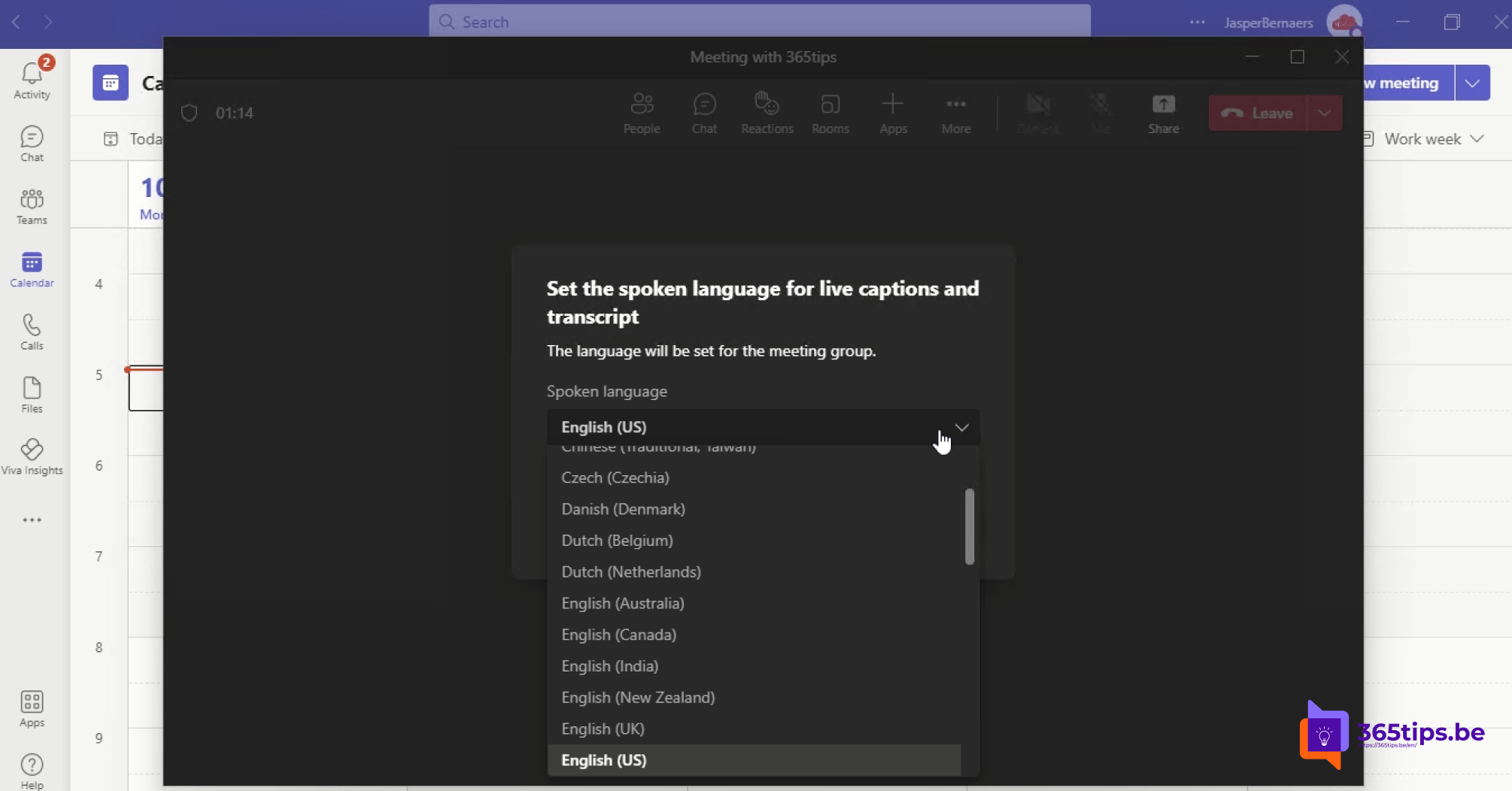
Teams needs to know which language is being spoken, otherwise the captions are nonsense. Next to the captions, select the gear icon (Captions settings) > Language settings > Spoken language. Note that this changes the spoken language for everyone in the meeting. Use the language most people speak, and change it when someone takes over in another language.
Translate the captions
- Open Captions settings > Language settings again.
- Turn on Translate to and choose your language.
- Select Update. From then on you read the translation instead of the original text.
Every participant picks their own translation language. If Translate to is missing, the meeting organizer has no Teams Premium license or the feature is turned off in the meeting policy.

For admins: why the option is missing
- In the Teams admin center > Meetings > Meeting policies, the captions setting decides whether users can turn them on.
- Translated captions and translated transcripts need a Teams Premium license for the organizer.
- Meetings with a watermark or strict sensitivity labels can restrict captions or transcription.
Let Teams recognize you in captions
Teams shows who is speaking on every line. In a meeting room with a single microphone that only works if Teams knows your voice. Go to Settings > Recognition (or Privacy, depending on your version) and turn on Automatically identify me in meeting captions and transcripts. If you don't want your name to appear, turn it off.
Tips for better captions
- Use a headset or a good microphone; background noise costs the most accuracy.
- Let one person speak at a time.
- Jargon, product names and abbreviations go wrong more often. Read translations with a pinch of salt.
- Want to read everything back later? Start a transcription instead of relying on captions alone.
Read also
Use a watermark in Microsoft Teams meetings
Track attendance with the Microsoft Teams attendance report
How to record and transcribe a Teams meeting automatically from the start
Nederlandstalige versie: Live vertaalde bijschriften gebruiken in Microsoft Teams-vergaderingen