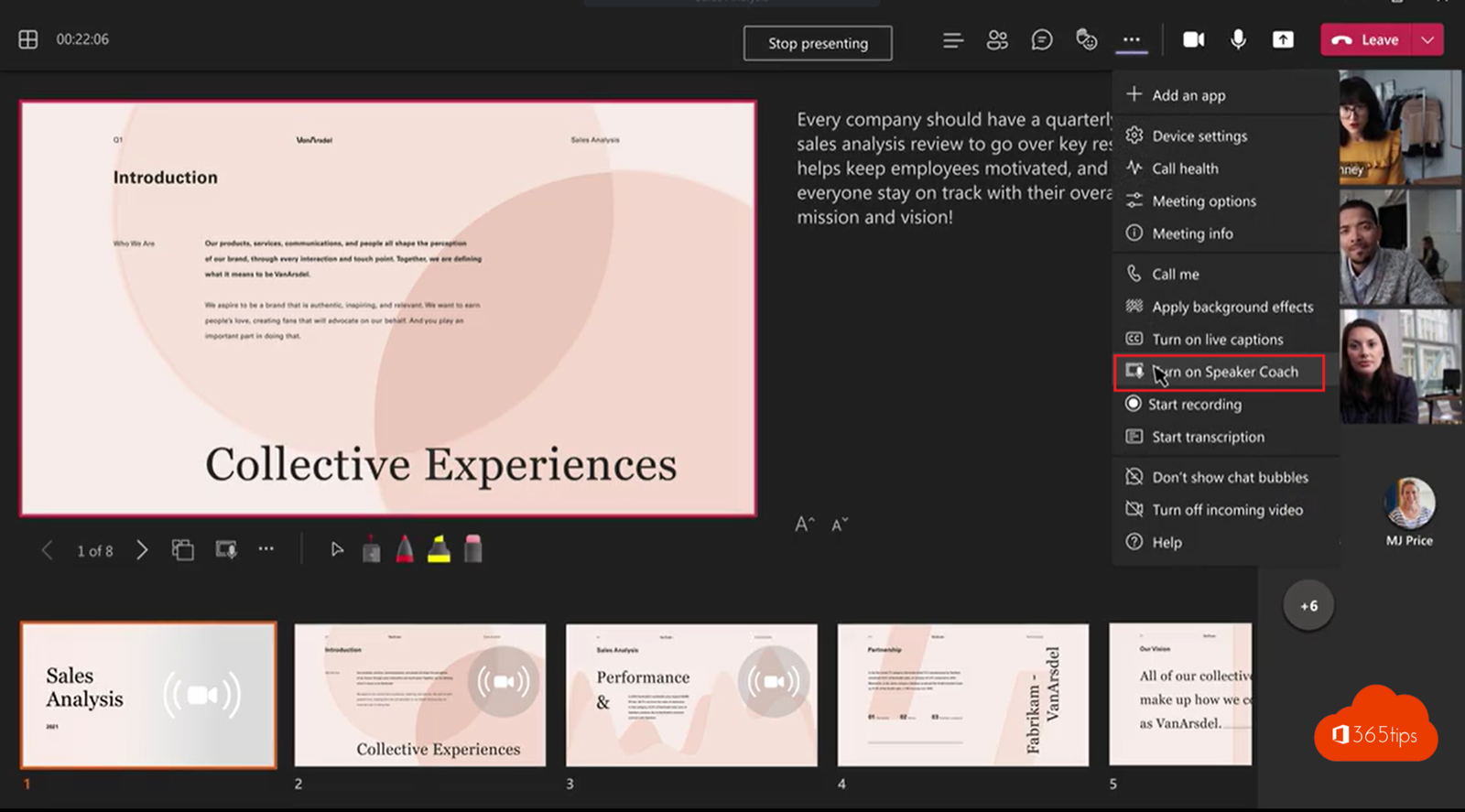
Want to present better? With Speaker Coach in PowerPoint you rehearse your presentation and get feedback on your pace, filler words and pitch. Microsoft Teams meetings also have a speaker coach that gives you private tips while you talk.
The former Presenter Coach is now called Speaker Coach. In PowerPoint it works in the web version and the Microsoft 365 desktop app. Speaker coach in Teams meetings isn't available in every version or organization, and your admin can turn it off.
Speaker Coach in PowerPoint
- Open your presentation in PowerPoint for the web or PowerPoint for Microsoft 365.
- On the Slide Show tab, select Rehearse with Coach (the exact name can differ by version).
- Select Start rehearsing and present as you would to an audience. Your microphone must be on.
- While you rehearse, short tips appear on screen, for example when you speak too fast.
- At the end you get a rehearsal report.
What's in the report?
- Pace: your speaking rate in words per minute.
- Filler words: how often you say "um", "so" or "basically".
- Pitch: whether you sound monotone.
- Reading the slides: whether you read your slide text word for word.
- Language: tips on sensitive or less inclusive phrases.
Not every check works in every language. Most features are available in English; other languages may have fewer.
Speaker coach in Teams meetings
In Teams, the speaker coach can help you privately during a meeting. Only you see the tips. It tells you, for example, when you're speaking very fast, talking for a long time or interrupting someone. After the meeting you can sometimes see a summary.
- Start or join a Teams meeting.
- Select More (...) and look for Speaker Coach, for example under Language and speech.
- Turn on speaker coach. You can turn it off again at any time.
Don't see the option? Then the feature may not be available for your license or Teams version, or your admin has turned it off in the meeting policy.
Also see present with PowerPoint Live in Teams and Cameo in PowerPoint Live.
Read also
Present a PowerPoint in Teams with PowerPoint Live
Put your camera feed in your slides with Cameo in PowerPoint and Teams
Make a screen recording with PowerPoint
Nederlandstalige versie: Beter presenteren met Spreekcoach in PowerPoint en Teams