A satisfaction survey, event registration or a quiz for your class: with Microsoft Forms you build a form in minutes, share it with a link or QR code and see results instantly in charts or Excel. This article shows how.
Create a form
- Go to forms.office.com and sign in with your work or school account.
- Select New Form or New Quiz. You can also pick a template or let Copilot draft a first version.
- Enter a title and short description.
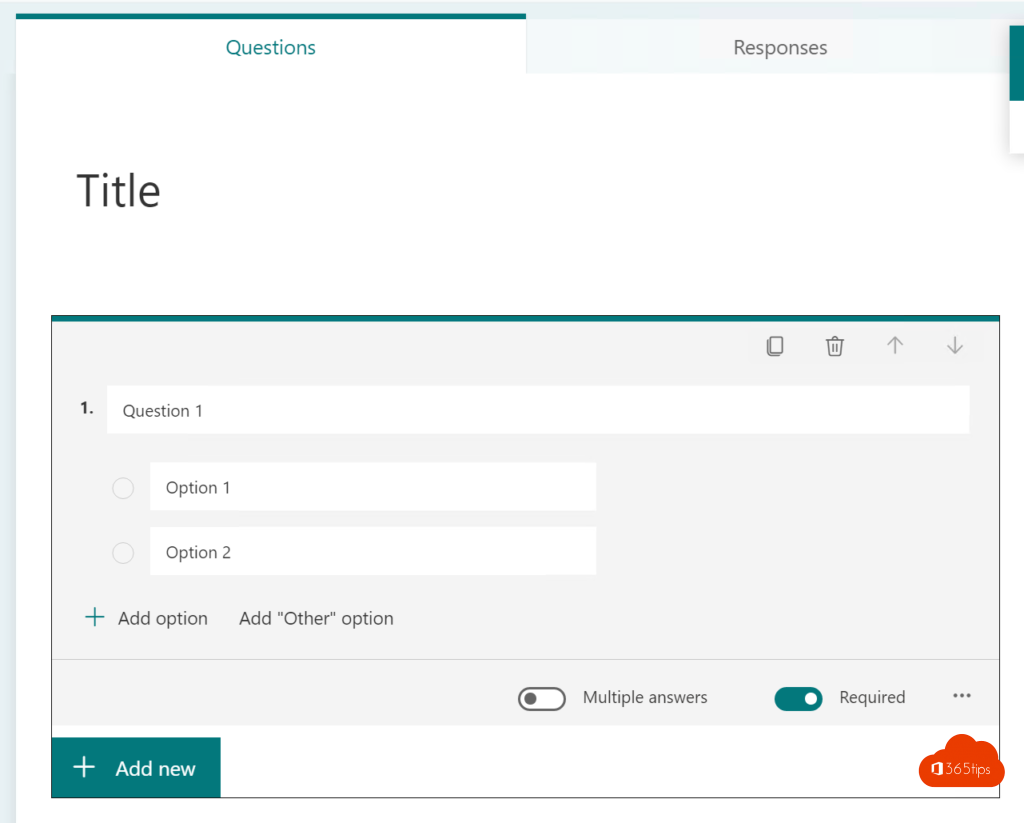
- Select Add new and choose the question type: choice, text, rating, date, ranking, Likert, Net Promoter Score or file upload.
- Make questions required where needed.

Branching
Want to show different questions depending on the answer? On a question, select the three dots > Add branching and choose for each answer which question or section to jump to.
Settings
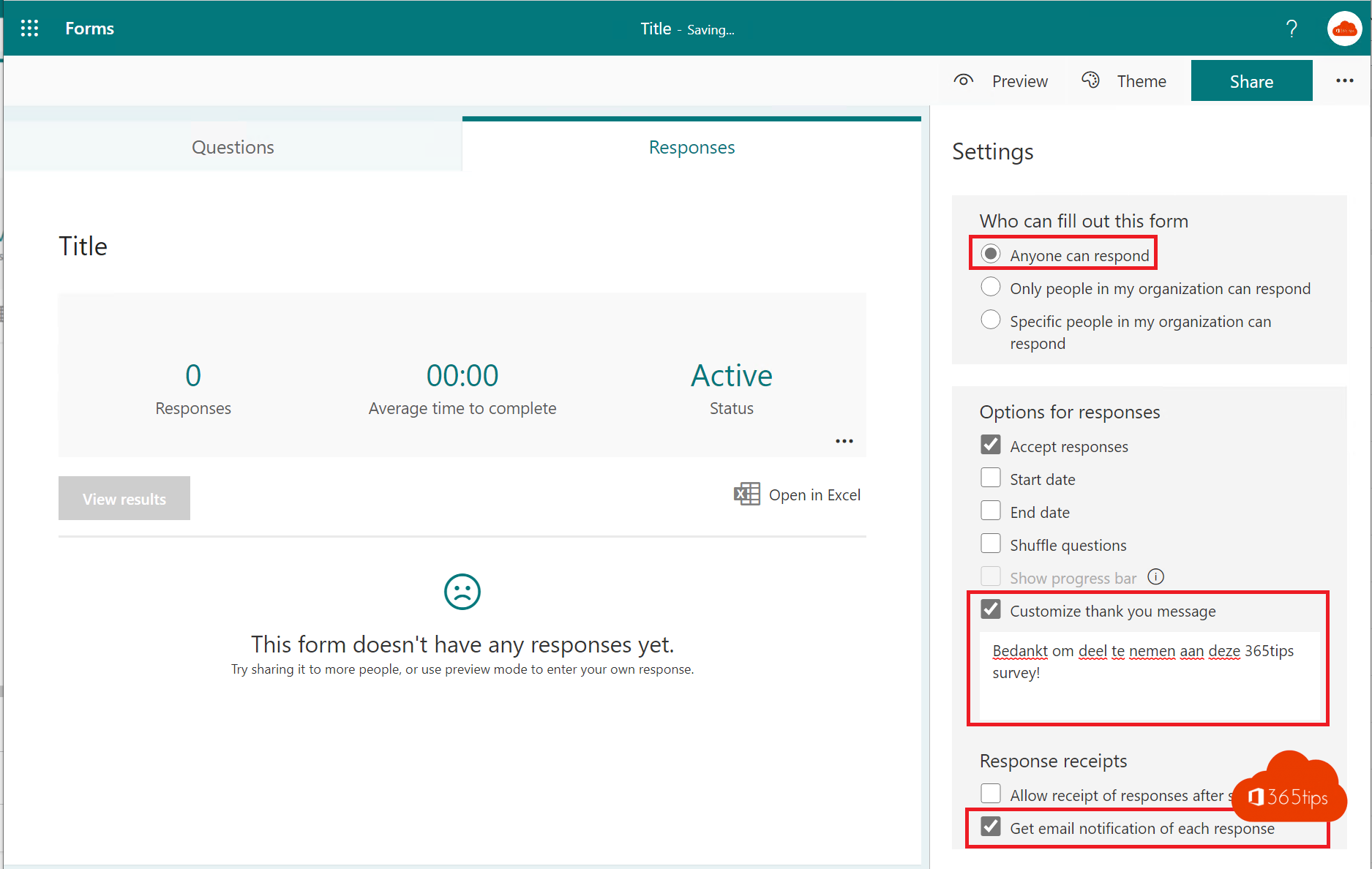
Select the three dots at the top right > Settings:
- Who can respond: only people in your organisation, or anyone.
- One response per person and record name (inside your organisation only).
- Start and end date, and a message after submitting.
- Email notification for each response.
Share
Select Collect responses and copy the link, create a QR code or embed the form on a web page. In Teams, add it as a tab or use it for a poll.
Results
The Responses tab shows charts per question. Select Open in Excel for every response in a workbook. For a form in a group or team, that workbook stays up to date automatically.
Tips
- Only ask what you need, especially for personal data (GDPR).
- Let a colleague co-author: Share to collaborate.
- Process responses automatically with Power Automate.
Read also
Create polls in Microsoft Teams with Polls and Microsoft Forms
What is Microsoft Power Automate and how do you start?
Set up Microsoft Bookings so others can schedule appointments themselves
Nederlandstalige versie: Een formulier of quiz maken en delen met Microsoft Forms