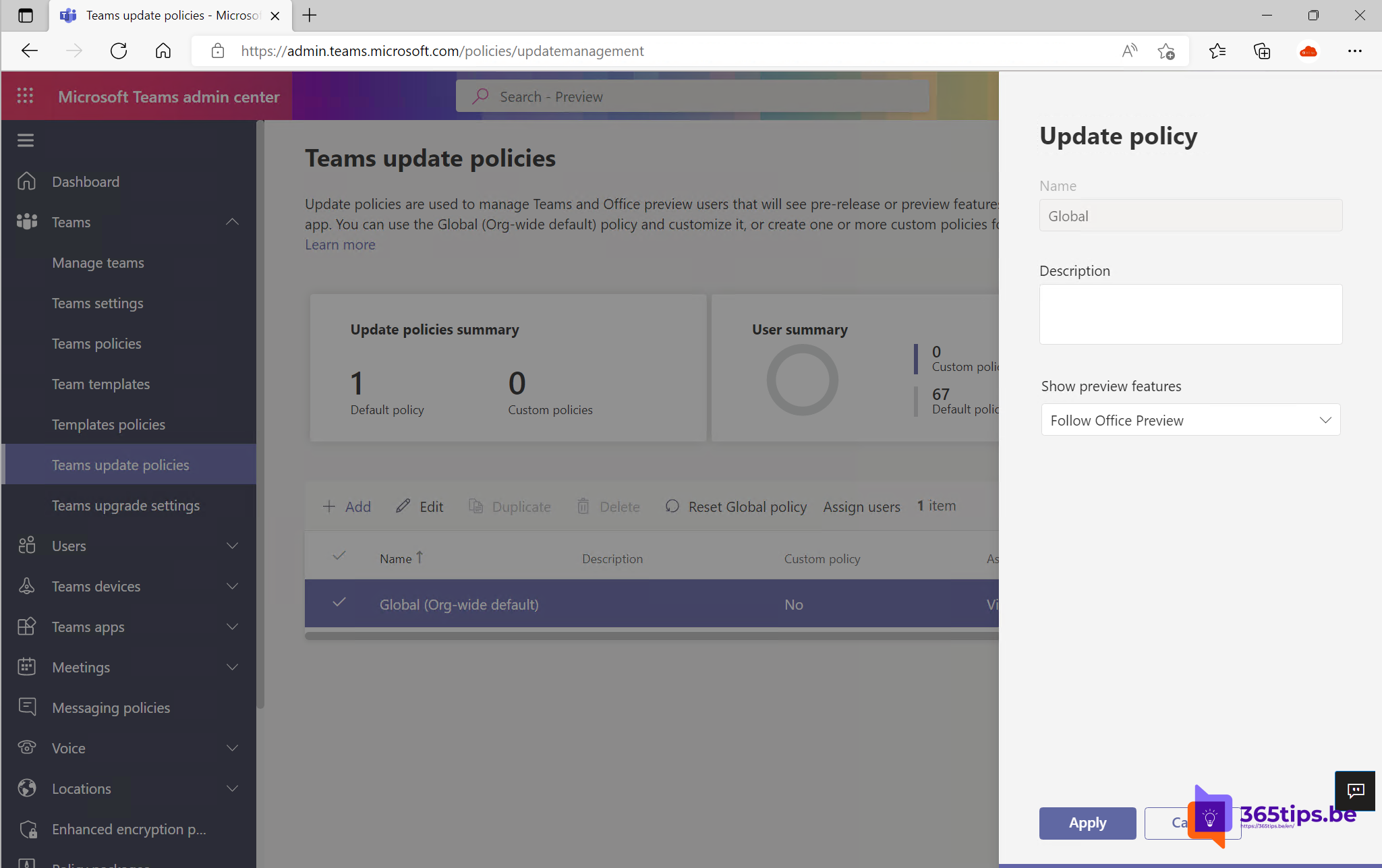
With Cameo you put your camera feed straight into your PowerPoint slides. When you present in Teams, you appear next to your chart or in a frame in the corner, instead of in a small separate window. That makes an online presentation much more personal, and you decide per slide where and how big you appear. This article shows how to add Cameo, how to present with it in Teams and what to do when your feed doesn't appear.
What is Cameo?
Cameo is a placeholder for your camera that you place on a slide, just like an image or a shape. While presenting, PowerPoint fills that frame with your live camera feed. Your video becomes part of the slide design: round, square, with a border or shadow, large on the title slide and small in the corner next to a table.
Cameo works in three places: in a regular slide show on your computer, in a recording in PowerPoint and with PowerPoint Live in Teams.
Add Cameo in PowerPoint
- Open your presentation in PowerPoint for Windows, Mac or the web.
- Go to Insert > Cameo. A frame for your camera appears. Click the camera icon in the frame to see a preview while editing.
- Move and resize the frame. Give it a shape, border or shadow on the Camera Format tab that appears when you select the frame (the name can differ slightly per version).
- Repeat on the slides where you want to appear, or copy the frame to other slides.

Want to appear in the same spot on every slide? Put the frame in a layout of the slide master. That way you don't have to place it on each slide separately and your presentation stays consistent.
Present in Teams
- Save the presentation in OneDrive or SharePoint.
- In the Teams meeting, select Share and pick the presentation under PowerPoint Live.
- Turn on your camera. Your feed appears in the Cameo frame on each slide.

More about presenting with PowerPoint Live, such as your notes and the slide overviews, is in PowerPoint Live. If you share your whole screen instead, attendees only see what's on your screen, with less sharp text and without the extra options of PowerPoint Live.
In the past you could also use Present Live from PowerPoint for the web to present to an audience with captions and reactions. Microsoft has retired that feature, as explained in Present Live in PowerPoint is gone; PowerPoint Live in Teams is now the place to present with Cameo to an online audience.
Cameo or presenter mode?
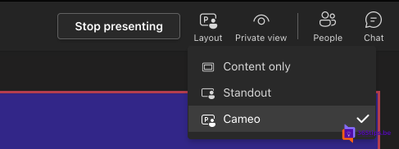
Teams also has its own presenter modes in Teams, such as Standout, where Teams automatically places your video over or next to the content. The difference: with Cameo you decide the position and shape per slide, with a presenter mode Teams does it the same way for all content. Cameo is therefore better for a polished presentation, while a presenter mode is quicker when you want to show something without preparation.
Tips
- A round frame in the corner works well on slides with lots of content.
- Use a bigger frame on the first and last slide for a personal opening and close.
- On slides without a Cameo frame, Teams shows your camera in the usual place.
- Leave enough space around the frame, so your head doesn't cover text or a chart.
- Look into the camera while presenting, not at your own video. That way you make eye contact with your audience.
- Want to stop attendees from skipping ahead and seeing your Cameo slides early? Read prevent attendees from browsing your presentation.
Cameo in a recording
When you use Record in PowerPoint, your camera feed also appears in the Cameo frame. That way you make a video of your presentation with yourself neatly in the slides, handy for training people watch later.
Common problems
- The frame stays empty. Check that your camera is on in Teams and that no other app is using the camera.
- I don't see Cameo in the menu. Update PowerPoint. Cameo is part of the Microsoft 365 subscription version and is not in older standalone versions of Office, such as Office 2019.
- The presentation isn't listed under PowerPoint Live. Save it in OneDrive or SharePoint, or browse to it from the share option.
- My video is dark or blurry. Check your camera settings in Teams before you start sharing and make sure the light comes from the front.
Nederlandstalige versie: Je camerabeeld in je dia's met Cameo in PowerPoint en Teams