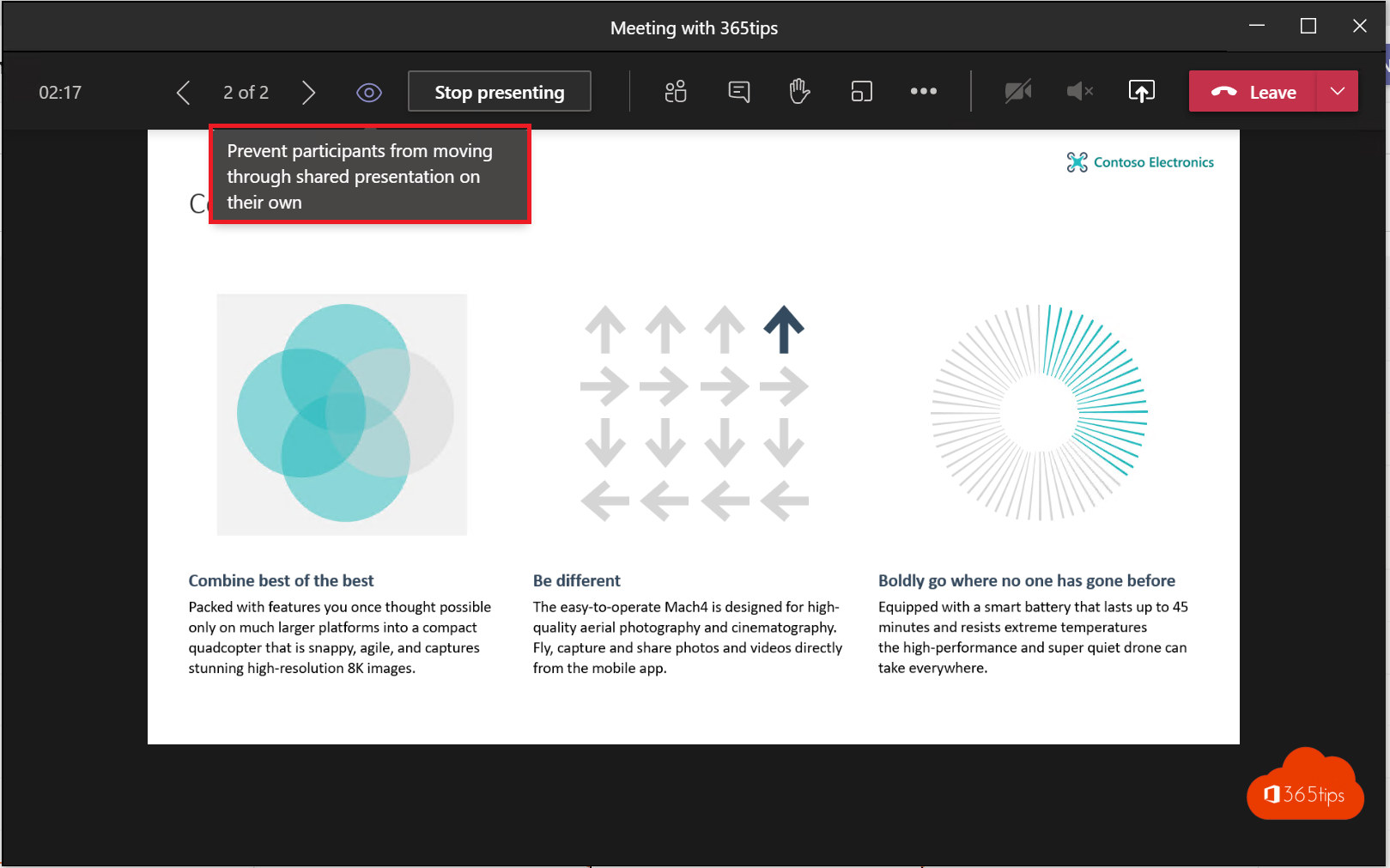
You're presenting with PowerPoint Live in Teams, and suddenly attendees are already reading the final slide with the conclusion. By default attendees can browse through your presentation on their own. That's handy for someone who wants to look back, but not when you have a surprise. Here's how to turn it off.
Turn off private viewing
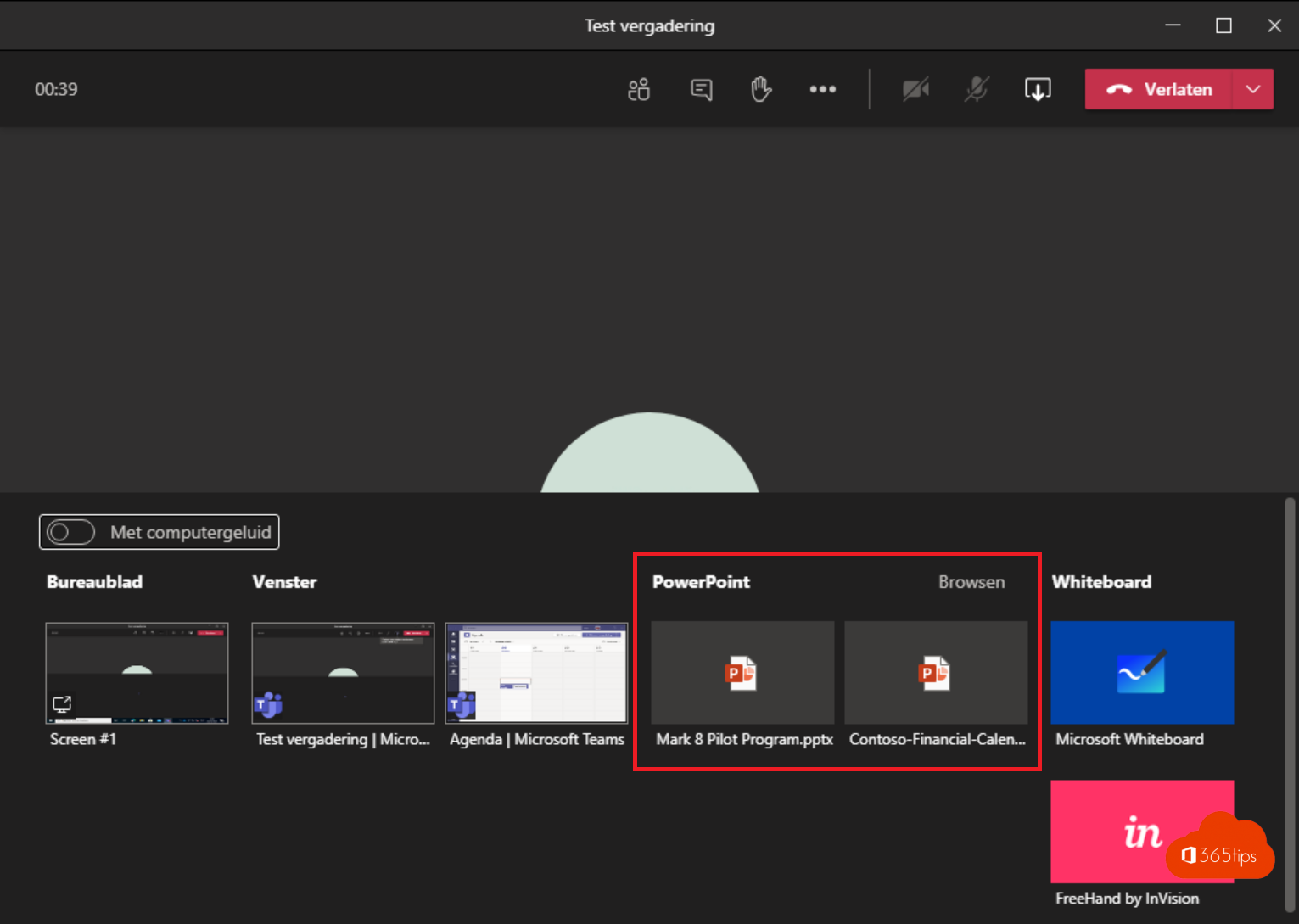
- Start your presentation with Share > PowerPoint Live.
- At the top of the presentation window, select the eye icon (Private viewing).
- The icon gets a line through it. Attendees now only see the slide you're showing.

What do attendees see?
With private viewing on, attendees can browse slides with the arrows and return to your slide with Sync to presenter. With it off, those arrows disappear.

Other ways
If you share your screen or window instead of PowerPoint Live, attendees can never browse on their own. But you lose the benefits of PowerPoint Live. Read present a PowerPoint in Teams with PowerPoint Live and presenter modes in Teams.
Read also
Present a PowerPoint in Teams with PowerPoint Live
Use presenter mode (Standout, Side-by-side, Reporter) in Microsoft Teams
Meeting roles in Microsoft Teams: organizer, presenter and attendee
Nederlandstalige versie: Voorkomen dat deelnemers door je presentatie bladeren in Teams